
Building parts
Units and Typing Math
The True Robotics Design Playground works in inches or centimeters. New projects start in inches, and you can switch anytime from the units button in the purple bar. Your part keeps its exact size, because units only change how sizes are shown and typed. Every size box understands math and units, so 1/4, 1 1/2, 25 mm and 3*4 all work, and has up and down arrows.
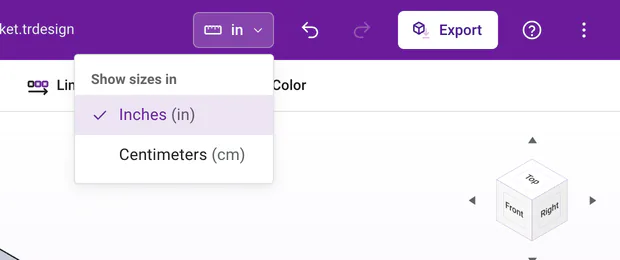
How do I change units?#
Click the units button in the purple bar (it shows in or cm). Under Show sizes in, pick Inches or Centimeters. Every dimension label, number box and open panel switches right away. You can also change units in Settings from the three dots menu, and a units change can be undone like any other. On a phone, the units are right in the three dots menu.
New projects start in Inches. For centimeters, pick Centimeters from the units button right after you start. A project saved in millimeters with an older version of the app still opens exactly as it was, and the units button shows mm until you pick Inches or Centimeters.
In a Basic project, the snap grid follows your units too: inch projects snap to fractions like 1/8 in, centimeter projects to millimeters like 2 mm. If your grid step is not one of the new unit's choices, switching units sets the grid to that unit's usual step, and one undo puts both back.
Good to know: Your part never changes size
Switching units only changes how sizes are shown and what a plain number means when you type it. A 1 inch block is still exactly 2.54 cm after you switch, and switching back shows 1 in again.
What can I type into a size field?#
Every place you type a size, like a dimension, a typed rectangle, a sketch tool's size box, the extrude Depth, a plane Distance, a pattern Spacing, or a Basic shape's size label and settings panel, reads math and units. A plain number uses your project's units. Here is what each example means in an inch project, shown the way the app shows it:
| You type | You get |
|---|---|
2.5 | 2.50 in |
.5 | 0.50 in |
1/4 | 0.25 in |
1 1/2 | 1.50 in |
2 + 3/8 | 2.375 in |
25 mm | 0.984 in |
2.54 cm | 1.00 in |
1 ft 6 in | 18.00 in |
3*4 or 3x4 | 12.00 in |
(10 + 2) / 4 | 3.00 in |
Tip: Millimeters still work
The units menu offers inches and centimeters, but you can always type millimeters, like 25 mm or 3.4 mm. That is handy for metric screws, which are sized in millimeters.
The units it knows are mm, cm, m, in, ft and their long names (millimeters, centimeters, meters, inches, feet), plus " for inches and ' for feet. Upper and lower case both work.
How does the depth box show my math?#
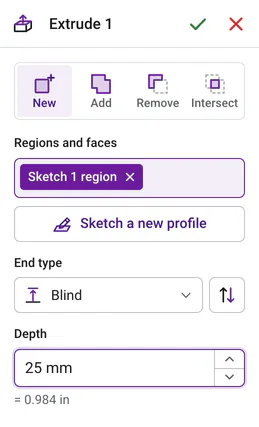
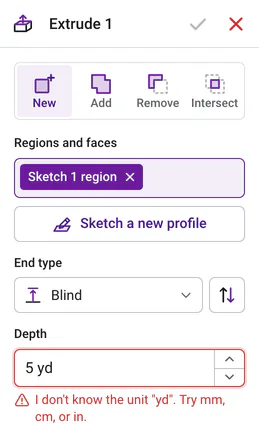
When you type math or another unit into the extrude Depth, a small line under the box shows the result in your project's units, like = 0.984 in for 25 mm. If the text does not make sense yet, the line turns red and says why. The plane Distance and the pattern Spacing boxes do the same.
How do the up and down arrows work?#
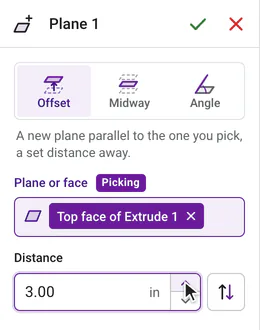
Every number box has two small arrows on its right side: the extrude Depth, the plane Distance and Angle, a sketch tool's size boxes, a dimension you are editing, a pattern's Count, Spacing and Angle, and a Basic shape's sizes. The preview updates on every step, so you can watch your part change.
| Do this | It steps by |
|---|---|
| Click an arrow, or press Up or Down while typing in the box | 1 in your units (1 in, or 1 cm), 1 degree for an angle, or 1 for a count. A fillet's Radius and a chamfer's Distance step 0.1 in (or 0.1 cm). |
| Hold Shift while you click or press the key | 10 (1 for a fillet or chamfer size) |
| Hold Alt while you click or press the key | A tenth, like 0.1 in (0.01 for a fillet or chamfer size) |
| Hold the arrow down | It keeps stepping, faster and faster, until you let go |
The arrows read whatever is in the box first, math included, so 1/4 stepped up becomes 1.25. A size that must stay above zero, like a depth, never steps down to zero, and a count never drops below 2.
On a touch screen, like an iPad or a touch Chromebook, the two arrows sit side by side after the box, down first and then up, and each one is big enough for a fingertip. On a phone each size gets its own row, so the arrows never crowd each other.
How do I type angles?#
Angle dimensions read degrees: 45, 45°, 45 deg and 45 degrees all mean the same thing. Radians work too, like 0.5 rad, and so does math, like 360/6 or 30° + 15.
Why did 1-1/2 in give a strange size?#
The app reads the dash as a minus sign, so 1-1/2 in means one minus one half. For one and a half inches, type 1 1/2 in with a space, or 1.5 in.
What do the error messages mean?#
| Message | What to try |
|---|---|
| Enter a number like 2.5 or 1/4 in. | The box is empty or the text is not a number. |
| I don't know the unit "yd". Try mm, cm, or in. | Use one of the units listed above. |
| That math doesn't work out to a length. | Lengths cannot be multiplied together, like 2 in * 3 in. Multiply by a plain number instead. |
| Each number can have only one unit. | Give each number one unit, like 2 cm, not 2 cm mm. |
| Check your parentheses. One of them is missing its partner. | Every ( needs a ). |
| You can't divide by zero. | Check what comes after the /. |
| Use a size greater than zero. | Sizes must be positive. |
How many decimals do sizes show?#
Every number in the app shows 2 decimals, or 3 when the third one matters, and never more than 3. So 1 inch shows as 1.00 in, 2 1/2 as 2.50 in, 1/8 as 0.125 in and 1/16 as 0.063 in. That goes for dimension labels, number boxes, the sketch tool panel, Basic sizes and the Export window alike. The exact value is always kept, and when you double-click a dimension you typed, the box shows exactly what you typed, like 1/16.
What units do STL files use?#
Always millimeters, whatever units you design in, because that is what 3D printer slicers expect. A 1 inch cube arrives in your slicer as 25.4 mm on each side, which is exactly 1 inch, so your part comes out at the right size every time. See Export STL and STEP.
Typing math right into a box is a great way to connect CAD to your math class. Let the app do the arithmetic!
Questions and answers#
Can I use inches and centimeters in the same project?
Yes. Pick one set of units for the project, and type any other unit right into a field, like 2.5 cm or 25 mm in an inch project. The True Robotics Design Playground converts it for you.
Does changing units change the size of my part?
No. Units only change how sizes are shown and what a plain number means. Your part stays exactly the same size.
Why do sizes show 1.00 instead of 1?
Every number shows 2 decimals, or 3 when the third one matters, like 0.125, so sizes line up and are easy to read. The exact size you typed is always kept.
Where did millimeters go?
New projects use inches or centimeters, but millimeters still work everywhere you type a size, like 25 mm. Projects saved in millimeters with an older version still open and keep showing mm until you pick Inches or Centimeters, and STL files are always in millimeters.