
Sketching
Sketch Linear Pattern Tool
The Linear pattern tool in the True Robotics Design Playground repeats sketch geometry in a straight row, or in a grid with rows. Press W, click what to repeat, press Enter, and set the Count and Spacing in the tool panel. Click a line or an axis to change the direction, then press Enter to make the copies. They stay tied to the original.
- Linear patternShortcut: WCopies in a row or a grid, like a line of mounting holes or a grid of vent slots.
How do I make a row of holes?#
Draw the first one In a sketch, draw the thing you want to repeat, like a 1/4 inch hole near the left end of a plate.
Pick the Linear pattern tool Press W or click Linear pattern in the sketch toolbar, right after Mirror.
Pick what to repeat Click the circle (or any lines, arcs and points), then press Enter or click Next: place the copies in the tool panel. Copies appear right away in a row to the right.
Set the count and spacing In the tool panel, click Count and type how many you want in all, the first one included, then press Enter. Type the distance between them in Spacing the same way. The preview updates as you go.
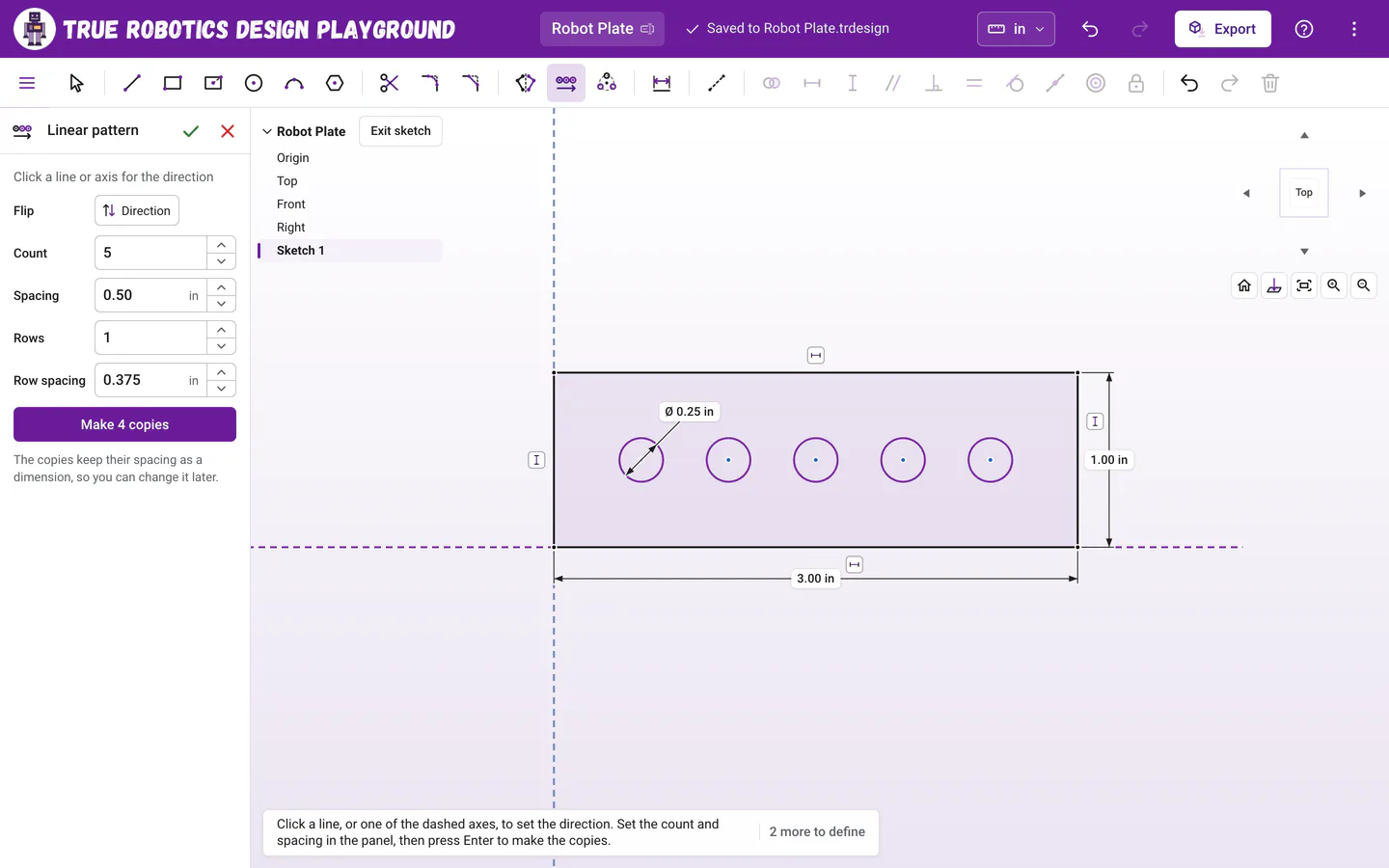
Count includes the first one, and Spacing is the distance from one copy to the next. Choose the direction To run the row another way, click a line in your sketch or one of the dashed axes through the origin. Click Direction under Flip to send the copies the other way.
Make the copies Press Enter or click the button in the tool panel, like Make 3 copies.
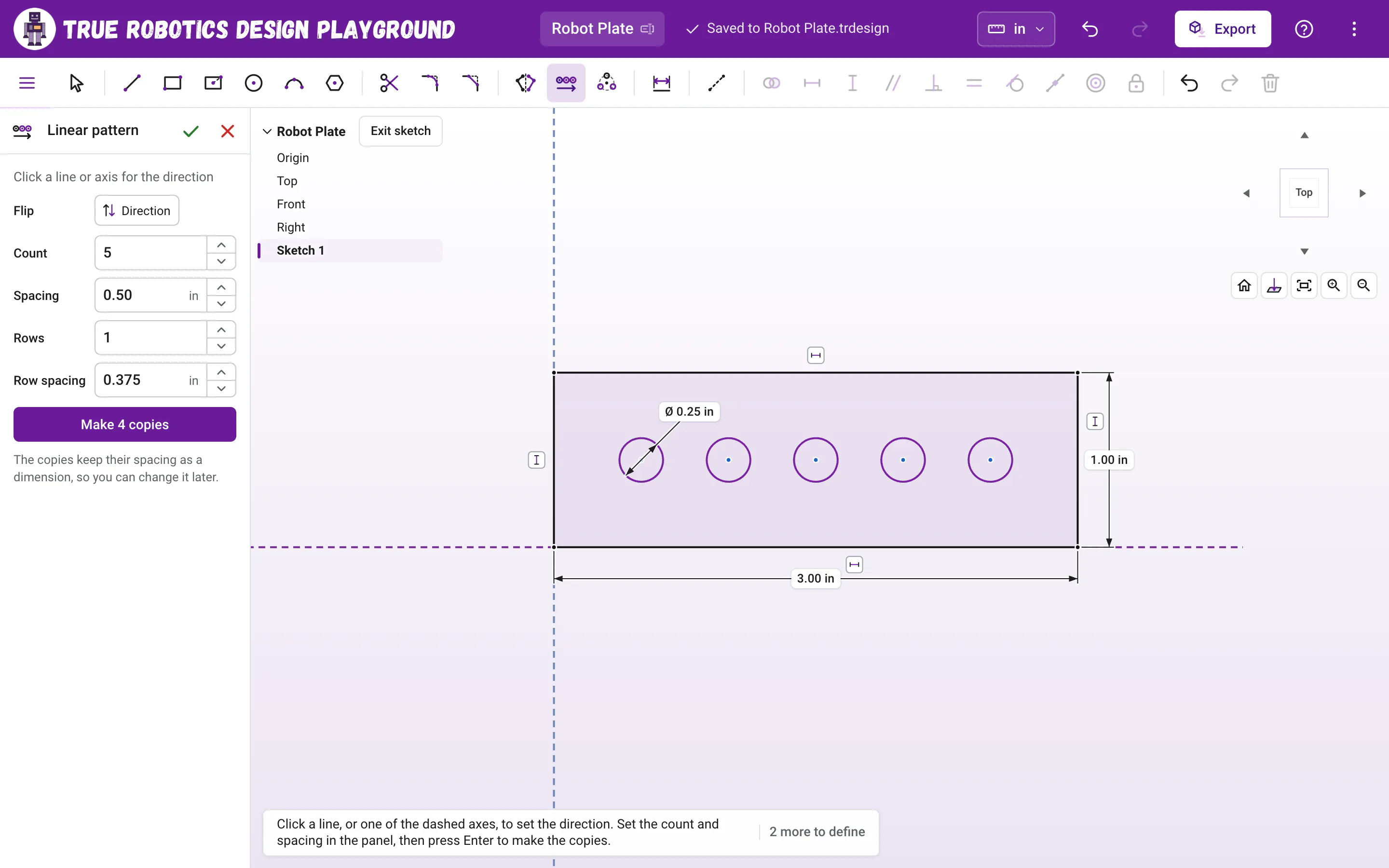
What are the boxes in the tool panel?#
| Box | What it sets |
|---|---|
| Count | How many in each row, the original included, from 2 to 100. It starts at 3. |
| Spacing | The distance from one copy to the next along the direction. It starts a little more than the size of what you picked, so copies never overlap. |
| Rows | How many rows, from 1 to 50. More than 1 makes a grid. |
| Row spacing | The distance between rows, square to the direction. |
| Flip | Direction sends the copies the other way. Rows sends the extra rows to the other side. |
Every box takes math and units, like 3/8 or 1 cm, and the up and down arrows step the number. One pattern can make up to 200 copies.
How do I make a grid?#
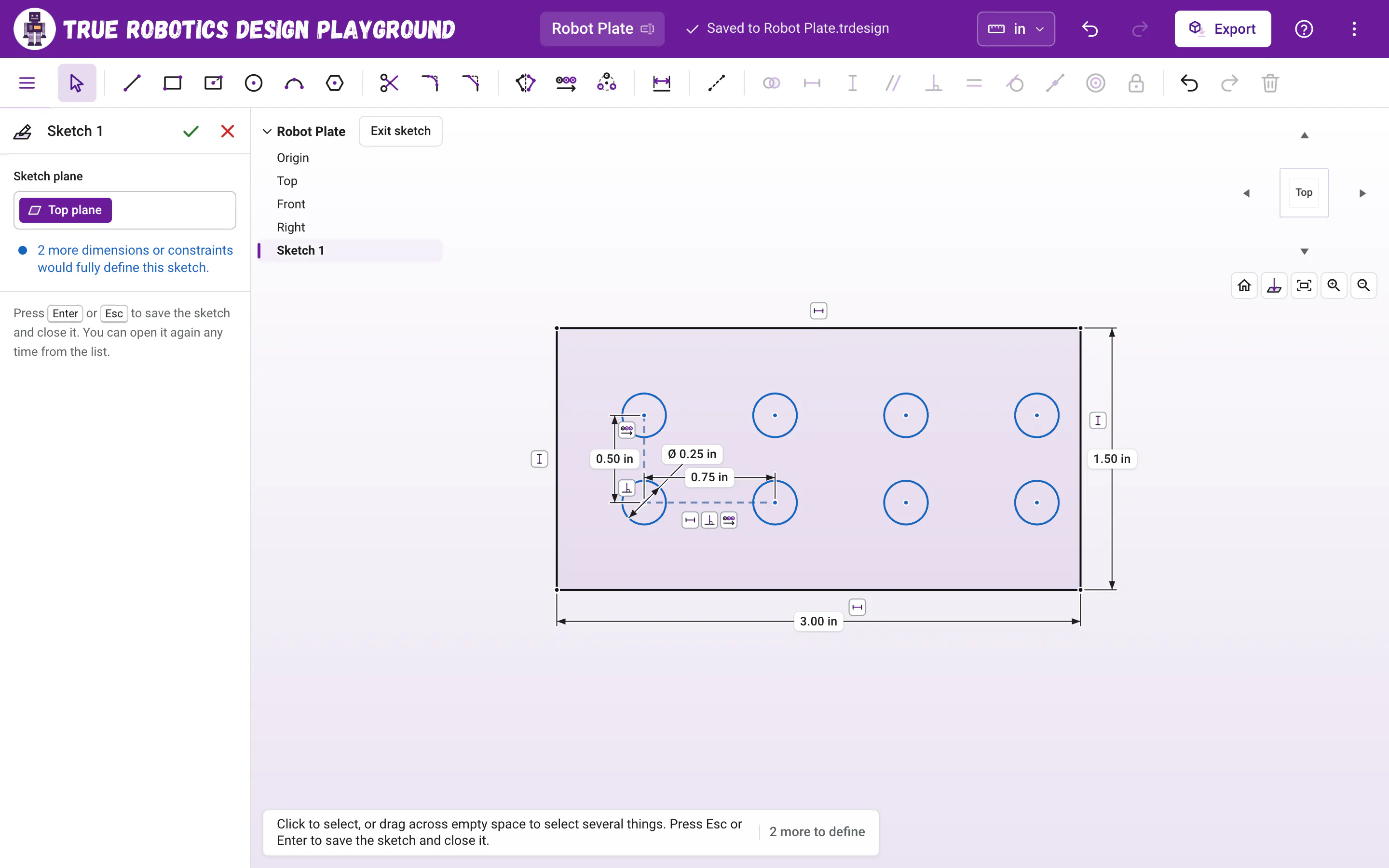
Type a number bigger than 1 in Rows, and the Row spacing box sets how far apart the rows are. A count of 4 with 2 rows gives a grid of 8, perfect for the holes of a battery holder or a vent.
How do I change a pattern after I make it?#
- While the tool is still on, type a new number in any box and press Enter. It changes the pattern you just made, as one undo step.
- The spacing lives on a short dashed construction line as a dimension. Later, double-click its label with the Select tool to change it.
- Copies stay tied to the original, so dragging or resizing the original moves and resizes every copy.
Good to know: In a sketch or on the part?
This tool repeats sketch geometry while you draw. To repeat features that are already built, like a hole you cut, use the Linear pattern feature (Shift+R) outside the sketch.
Tip: Select first, then pattern
Select the geometry before you press W, and it comes already picked, so the copies show right away. Press Esc once to let go of the picks and again to put the tool away.
On a touch screen, tap what to repeat, tap Next: place the copies, set the boxes, and tap Make 3 copies. Need copies around a circle instead? Try the Circular pattern tool.
Questions and answers#
Does the count include the original?
Yes. A Count of 4 means four in all: the original plus three copies. The button in the tool panel says how many new copies it will make, like Make 3 copies.
How do I pattern along a slanted line?
After you pick what to repeat and press Enter, click the slanted line in your sketch. The copies line up along it. Use a dashed construction line if you do not want that line in your part.
Can I change the spacing after the pattern is made?
Yes. While the tool is on, type a new Spacing and press Enter. Later, double-click the spacing dimension on its dashed construction line with the Select tool and type a new value.