
Sketching
Polygon Tool and Hexagons
The Polygon tool in the True Robotics Design Playground draws regular shapes with equal sides, and it starts as a hexagon. Press P, click the center, then click to place a corner or type a diameter. To change the number of sides, type a number before you click the center. To size a hexagon across its flats, dimension two opposite sides.
- PolygonShortcut: PHexagons for standoffs and nut pockets, and any regular shape from 3 to 64 sides.
Read what happens in this video
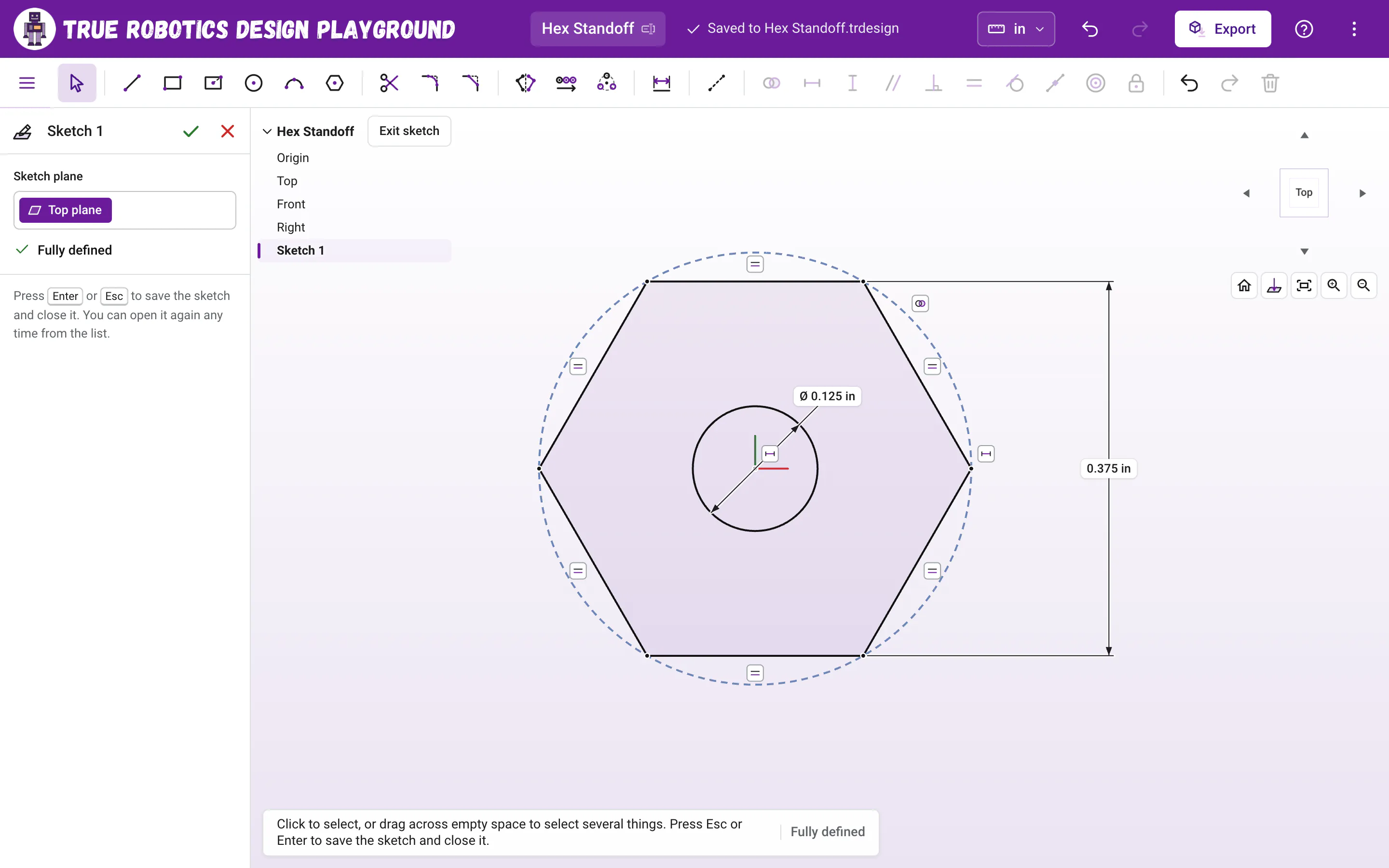
We press P for the Polygon tool, click the origin and place a level corner, which makes a hexagon with flat top and bottom. With the Dimension tool we click the top and bottom sides and type 3/8, so it measures 3/8 inch across the flats. A 1/8 inch circle at the center makes the hole, and the sketch turns fully defined. A 1/2 inch extrude finishes the standoff.
The steps in the video:
- Press P for the Polygon tool and click the origin.
- Move straight to the right and click to place a corner. You get a hexagon.
- Press Esc, then press F to zoom in on the hexagon.
- Press D for Dimension. Click the top side, then the bottom side.
- Click to place the label, type 3/8 and press Enter.
- Press C, click the origin, type 1/8 and press Enter to make the hole.
- Press Esc and F. The sketch is black now, so it is fully defined.
- Press Enter to finish. Press Shift + E, type 1/2 and press Enter.
- Click the Home button under the view cube, then press F to zoom to fit.
How do I draw a hexagon?#
In a sketch, press P or click the Polygon button. The tool panel on the left says Click to place the center (6 sides).
Click the center. The origin is a great choice.
Move the pointer straight to the right of the center until it snaps level, then click to place a corner. Your hexagon has flat sides on the top and bottom.
Or type a diameter and press Enter to place it at an exact size. While you move the pointer, the tool panel shows the live size, like 6 sides, 1.00 in across.
How do I change the number of sides?#
Before you click the center, type a number from 3 to 64. A Sides box appears; press Enter to set it, and the tool panel updates, like Click to place the center (8 sides). After the center is placed, numbers go into Diameter first, and Tab jumps to Sides. The tool remembers your number of sides for the rest of the sketch.
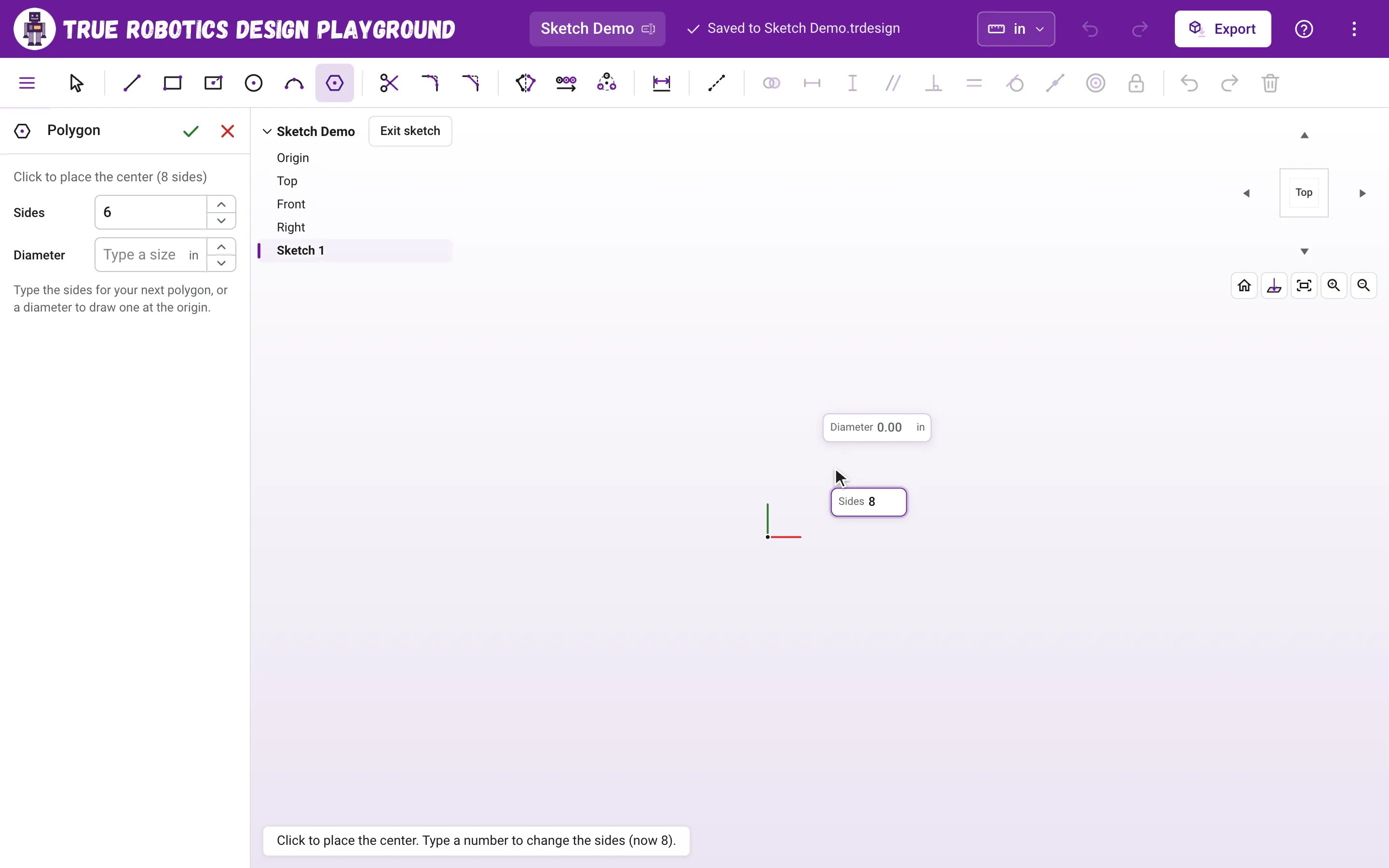
The tool panel has a Sides box and a Diameter box too, with up and down arrows. After you place a polygon, change its sides there and press Enter: the polygon rebuilds with the new number of sides on the same center and circle, so its dimensions stay.
Is the diameter across the corners or the flats?#
The diameter you type is measured across the corners. Every polygon is drawn with a dashed construction circle through its corners, and that circle is what the diameter sets. Hardware like hex standoffs and nuts is usually measured across the flats, the distance between two opposite sides. To set that, press D for the Dimension tool, click two opposite sides, place the label and type the size.
| Across the flats | Across the corners |
|---|---|
| 1/4 in | 0.289 in |
| 5/16 in | 0.361 in |
| 3/8 in | 0.433 in |
| 1/2 in | 0.577 in |
| 1 cm | 1.155 cm |
For a hexagon, the distance across the corners is the distance across the flats divided by 0.866. Let the Dimension tool do the math for you: dimension the flats and type the size you want.
How is a polygon built?#
A polygon is a set of lines with Equal constraints, so every side stays the same length, and every corner sits on the dashed construction circle around the center. That leaves four things free: where the center is (two), how big it is, and how far it is turned. Placing the first corner level with the center, or straight above it, also locks the turn. Click the center on the origin, snap that first corner, and add one dimension, and the polygon is fully defined.
Tip: Flat top or pointy top?
Snap the first corner straight to the right of the center for a hexagon with a flat top and bottom. Snap it straight above the center for a pointy top with flat sides.
Put your hexagon to work in the hex standoff tutorial. It only takes a few minutes!
Questions and answers#
Can the Polygon tool draw a square?
Yes. Type 4 before you click the center. A square placed with its first corner level with the center stands on its corner like a diamond. Hold Shift while you click the corner so it does not snap level, then select one side and press H to turn the square upright.
How many sides can a polygon have?
From 3 to 64. Six, a hexagon, is where the tool starts.