
Sketching
Trim Tool: Remove Pieces of a Sketch
The Trim tool in the True Robotics Design Playground removes pieces of lines, arcs, circles and splines back to where other geometry crosses them. Press K, point at a piece so it turns red, and click to remove it. Drag across several pieces to trim them all at once. Trimming two overlapping circles leaves one clean outline you can extrude.
- TrimShortcut: KCuts away the pieces you do not want, so overlapping shapes become one clean outline.
Read what happens in this video
We draw two pairs of overlapping 1 inch circles and press K for the Trim tool. Pointing at a piece inside the top overlap turns it red, and a click removes it. Trimming the other inside piece leaves one clean outline that fills light purple. On the bottom pair, one drag across the overlap trims both pieces at once, and a 1/4 inch extrude turns both outlines into parts.
The steps in the video:
- Press C for Circle. Click left of the origin, type 1 and press Enter.
- Click right of the origin so the circles overlap, type 1 and press Enter.
- Draw two more overlapping 1 inch circles below the first two.
- Press Esc to put the Circle tool away, then press F to zoom to fit.
- Press K for Trim. Point at a piece inside the top overlap. It turns red.
- Click to trim that piece away.
- Click the other piece inside the overlap. Now it is one outline.
- On the bottom pair, drag straight across the overlap to trim both pieces at once.
- Click the green check in the tool panel to go back to Select.
- Press Enter to finish. Press Shift + E, type 1/4 and press Enter.
- Click the Home button under the view cube, then press F to zoom to fit.
How do I trim a piece?#
Draw two overlapping circles In a sketch, press C, click left of the origin, type
1and press Enter. Click a little to the right so the second circle overlaps the first, type1and press Enter. Press Esc to put the Circle tool away.Pick the Trim tool Press K or click Trim in the sketch toolbar, the scissors right after the drawing tools. The tool panel on the left says Click a piece to trim it, or drag across several.
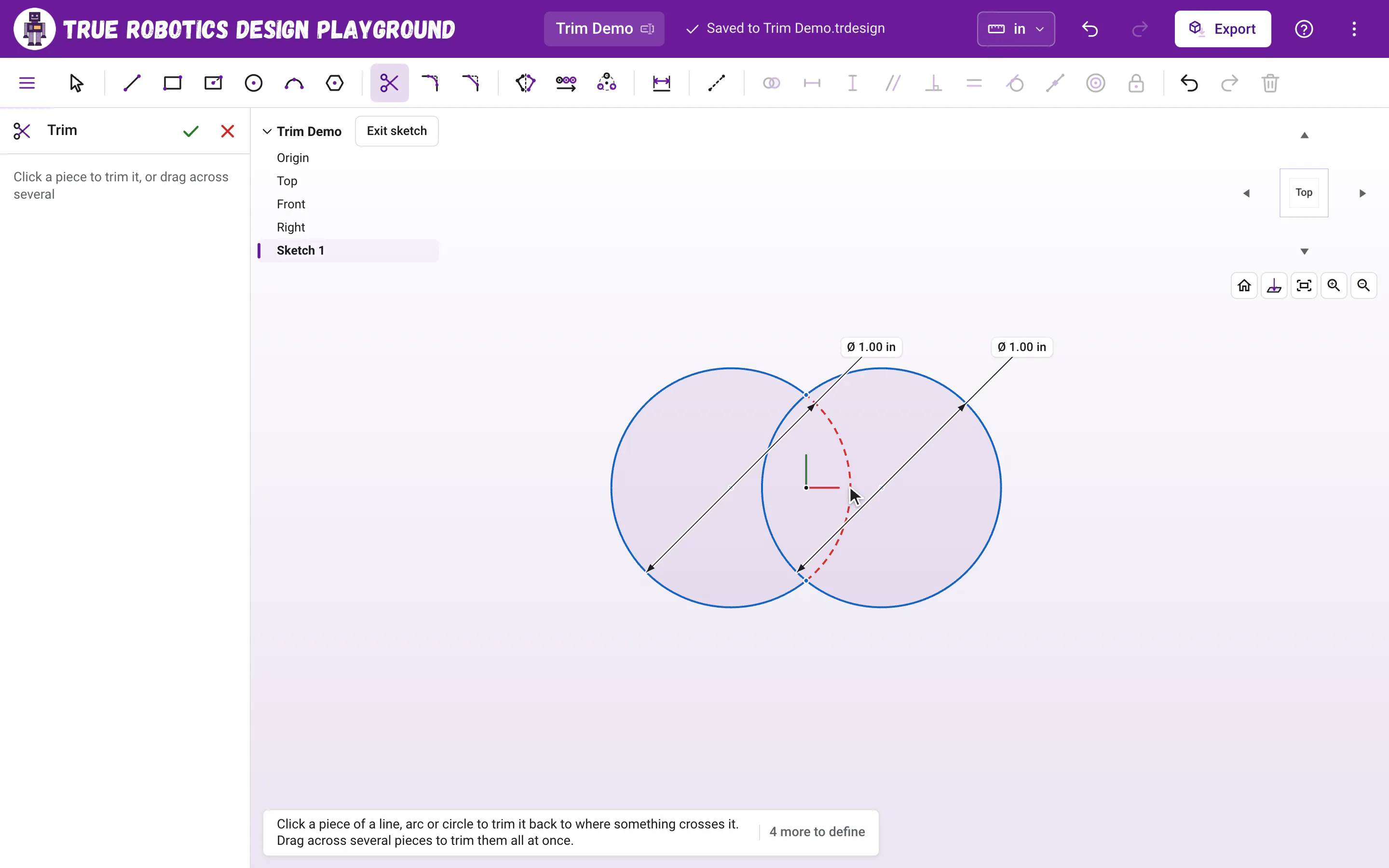
Point at a piece Move the pointer over the part of the left circle that sits inside the right circle. That piece turns red and dashed. It is exactly what a click will remove: the stretch between the two spots where the circles cross.
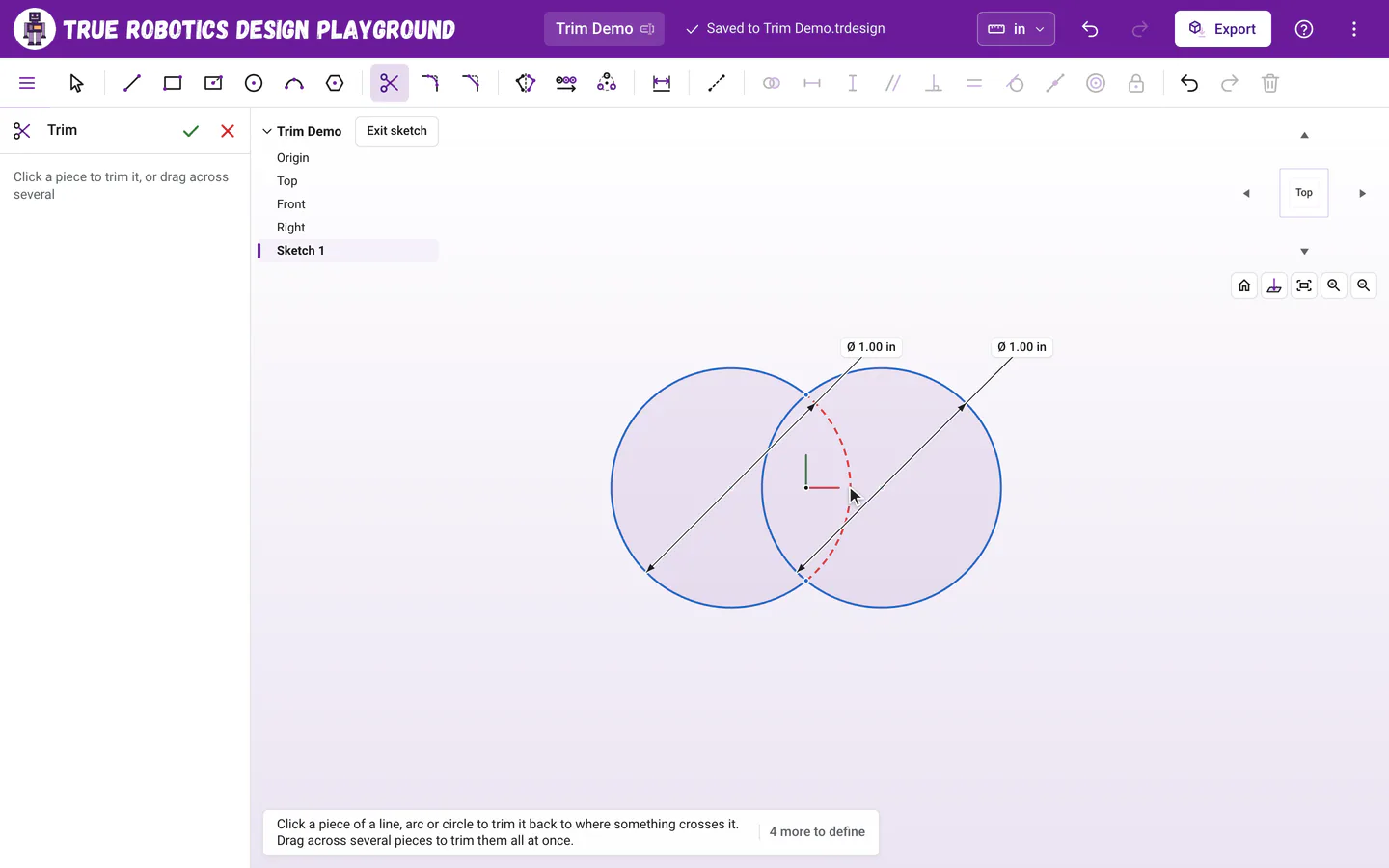
Point at a piece to see exactly what a click will trim, shown red and dashed. Click to trim it Click, and the piece is gone. The circle becomes an arc that ends right where the circles cross.
Trim the other piece Click the part of the right circle that sits inside the left one. Now the two circles are one outline, and the inside fills light purple, ready to extrude.
How do I trim several pieces at once?#
Press and drag across the pieces you want gone. A red trail follows the pointer, and every piece it crosses turns red. Let go, and they are all trimmed together.
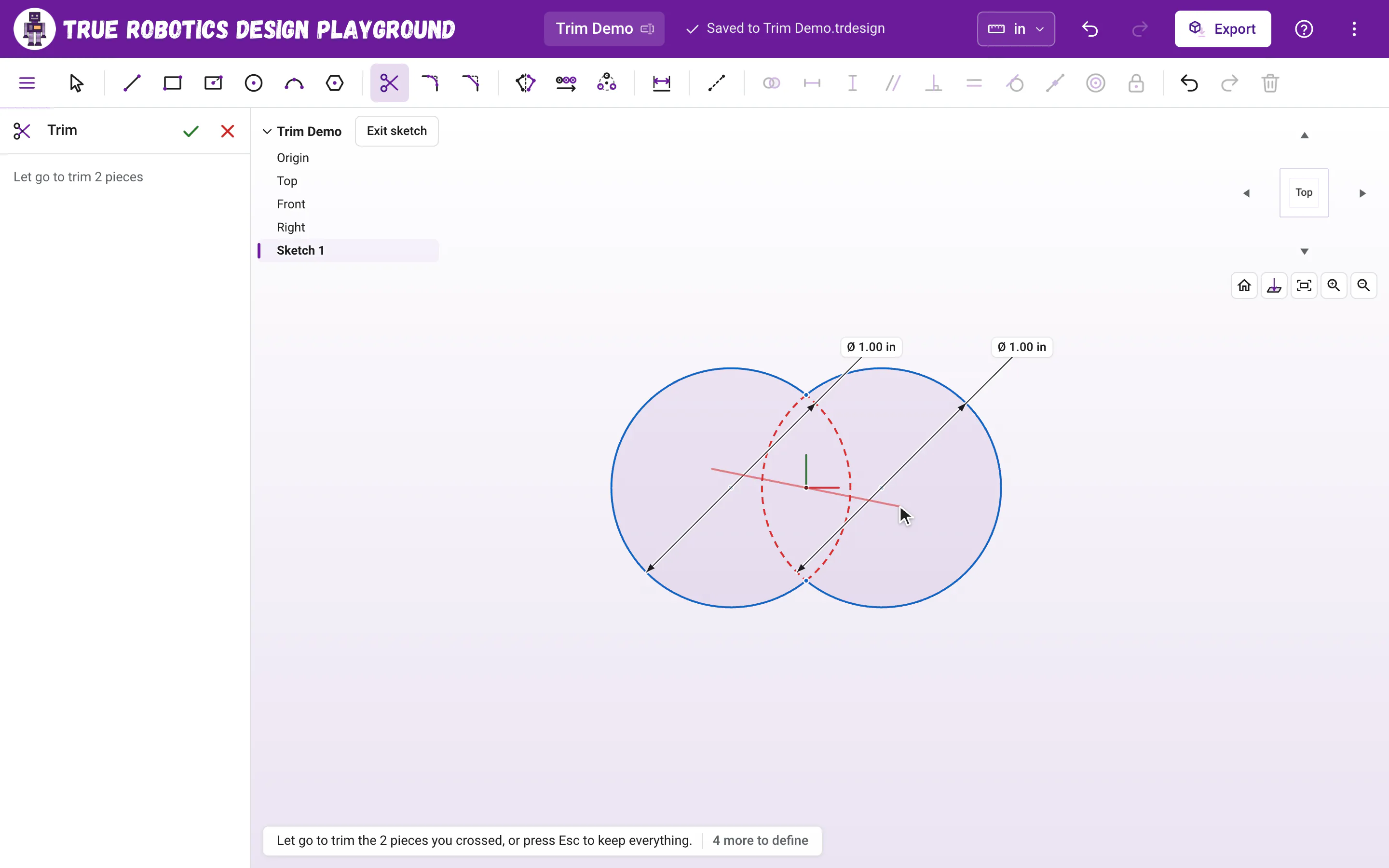
- Press Esc while you drag to stop, and nothing is trimmed.
- Press Enter while you drag to trim what the trail has crossed so far.
- In the Trim tool, dragging across empty space draws the trail instead of a selection box.
What counts as a piece?#
A piece is the stretch of a line, arc, circle or spline between the nearest spots where other sketch geometry crosses it, one on each side of where you click, or between a crossing and the end of the line. Dashed construction lines count as crossings too, which makes them handy guides for trimming.
| You trim | What happens |
|---|---|
| A line crossed by something | It gets shorter, or splits into two lines when you trim a piece from the middle. |
| A circle crossed in two or more places | It becomes an arc. Its diameter dimension and other rules stay with it. |
| An arc crossed by something | It gets shorter, or splits into two arcs that share the same center and size. |
| A spline crossed by something | It gets shorter, or splits into two splines. The part that stays keeps exactly the same curve. A spline that crosses itself can be trimmed at that crossing too. |
| A closed spline crossed in two or more places | It becomes an open spline, like a circle becomes an arc. |
| Anything that nothing crosses | The whole line, arc, circle or spline goes. |
Do the ends stay connected?#
Yes. A new end sits exactly where it was cut, held on the line or curve it met, so the shape stays closed and fills light purple. Dimensions and constraints on the pieces you removed go away with them, and the rest stay. Each click, or each drag, is one undo step, so Ctrl+Z (Cmd+Z on a Mac) brings back exactly what you just trimmed.
Does Trim work on a touch screen?#
Yes, the same way. Tap a piece to trim it, or drag your finger across several pieces and lift it to trim them all. The piece under your finger lights up red first, and a finger reaches a little farther than a mouse, so pieces are easy to hit.
What can I make with Trim?#
- Rounded blobs and bumps. Overlap circles, then trim the pieces inside the overlap for one smooth outline.
- A D shaped hole for a motor shaft. Draw a circle and a line across it near one side. Trim the small arc past the line and the two ends of the line outside the circle.
- A keyhole. Overlap a big circle and a small rectangle, then trim the pieces inside each other.
- Tidy corners. Lines that run past each other can be trimmed back so they meet exactly.
Tip: Selection does not matter
Trim works on whatever is under the pointer, so you do not need to select anything first. Press Esc or click the green check in the tool panel when you are done to go back to Select.
Trim turns simple shapes into almost any outline you can imagine. Overlap a few circles and give it a try!
Questions and answers#
How do I combine two overlapping circles into one shape?
Press K for the Trim tool, then click the piece of each circle that sits inside the other one. The two circles become one outline that fills light purple, and it extrudes as a single shape.
Why did the whole line disappear when I trimmed it?
Nothing crossed that line, so the whole line was the piece. Trim removes a line, arc, circle or spline back to where other geometry crosses it, and with no crossings it removes all of it. Press Ctrl+Z to bring it back.
Can I drag to trim many pieces at once?
Yes. With the Trim tool on, press and drag across the pieces. Every piece the red trail crosses is trimmed when you let go, as one undo step. Press Esc during the drag to cancel it.