
Getting started
Install the App and Use It Offline
You can install the True Robotics Design Playground like an app. In Chrome, Edge or on a Chromebook, click Install app on the home screen. On an iPad, add it to your Home Screen from Safari. Once it has opened online one time, everything works with no internet: Basic, Standard and assemblies, saving, opening files, STL and STEP export, and the help pages.
How do I install it on a Chromebook, or in Chrome or Edge?#
Open the app online once Go to design.truerobotics.org in Chrome or Edge, or on a Chromebook, while you have the internet. Let the home screen finish loading. In the background, the app keeps a copy of itself for later.
Click Install app Click Install app at the right end of the purple bar on the home screen. On a phone it is just the install icon. In a project, it is in the three dots menu.

Install app puts the True Robotics Design Playground on your Chromebook or computer. Confirm in the browser Your browser opens its own install window with the app's name and pictures. Click Install.
Open it like any app The True Robotics Design Playground opens in its own window, and its icon lands with your other apps: the shelf and launcher on a Chromebook, the Start menu on Windows, or the Applications folder on a Mac. Open it from there anytime, with or without the internet.
Good to know: Don't see Install app?
The button shows once your browser says the app can be installed, which takes a moment on the first visit. It never shows in the installed app itself, because you are already there. Firefox doesn't install web apps, so it has no button, and the app still works in a Firefox tab. On a school Chromebook, your school may manage which apps can be installed, so ask your tech team.
How do I put it on an iPad or iPhone?#
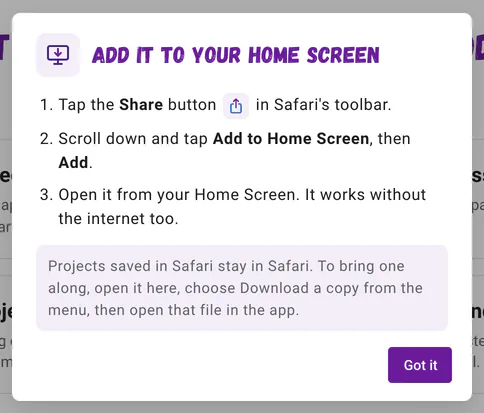
Open design.truerobotics.org in Safari and tap Install app in the purple bar. A short card walks you through it:
- Tap the Share button in Safari's toolbar.
- Scroll down and tap Add to Home Screen, then Add.
- Open it from your Home Screen. It works without the internet too.
Heads up: Bring your Safari projects along
On an iPad or iPhone, the Home Screen app keeps its projects apart from Safari's, so projects you saved in Safari don't show up there. To bring one along, open it in Safari, choose Download a copy from the three dots menu, then open that file in the app with Open Project and Open a file from your computer.
How do I add it to the Dock on a Mac?#
In Safari 17 or newer, click Install app and follow the card: click File in Safari's menu bar, then Add to Dock, then Add. Open it from your Dock, and it runs in its own window. In Chrome or Edge on a Mac, Install app opens the browser's own install window instead, just like on a Chromebook.
What works with no internet?#
Everything you design with. Once the app has opened online one time, it keeps a copy of itself on your device (about 12 MB), so with no internet you can still:
- Start a New Project in Basic or Standard, or a New Assembly, and open any saved project.
- Use every tool: shapes and holes, sketches, dimensions, extrude, cut, sweep, loft, patterns and mates.
- Save as you go, to a file on your computer or in the browser, and Download a copy.
- Open
.trdesignand.trassemblyfiles, and insert parts and STL files into an assembly. - Export STL and STEP files.
- Read every help page and see every picture, right here.
While you are offline, a small Offline chip shows in the purple bar. Tap or point at it for a reminder that everything still works and your projects keep saving.

What needs the internet?#
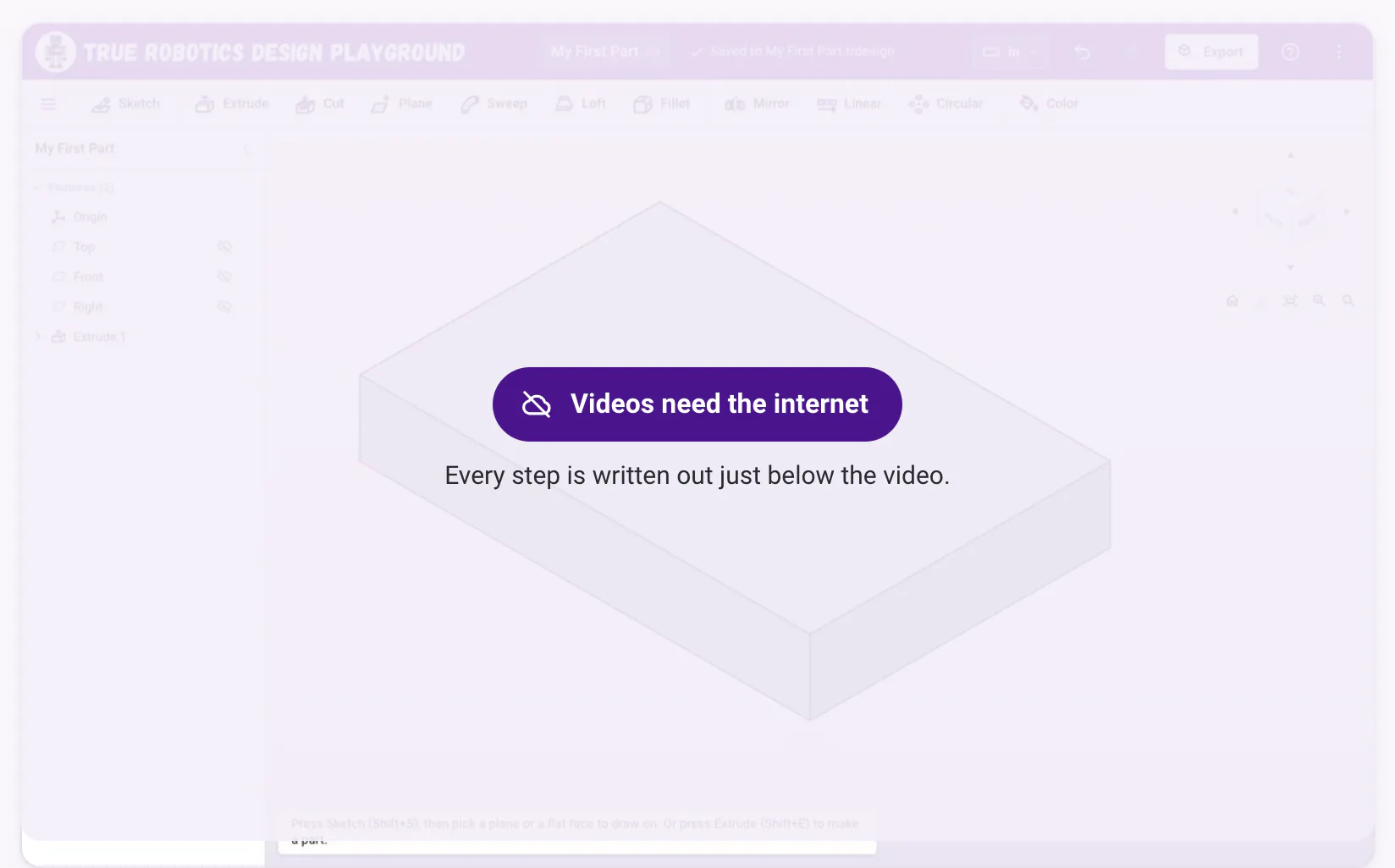
- Help videos. Offline, a video you haven't watched yet says Videos need the internet, and every step is still written out just below it. A video you played once while online is kept, so it plays offline after that.
- Other websites. Links to other sites, like the True Robotics Playground, say (needs the internet) while you are offline.
- The very first visit. The app has to open online one time before it can work offline.
Tip: Your projects are never in that copy
The copy the app keeps is only the app itself and its help pages. Your projects live where they always do: in the files you choose and in your browser. Nothing is ever sent to a server.
How do I get a new version?#
It comes on its own. Whenever you are online, the app checks for a new version. If one arrives while you are working, a small message at the bottom says A new version is ready. with Reload and Not now.
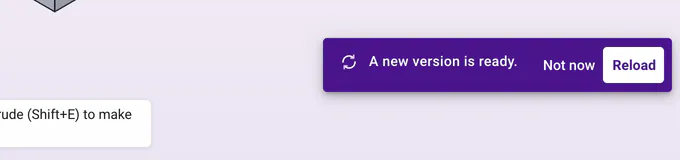
- Reload saves everything first, then opens the new version right where you were.
- Not now lets you keep going. The next time you open the app, you get the new version.
The app never reloads by itself in the middle of your work. If you open the installed app with no internet, you get the version it kept last time, and the next time you are online it catches up.
Can I double-click a project file to open it?#
Yes, once the app is installed with Chrome or Edge on a computer, or on a Chromebook. Double-click a .trdesign or .trassembly file, or on a Chromebook right-click it in the Files app and choose Open with, then the True Robotics Design Playground. Each file opens in a window of its own, and every change saves right back to that file. The first time, the save button in the purple bar asks for your OK to save to it.
iPads and iPhones don't open files this way. Use Open Project and Open a file from your computer instead. Projects and saving has more on files.
Are there shortcuts on the app icon?#
Yes. On a computer or Chromebook, right-click the installed app's icon to jump straight to New Project, New Assembly, Open Project or Help and Tutorials.
With the app installed, a bus ride, a field trip or a spotty school network is no reason to stop designing. Have fun building!
Questions and answers#
Does the True Robotics Design Playground work offline?
Yes. After it has opened online one time, everything works with no internet: Basic, Standard and assemblies, saving, opening files, STL and STEP export, and the help pages and pictures. Only help videos you have not watched yet and other websites need the internet.
Do I have to install the app to use it?
No. It works in any modern browser at design.truerobotics.org. Installing gives it its own icon and window, which makes it easy to open with no internet.
Will I get stuck on an old version?
No. Whenever you are online, the app checks for a new version and shows A new version is ready. Reload saves your work first and switches to it, and Not now waits until the next time you open the app.
Why are my Safari projects missing from the Home Screen app?
On an iPad or iPhone, the Home Screen app keeps its own projects, apart from Safari. Download a copy in Safari, then open that file in the app with Open Project and Open a file from your computer.
How much space does the installed app use?
About 12 MB for the app and its help pages. Help videos are kept only after you watch them, and your projects are stored separately, in your files and your browser.