
Building parts
Fillet and Chamfer Edges
Fillet in the True Robotics Design Playground rounds the edges of a part, and its Chamfer side cuts them off flat. Press Fillet or Shift+F, click the edges or faces to soften, type a radius or a distance, and click the green check. Outside edges get rounded off and inside edges fill in, even along curvy outlines made of arcs and splines.
How do I round the edges of a part?#
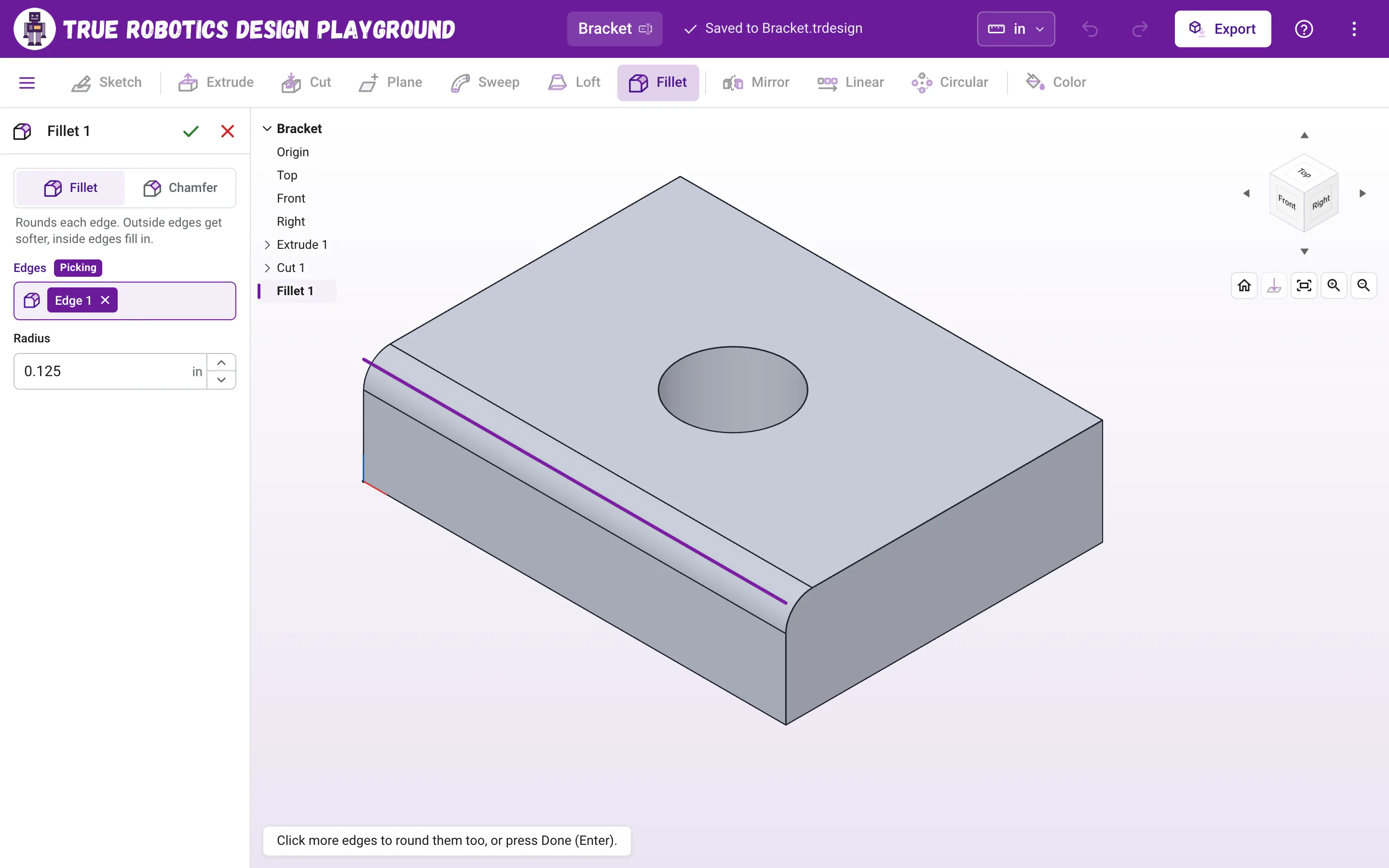
Start Fillet Click Fillet in the toolbar, right after Loft, or press Shift+F. The Fillet panel opens on the left with Fillet chosen at the top, and the feature list moves into the top left corner of the 3D view.
Click the edges to round Point at an edge of your part and it lights up, then click it. It turns purple and shows as a chip, like Edge 1, in the Edges box. Edges that run smoothly into it come along too, so one click on a rounded outline picks the whole outline. Click a face instead to pick every edge around it at once.
Set the radius The Radius starts at 0.125 in (1/8 in), or 0.3 cm in a centimeter project. Type a new size, like
1/16, or click the up and down arrows next to the box, which step it 0.1 in at a time (0.1 cm in a centimeter project). The preview rounds the edges right away.Finish Click the green check at the top of the panel, or press Enter. Fillet 1 joins the feature list.
Clicked a face before you pressed Fillet? Its edges start out picked, so all that is left is the size and the green check.
Read what happens in this video
We press Shift and F to start Fillet, point at the top front edge until it lights up and click it. Clicking the top face picks every edge around it, the rim of the hole too, and the preview rounds them with the 1/8 inch radius it starts with. Clicking Chamfer cuts the same edges off flat instead, and clicking Fillet rounds them again. The green check adds Fillet 1 to the feature list.
The steps in the video:
- Press Shift + F to start Fillet.
- Point at the top front edge. It lights up. Click it.
- Click the top face to pick all of its edges, the hole rim too.
- The Radius starts at 1/8 inch, and the preview rounds every edge.
- Click Chamfer at the top to cut the edges off flat instead.
- Click Fillet to round them again, then click the green check.
- Click the Home button under the view cube, then press F to zoom to fit.
Fillet or Chamfer: what is the difference?#
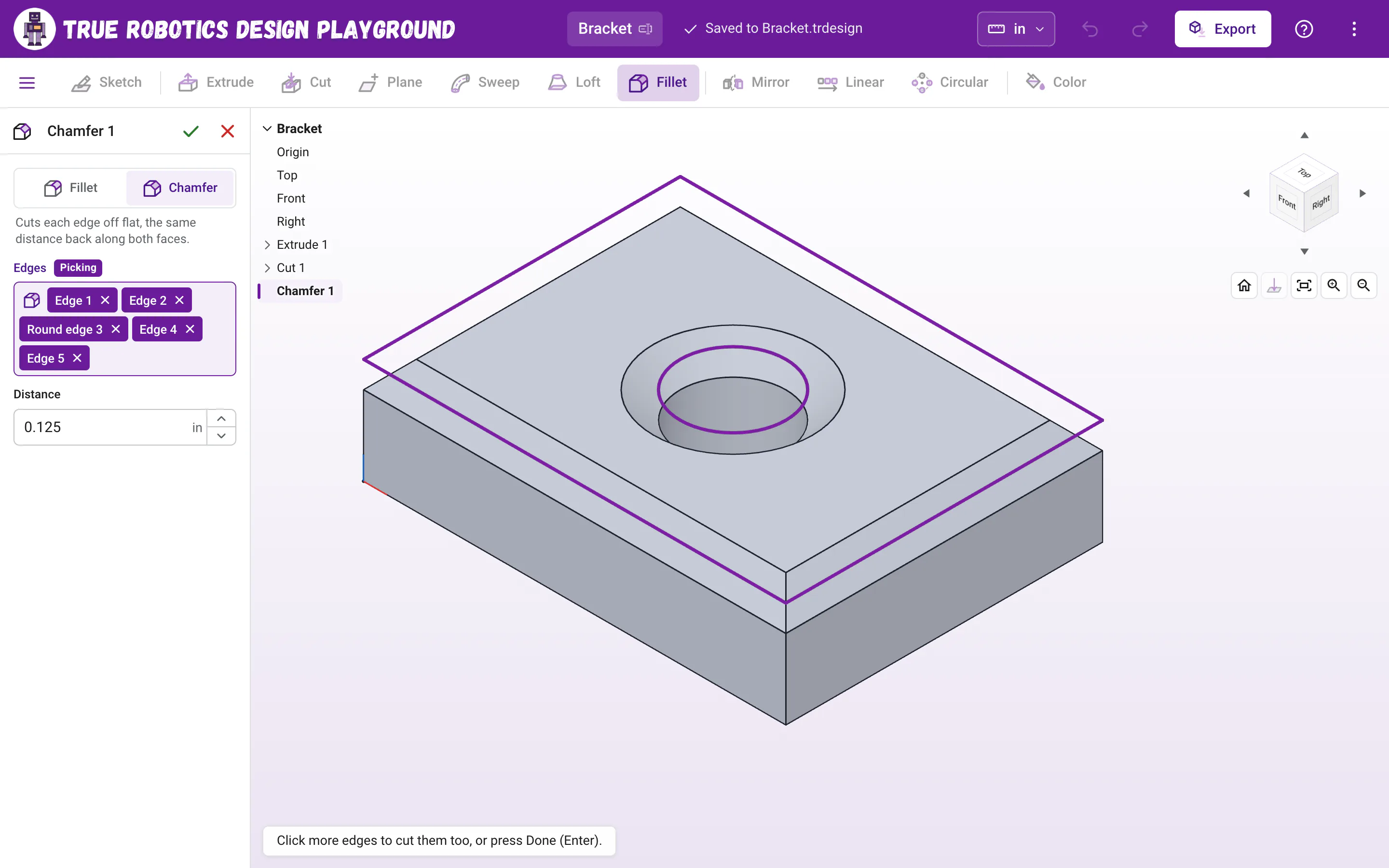
One tool does both. The toggle at the top of the panel picks how each edge is softened, and the line under it says what your choice does. Switch any time; the edges you picked stay picked.
| Choice | What it does | The size box | Great for |
|---|---|---|---|
| Fillet | Rounds each edge into a smooth curve. Outside edges get softer, inside edges fill in. | Radius: how big the round is. | Parts you hold, corners that should not snag, and strong inside corners. |
| Chamfer | Cuts each edge off flat, the same distance back along both faces. | Distance: how far back the cut starts on each face. | A neat bevel, a lead-in on a hole so a bolt finds its way, and the bottom edges of a 3D print. |
A new feature takes the name of its side, so switching to Chamfer turns Fillet 1 into Chamfer 1. A name you typed yourself stays the same.
The arrows next to Radius and Distance step by 0.1 in (or 0.1 cm), just right for fillet sizes. Hold Shift to step by 1, or Alt to step by 0.01, and Up and Down in the box do the same. A size never steps down to zero.
Which edges can I round?#
- Straight edges between two flat faces, at almost any angle. An outside edge, like the top edge of a block, gets rounded off. An inside edge, like the corner where a wall meets a floor, gets filled in with a smooth curve, which makes the part stronger.
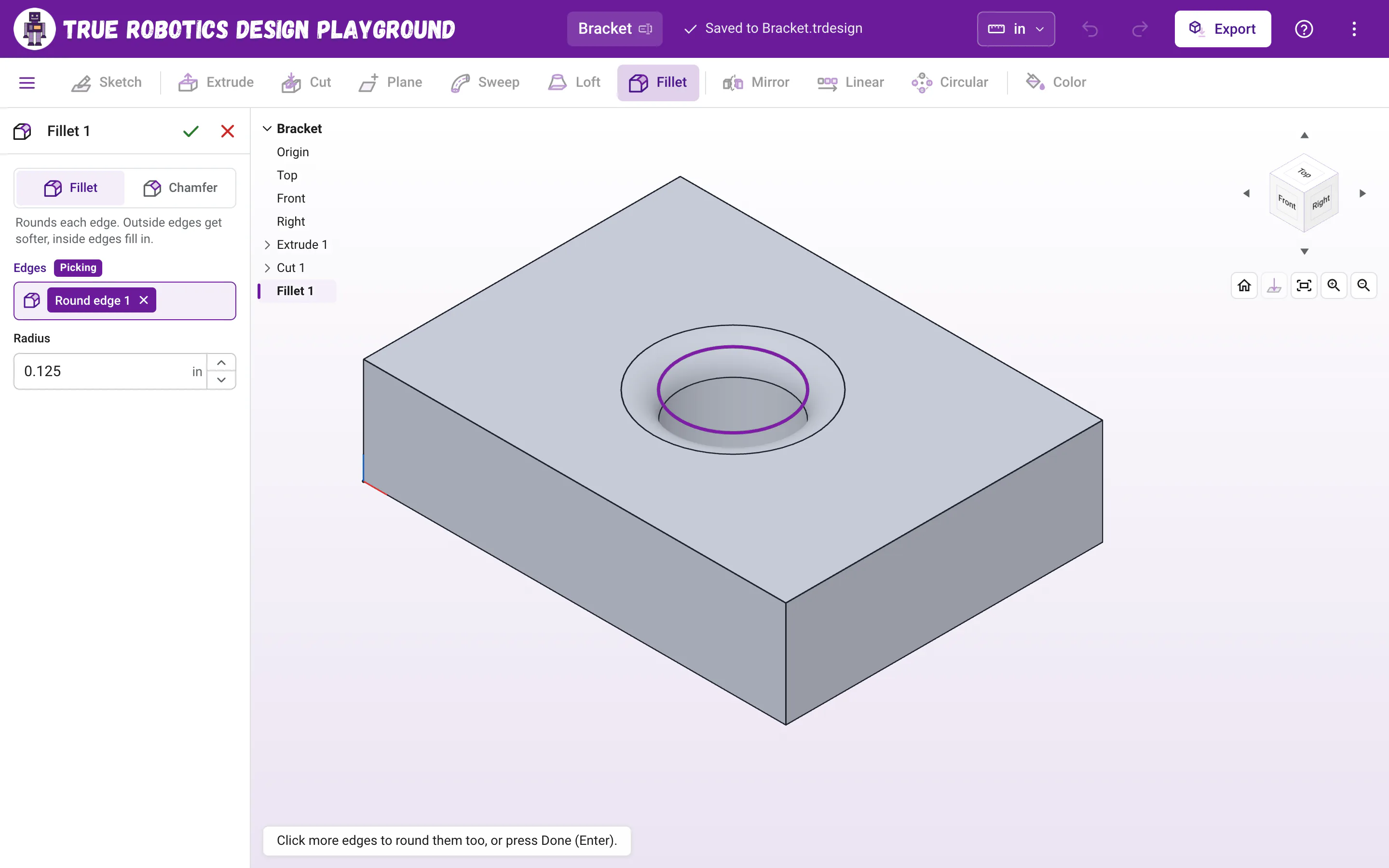
- The round edge of a hole or a round boss, where it meets a flat face. Its chip says Round edge. Rounding a hole's rim gives a bolt or an axle a smooth way in, and rounding the base of a boss makes it stronger.
- The top and bottom edges of a curvy outline, all the way around. When you extrude a sketch made of lines, arcs, sketch fillets, circles and splines, the edge where its flat top meets the sides is one smooth chain, and the fillet follows the whole chain as one smooth round. The same goes for the floor of a cut.
- Upright corners where two side walls meet, like the straight edge where a flat side runs into an arc or a spline at an angle. The fillet rounds that corner from top to bottom, just as if you had rounded the corner in the sketch.
- Corners where three rounded edges meet get a smooth, ball-shaped corner, like a die.
- Edges that wind in and out in 3D, like the curved edges of a sweep or a loft, say This edge is too curved to round yet. Faces that already meet smoothly have no edge to round.
How does a fillet follow a curvy outline?#
Say you sketch a plate with rounded corners, or a wavy shape drawn with the Spline tool, and extrude it. Its top edge is really many edges in a row: a straight stretch, then a curve, then another straight stretch. They meet smoothly, with no sharp corner between them, so together they make a chain.
- Click any edge of the chain and the whole chain is picked, all the way around the outline. Each piece still shows as its own chip in the Edges box: Edge for a straight piece, Round edge for an arc and Curved edge for a spline.
- The fillet runs along the whole chain as one smooth round. It flows from the straight sides through the arcs and curves with no seams, steps or bumps, the same way fillets work in SolidWorks and Fusion.
- Curves that bulge out get rounded off, and curves that dip in, like the inside of a C shape, get filled in. Both can sit in the same chain.
- Where the outline has a sharp corner, the round meets itself neatly at the corner, like the top edges of a box.
- Chamfer works the same way, with one even bevel all the way along.
Good to know: Tight curves need small rounds
A round has to fit inside the curves it follows. If you rounded the corners of your outline 1/8 in in the sketch, the fillet along the top edge can be up to 1/8 in. When a size does not fit, the panel tells you a size that does.
How do I pick and unpick edges?#
- Point at an edge and it lights up before you click, so you always know what you are about to pick. Point at a face and all of its edges light up.
- Click an edge to pick it. Edges that run smoothly into it, like the rest of a rounded outline, come along on their own, and clicking any one of them again takes the whole chain away.
- Click a face to pick every edge around it. Edges of that face that cannot be rounded are left out, and the panel says how many.
- Click a picked edge again, or the X on its chip, to take it away.
How big can a fillet or chamfer be?#
The round has to fit on the faces beside the edge. On a part that is 1/4 in thick, rounding both top and bottom edges needs a radius smaller than half of that. When a size is too big, the panel says so and suggests one that fits, like That radius is too big for this edge. Try one smaller than 0.25 in. The green check waits until the size fits.
Tip: Sizes that print well
For 3D printed robot parts, a radius of 1/16 in to 1/8 in softens edges nicely without eating into the part. Round the edges you hold, and keep the edges that sit flat on the print bed sharp or give them a small chamfer instead, so the first layer stays crisp.
How do I change a fillet later?#
- Double-click Fillet 1 in the feature list. The model rolls back to just before it, and the panel opens with your edges and size, so you can add edges, take some away, change the size or switch to Chamfer.
- Change a feature before it, like the size of the block, and the fillet follows its edges when the model rebuilds.
- Right-click the row (or use its three dots) to rename, suppress or delete it, like any feature. The feature tree has the details.
Can I mirror or pattern a fillet?#
Yes. In Features mode, Mirror, Linear pattern and Circular pattern copy fillets and chamfers too. Pick the fillet along with the feature it rounds, like a boss or a hole, and every copy gets the same rounded or chamfered edge. Pick only the fillet, and it rounds the matching edges of copies you already made. If a copy lands where the part has no edge like the one you rounded, that copy is left out and the panel says so, like 1 copy of Fillet 1 had no matching edge, so it was left out. Parts mode copies whole parts, rounded edges and all.
Can I round a corner in a sketch instead?#
Yes. While you sketch, the sketch Fillet tool (O) rounds the corners of your drawing and the sketch Chamfer tool (M) cuts them off, before anything is 3D. Use those for the corners you see from above, like a rounded plate outline, and use the Fillet feature for the edges of the finished part, like its top edges.
What do the fillet messages mean?#
| Message | What to do |
|---|---|
| Pick at least one edge to round. | Click an edge or a face of your part in the view. |
| That radius is too big for this edge. Try one smaller than 0.25 in. | Type a smaller size, or click the down arrow until the preview shows again. |
| This edge is too curved to round yet. | That edge winds in and out in 3D, like the edge of a sweep or a loft. Pick the edges of extruded outlines, straight edges and the rims of holes and bosses. |
| These faces already meet smoothly, so there is no edge to round here. | There is no sharp edge there. Pick another one. |
| These faces meet at too sharp an angle to round. | The two faces make a very thin wedge. Pick another edge, or change the part so the faces open up more. |
| Give the fillet a radius greater than zero. | Type a size above zero, like 1/8. A chamfer says Give the chamfer a distance greater than zero. |
| The edges this fillet rounds are gone. Edit it and pick them again. | A change before the fillet removed its edges. Double-click the fillet and pick new ones. |
| Some of the edges could not be rounded, so the rest were. | Double-click the fillet to see which chips are left, and pick the missing edges again. |
A few rounded edges make a part look finished, feel better in your hand and stand up better to bumps. Next, give it some style with Color, or send it to the printer with Export STL and STEP.
Questions and answers#
What is the difference between a fillet and a chamfer?
A fillet rounds an edge into a smooth curve, sized by its radius. A chamfer cuts the edge off flat at an angle, sized by how far back it starts on each face. In the True Robotics Design Playground both come from the same Fillet tool, with a Fillet or Chamfer toggle at the top.
How much do the arrows change the radius?
Each click of the up or down arrow next to Radius or Distance steps the size by 0.1 in, or 0.1 cm in a centimeter project. Hold Shift to step by 1, or Alt to step by 0.01. The size never steps down to zero.
Can I fillet the edge of a curvy or rounded outline?
Yes. Extrude a sketch made of lines, arcs, sketch fillets, circles or splines, then click its top or bottom edge. Every edge that runs smoothly into it is picked, and the fillet follows the whole outline as one smooth round, filling in curves that dip inward and rounding off curves that bulge out.
How do I round all the edges of a face at once?
Start Fillet and click the face instead of an edge. Every edge around it is picked, and any edge that cannot be rounded is left out.
Why will my fillet not fit?
The round has to fit on the faces beside the edge. When it does not, the panel says how big it can be. Type a smaller radius or distance and the preview comes back.
Can I mirror or pattern a fillet?
Yes. In Features mode, pick the fillet or chamfer along with the boss or hole it rounds, and Mirror, Linear pattern or Circular pattern gives every copy the same rounded edge. A copy that lands where there is no matching edge is left out, and the panel tells you how many. Parts mode copies a whole part with its rounded edges too.
Do fillets show up when I export or 3D print?
Yes. Fillets and chamfers are part of the shape, so they are in the STL and STEP files you export and in the part you print.