
Basic mode
Shapes and Their Settings
Basic mode in the True Robotics Design Playground has eleven shapes: Box, Cylinder, Sphere, Half sphere, Cone, Pyramid, Wedge, Torus, Tube, Polygon and Star, plus a Box hole and a Cylinder hole. Drag one onto the workplane or click it to drop it in the middle. Some shapes have settings, like a polygon's Sides or a tube's Wall, that you change in the settings panel.
Read what happens in this video
We drag a box from the catalog onto the workplane, and it shows exactly where it will land before we let go. A cylinder and a cone follow, each snapping to the grid. Clicking the Sphere tile, without dragging, drops a sphere on a free spot near the middle of the view.
The steps in the video:
- Drag the Box from the catalog onto the workplane.
- Drag a Cylinder next to it. Shapes snap to the grid.
- Drag a Cone behind the box.
- Click the Sphere tile without dragging. It drops near the middle.
- Click empty space to clear the selection.
How do I add a shape?#
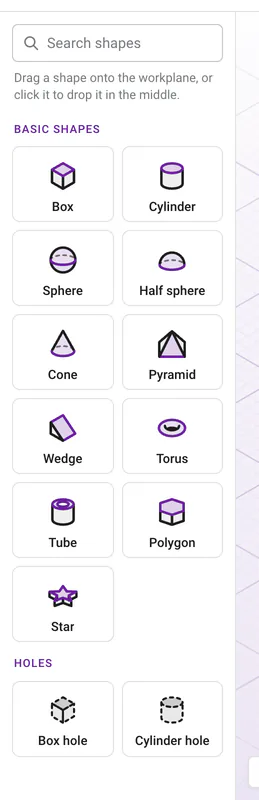
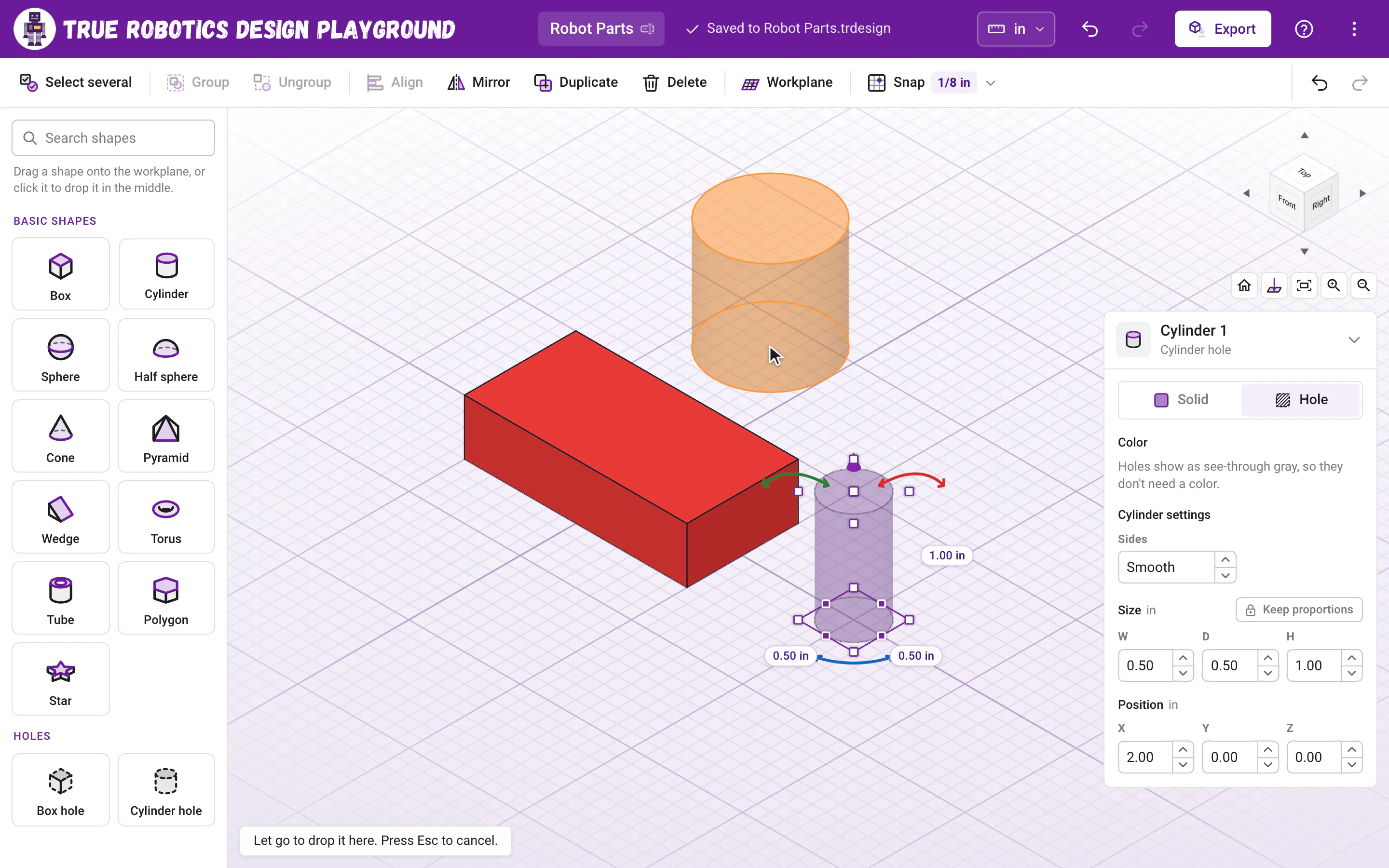
- Drag it in. Press on a shape in the catalog and drag it onto the workplane. You see the shape in 3D under the pointer before you let go, so you know exactly where it will land. Drop it on top of another shape and it lands right on that face. Let go back over the catalog, or press Esc, to change your mind.
- Click it. Click a shape (or tap it, or press Enter or Space on it) to drop it on a free spot near the middle of the view. The 3D view takes the keyboard, so the arrow keys can nudge your new shape right away.
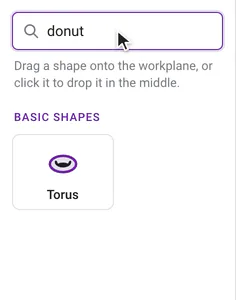
- Search for it. Type in Search shapes at the top of the catalog. Everyday words work too, like
ball,donut,hexagon,ramporpipe. - On a phone, tap Shapes to slide the catalog up from the bottom, then tap a shape or drag it up onto the workplane.
A new shape is 1 inch across (2 cm in a centimeter project), sits right on the workplane, snaps to the grid and is selected, ready for its size. Each shape keeps its natural look, so a half sphere is half as tall as it is wide, a polygon has equal sides, and a torus is a round ring 1/4 inch thick.
Which shapes are there?#
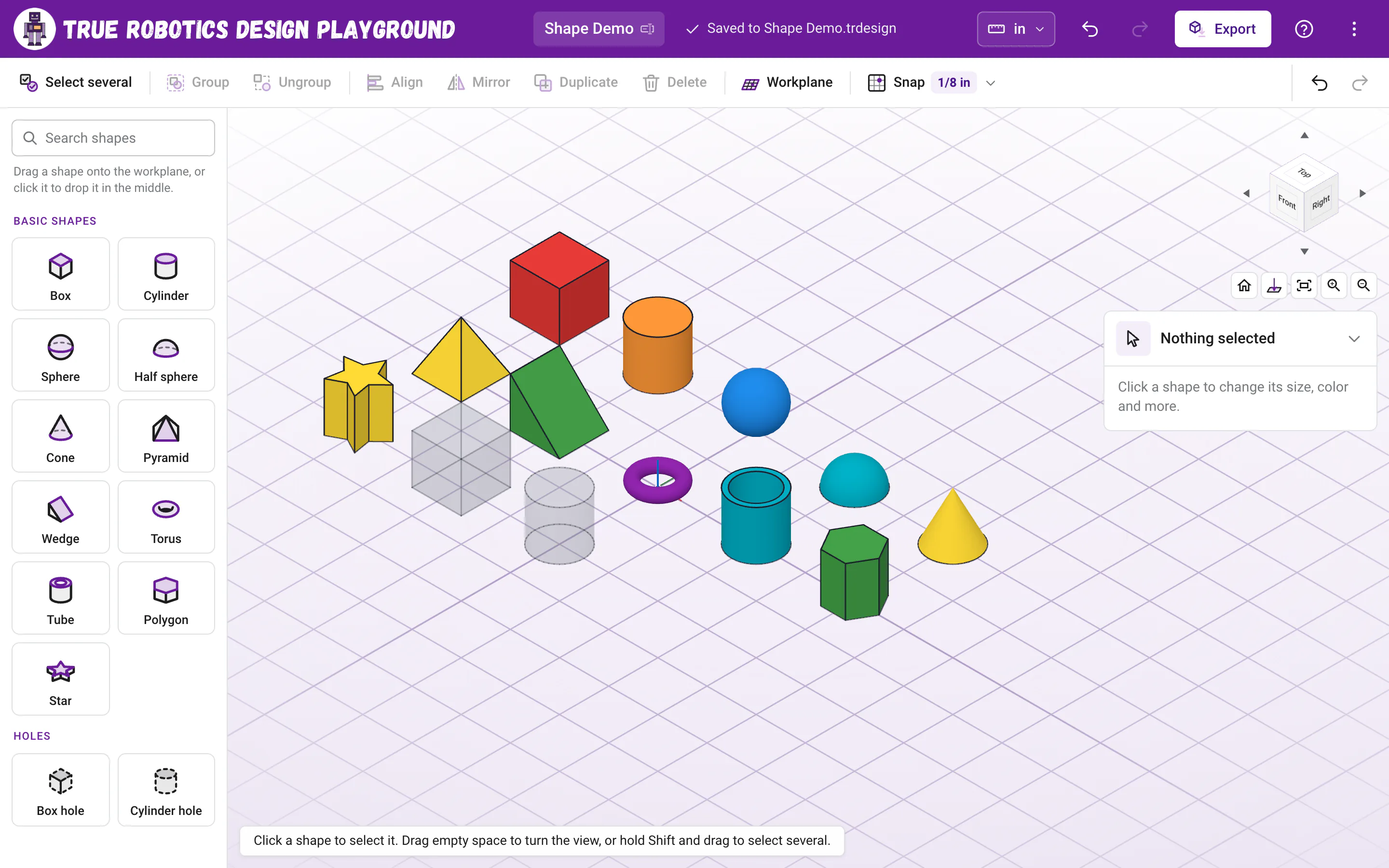
| Shape | What it is | Its settings |
|---|---|---|
| Box | A block with square corners. The shape you will use most. | None. Just size it. |
| Cylinder | A round post, disc or rod. | Sides |
| Sphere | A ball. | None |
| Half sphere | A dome with a flat bottom. | None |
| Cone | A round base that comes to a point, or to a smaller flat top. | Sides, Top size |
| Pyramid | Flat sides that meet at a point. Four sides make a square pyramid. | Sides |
| Wedge | A ramp: tall on one side, sloping down to a thin edge on the other. | None |
| Torus | A ring, like a donut or an O-ring. | Tube |
| Tube | A cylinder with a round hole down the middle, like a pipe, a spacer or a washer. | Sides, Wall |
| Polygon | A flat sided post. Six sides make a hexagon, great for nuts and standoffs. | Sides |
| Star | A star shaped post. | Points, Inner size |
| Box hole | A box that is already a hole. | None |
| Cylinder hole | A cylinder that is already a hole, perfect for screws and axles. | Sides |
How do I change a shape's settings?#
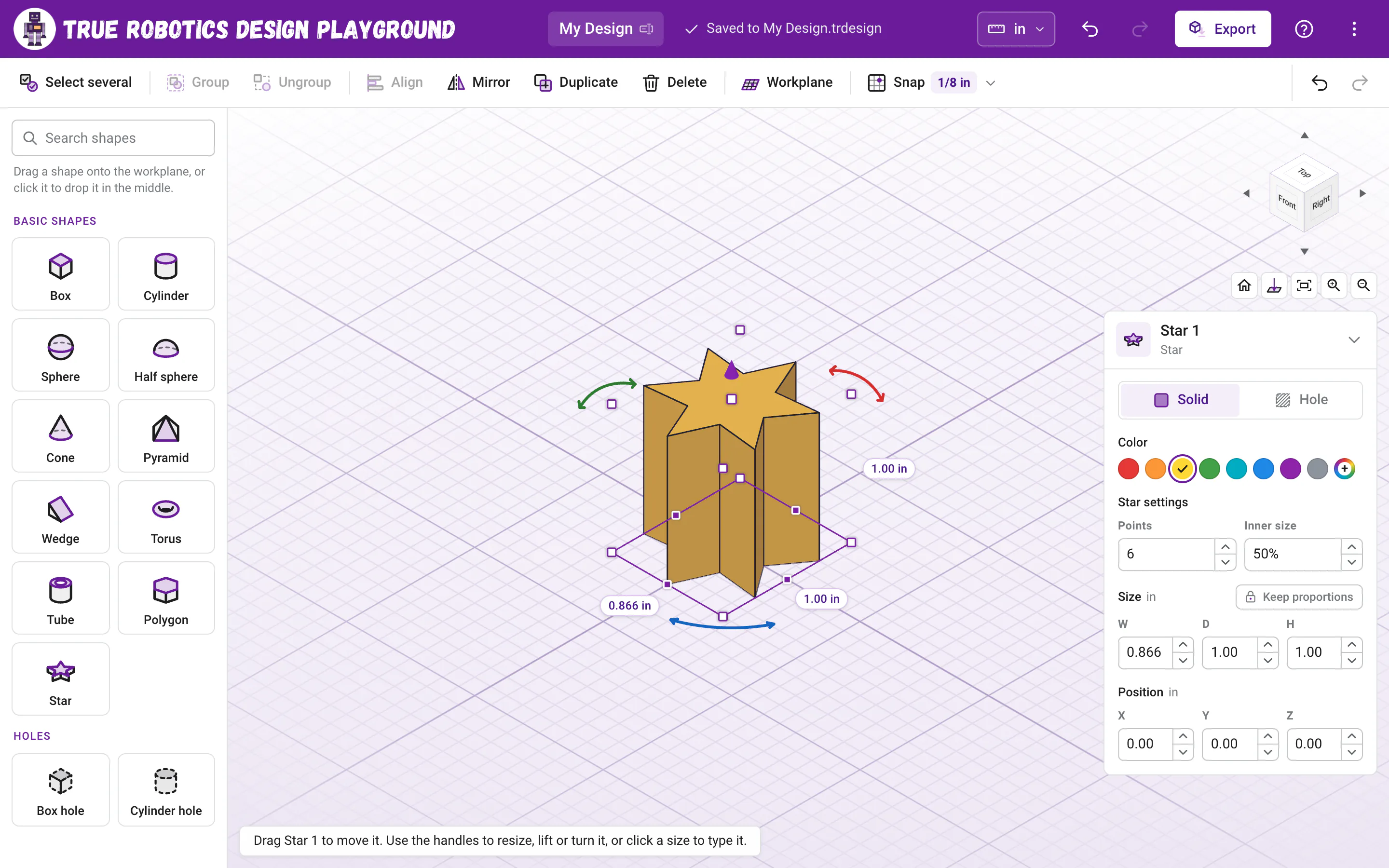
Click the shape. Its settings show in the settings panel at the right, under the shape's name, like Star settings. Click a box, type a new value and press Enter, or press Up and Down to step it (hold Shift for ten steps). Percents can be typed with or without the %.
| Setting | Shapes | What it does | Range | New shapes |
|---|---|---|---|---|
| Sides | Cylinder, Cone, Tube | Leave it on Smooth for a round shape, or type a number for flat sides. | Smooth, or 3 to 128 | Smooth |
| Sides | Polygon | How many flat sides it has. | 3 to 128 | 6 (a hexagon) |
| Sides | Pyramid | How many sides its base has. | 3 to 128 | 4 (a square base) |
| Top size | Cone | How wide the top is compared to the bottom. 0% comes to a point. | 0% to 100% | 0% |
| Wall | Tube | How thick the wall is, as a part of the radius. | 5% to 95% | 20% |
| Tube | Torus | How thick the ring is, as a part of its outer radius. | 5% to 50% | 25% |
| Points | Star | How many points the star has. | 3 to 20 | 5 |
| Inner size | Star | How deep the cuts between the points go. Smaller is spikier. | 5% to 95% | 50% |
Tip: Back to Smooth
To make a cylinder, cone or tube round again, clear its Sides box (or type Smooth) and press Enter.
How do I pick a color?#
Select a shape and click one of the eight swatches under Color in the settings panel: red, orange, yellow, green, teal, blue, purple or gray. The rainbow button at the end opens a picker for any color you like. Coloring a group colors everything in it. New shapes come in their own colors, like a red box, an orange cylinder and a blue sphere, so it is easy to tell them apart.
Good to know: Colors are just for looking
Colors help you see your design. STL and STEP files have no color, so your 3D printer uses whatever filament it has loaded.
What are the Holes tiles?#
Box hole and Cylinder hole drop in as holes: see-through gray shapes that cut away whatever solid you group them with. They are a head start, because any shape can be a hole. Select it and pick Hole in the settings panel, or press H. Holes and groups shows how.
Next, learn to size and place your shapes exactly in Move, resize and rotate.
Questions and answers#
Why is my new star or polygon not exactly 1 inch on every side?
A new shape keeps its natural look, so a star or a hexagon is 1 inch across its widest way and a little less the other way, like 0.866 in. Type any size you want on its labels.
Can I make a hexagon hole for a nut?
Yes. Drag in a Polygon (it starts with 6 sides), press H to make it a hole, size it, and group it with the solid it should cut.
Is there a text or letters shape?
Not in Basic mode. Basic has the eleven shapes and two holes in the catalog.