
Building parts
Sweep a Profile Along a Path
Sweep in the True Robotics Design Playground carries a flat shape, the profile, along a path of connected lines, arcs and splines, the way a bead of frosting follows the tip of a piping bag. Draw the path in one sketch and the profile in another, press Sweep or Shift+W, pick the profile, click the path and press Enter. It makes handles, rings, rails and grooves.
Read what happens in this video
The circle we just drew is already picked as the profile when Shift+W opens Sweep. Pointing at the arc lights up the whole path, both legs and the arc. One click picks it, and the purple preview follows every curve. Enter makes the handle.
The steps in the video:
- Press Shift + W for Sweep. The circle you just drew is the profile.
- Point at the arc. The whole path lights up: both legs and the arc.
- Click the arc to pick the path. The preview follows every curve.
- Press Enter to make the handle.
- Click Home under the view cube and press F to zoom to fit.
How do I sweep?#
Sketch the path: lines, arcs and splines joined end to end, like two legs and an arc for a handle. Press Enter to finish.
Sketch the profile on a plane that crosses the start of the path, square to it. For a path that starts at the origin and goes straight up from the Front plane, draw a circle on the Top plane right on the origin. Press Enter to finish.
Click Sweep in the toolbar, or press Shift+W. The Sweep panel opens on the left, and the profile you just finished is already picked. If not, click it.
Click any line, arc or spline of the path. The whole connected chain is picked at once, and the purple preview follows it.
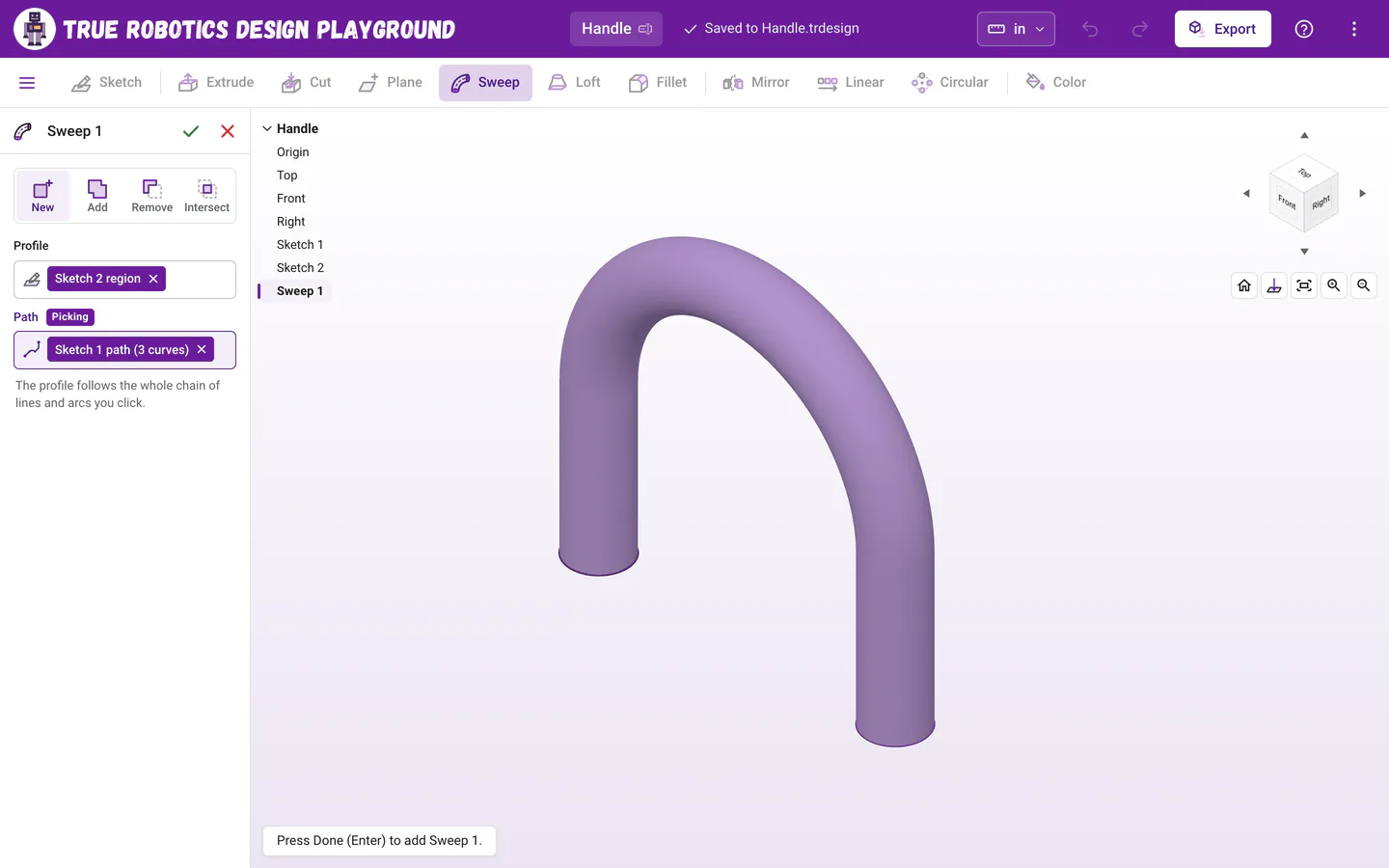
Pick a profile, click the path, and the preview follows every line and arc. Choose New, Add, Remove or Intersect, then press Enter or click the green check. Both sketches hide themselves once they are used, and they tuck in under Sweep 1 in the feature list.
What can be a path?#
- Lines, arcs and splines from one sketch, joined end to end into one chain. A single spline makes a smooth, curvy path all by itself. Dashed construction lines, arcs and splines work too, which is a neat way to keep a path from making regions of its own.
- An open chain, like an L or a U, or a closed loop that comes back to its start, which makes a ring with no ends. A circle on its own is a closed loop too.
- Point at the path while the Path box waits, and the whole chain lights up orange, so you know exactly what a click will pick. Click it again to take it back out.
- Prefer the keyboard? Pick the path's sketch in the feature list, which sits in the top left corner of the view while the Sweep panel is open. If it holds one chain, that chain becomes the path. If it holds more than one, click the one you want in the view.
Tip: Round bends or sharp corners?
A sharp corner between two lines makes a crisp mitered corner, like a picture frame. For a smooth bend, put an arc between the lines and make it Tangent to both.
Where should the profile go?#
At one end of the path, square to it. The profile is carried along the path from the end nearest to it, so a circle drawn right where the path starts, on a plane the path goes straight out of, sweeps cleanly all the way to the other end. If the profile sits partway along the path, the sweep only runs from there to one end, so keep it at an end. A profile lying flat along the path cannot be swept at all, and the panel says why. Need a plane in just the right spot? Make one with Plane.
The profile can be any closed region of one sketch, holes included, so a ring shaped profile makes a hollow tube. A flat face of a part works as a profile too.
What do New, Add, Remove and Intersect do in a sweep?#
The same as in Extrude. New makes a new part, Add joins the parts it touches, Remove carves the swept shape out of your parts, like a groove along the top of a block, and Intersect keeps only the overlap. The preview is purple for New and Add, red for Remove and orange for Intersect.
How do I change a sweep later?#
Double-click it in the feature tree. Its sketches show again while the panel is open, so you can pick a different profile or path. Edit the path sketch itself, say to make the legs longer, and the sweep follows when you finish.
What do the sweep messages mean?#
| Message | What to do |
|---|---|
| Pick a profile to sweep. | Click a closed region or a flat face, or pick a sketch in the tree. |
| Pick a path for the profile to follow. | Click a line or arc of the path. |
| A sweep takes the regions of one sketch, or one flat face. We swapped in your new pick. | Your new pick came from a different sketch, so it replaced the old one. |
| The path needs to be one connected chain of lines and arcs. | Two curves do not meet. Edit the path sketch and drag the ends together until they snap. |
| The path runs along the plane of the profile, so there is nothing to sweep. Try a path that leads away from the profile, sketched on a plane that crosses it. | The profile and the path are on the same plane. Sketch the profile on a plane the path goes straight out of. |
| This profile sits at a slant to the path, so it reaches past a bend near one end. Try sketching the profile square to the start of the path. | Put the profile on a plane square to the path's first line, right at its end. |
| This path bends too sharply for this profile. Try a gentler curve or a smaller profile. | Make the arcs bigger or the profile smaller, so the shape fits around each bend. |
| This sweep would run into itself. Try a path that stays farther away from itself, or a smaller profile. | Parts of the path are too close together for the profile. Spread the path out. |
| This path is too short to sweep along. Pick a sketch line or arc with some length. | The path has almost no length. Pick a longer one. |
| This profile has no area to sweep. Pick a closed region or a flat face. | The profile is not a closed shape. Close it up in its sketch. |
| Some of the path's lines or arcs are gone, so the sweep follows the rest. | Part of the path was deleted. Edit the sweep to pick the path again. |
| This cut didn't touch any part. | A Remove sweep missed every part. Move the path or the profile so they pass through the part. |
Ready to try it? Make a curved handle with Sweep in about ten minutes.
Questions and answers#
Why did clicking one line pick the whole path?
A sweep follows a whole chain of connected lines, arcs and splines, so one click picks every curve joined to the one you clicked. Click it again to take the path back out.
Can a sweep make a ring?
Yes. Use a closed path, like a circle, a closed spline or a loop of lines and arcs, with the profile sketched where it crosses the loop. The ring has no ends.
Can I cut a groove with a sweep?
Yes. Choose Remove in the Sweep panel, and the swept shape is carved out of every part it passes through.