
Getting started
Moving Around the 3D View
In the True Robotics Design Playground you can turn, slide and zoom the 3D view with a mouse, a trackpad, a touch screen or the keyboard. With a mouse, drag on empty space with the left button to rotate around your model, drag with the right button to pan and scroll to zoom. The view cube in the top right corner turns to any standard view in one click.
Read what happens in this video
The steps in the video:
- Drag with the left mouse button on empty space. The view turns around the model.
- Drag with the right mouse button to pan.
- Scroll the wheel to zoom in and out, toward the pointer.
- Click the Front face of the view cube to look straight at the front.
- Click an edge of the cube, then a corner, to look from there.
- Click the arrow beside the cube to turn the view 90 degrees.
- Click the Home button for the isometric view, zoomed to fit.
How do I move the view with a mouse?#
| To do this | With a mouse |
|---|---|
| Rotate | Drag with the left button on empty space, or on a part in Standard mode. |
| Pan (slide the view) | Drag with the right button. Dragging with the middle button (the wheel) pans too, and so does holding Shift while you drag with the left button in Standard mode. |
| Zoom | Scroll the wheel. The view zooms toward the pointer, so point at what you want a closer look at. |
The view always turns around the middle of your model, the center of everything on screen, so your part never swings out of sight. With nothing on screen yet, it turns around the origin.
Good to know: Left dragging while you sketch
In a sketch, a left drag on empty space draws a selection box instead of turning the view, because sketching needs it. Right drag to pan, and use the view cube or the arrow keys to turn the view while you sketch.
In a Basic project, a left drag on empty space rotates too, a drag on a shape moves the shape, and holding Shift while you drag across empty space draws a selection box instead. In an assembly, dragging a part moves it, and dragging empty space rotates.
How do I move the view with a trackpad?#
- Pinch to zoom, toward the pointer.
- Scroll with two fingers to rotate.
- Hold Shift and scroll with two fingers to pan.
- Click and drag on empty space to rotate, just like a left drag with a mouse.
How do I move the view on a touch screen?#
- Drag one finger across empty space to rotate around your model.
- Use two fingers to pan, and pinch to zoom, both at once if you like.
- Tap to select. In the feature list, tap the three dots on a row for more actions.
- While a drawing tool is on, one finger draws, so use two fingers to move the view and the view cube arrows to turn it.
Read what happens in this video
On a tablet, dragging one finger across empty space rotates the view. Pinching with two fingers zooms, and sliding two fingers pans. Tapping the view cube arrow turns the view 90 degrees, and the Home and Zoom to fit buttons bring everything back into view.
The steps in the video:
- Drag one finger across empty space to rotate the view.
- Pinch two fingers apart to zoom in.
- Slide two fingers together to pan.
- Tap the arrow beside the view cube to turn the view 90 degrees.
- Tap the Home button for the isometric view.
- Tap Zoom to fit everything to bring it all back into view.
Which keys move the view?#
| Keys | What it does |
|---|---|
| F | Zoom to fit |
| = or - | Zoom in and out |
| Arrow keys | Rotate 15 degrees |
| Shift+Arrow keys | Rotate 90 degrees |
| Ctrl+Arrow keys | Pan |
| Shift+1 | Front view |
| Shift+2 | Back view |
| Shift+3 | Left view |
| Shift+4 | Right view |
| Shift+5 | Top view |
| Shift+6 | Bottom view |
| Shift+7 | Isometric view |
On a Mac, use Cmd wherever this page says Ctrl.
The named views use the same numbers as Onshape: Shift+1 Front, Shift+2 Back, Shift+3 Left, Shift+4 Right, Shift+5 Top, Shift+6 Bottom and Shift+7 Isometric. If the arrow keys move through the feature list instead, click in the view first, so your keys go to the view.
How does the view cube work?#
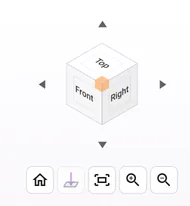
- Click any face of the cube, like Top or Front, to look from that side. Edges and corners work too, for 26 views in all.
- Drag the cube itself to rotate the model. A right drag that starts on the cube pans, just like one on empty space.
- The four triangle arrows around it turn the view 90 degrees up, down, left or right.
- The buttons under the cube are Home, Look straight at the selection, Zoom to fit everything, Zoom in and Zoom out. On a touch screen they grow to finger size and sit in two rows.
What does the Home button do?#
Outside a sketch, Home turns the view back to the tilted isometric view you start with and zooms to fit everything. Inside a sketch, Home looks straight at the sketch and zooms to fit it, so you are always one click from a clean view of your drawing. When you leave a sketch, the view goes back to the isometric home view on its own.
Why does the view turn when the planes appear?#
Whenever it is time to pick a plane, like pressing Sketch with nothing selected, the view turns to a tilted angle where Top, Front and Right never line up with each other, and zooms so all three planes and your parts fit. Each plane's name sits in its own outer corner, so you can tell them apart at a glance. Once you pick, the view turns straight to your plane.
How do I look straight at a face?#
Click a plane or a flat face of a part so it turns purple, then press N or click Look straight at the selection under the view cube. The view turns to look straight at it, which Onshape calls "normal to". Starting a sketch does this for you, and pressing N while you sketch looks straight at the sketch again after you have turned the view.
How do I see my whole design again?#
Press F or click Zoom to fit everything under the view cube. The view zooms so every part and visible sketch fits on screen. While you sketch, the view also zooms out by itself when a size you type pushes part of the sketch off screen, and it stays put when everything still fits.
Tip: Does your scroll wheel turn the view instead of zooming?
The app guesses whether you have a mouse or a trackpad, and some mice fool it. Open the three dots menu, choose Settings, and set Moving the view to Mouse. Then the wheel always zooms.
A few minutes of practice here makes everything else feel easy. Next, take the Workspace tour or jump into Sketching basics.
Questions and answers#
How do I rotate the view with a mouse?
Drag with the left mouse button on empty space. The view turns around the middle of your model. Drag with the right button to pan, and scroll the wheel to zoom.
Why does my mouse wheel rotate the view instead of zooming?
The True Robotics Design Playground guesses whether you are using a mouse or a trackpad, and some mice look like a trackpad to it. Open the three dots menu, choose Settings, and set Moving the view to Mouse. The scroll wheel will then always zoom.
How do I get back to the starting view?
Click the Home button under the view cube. It returns to the isometric view and zooms to fit everything. In a sketch, Home looks straight at the sketch instead.
Why does dragging in a sketch draw a box instead of turning the view?
In a sketch, a left drag on empty space draws a selection box. Drag with the right button to pan, and use the view cube or the arrow keys to turn the view.