About the True Robotics Design Playground
The True Robotics Design Playground is free CAD for students that runs right in your web browser. In Basic mode, drag shapes onto a grid, type exact sizes, and group them to join solids and cut holes. In Standard mode, sketch a shape, add dimensions, and extrude it into a 3D part, just like professional CAD. Then download an STL file for any 3D printer, or a STEP file for other CAD programs. There's nothing to install and no account to create, and it works great on Chromebooks.
-
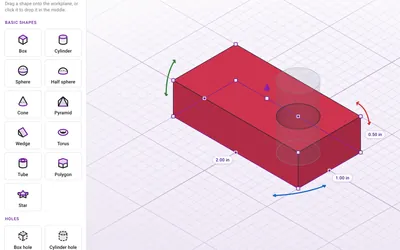
Build with shapes in Basic mode
Drag boxes, cylinders and more onto a grid, type exact sizes, then group them so solids join and holes cut. Every new project starts here.
-
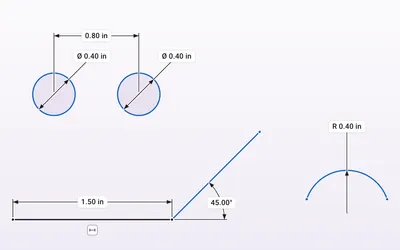
Sketch and dimension like real CAD
In Standard mode, draw lines, rectangles, circles, arcs and hexagons, then type exact sizes. Dimensions drive the shape, just like the CAD tools engineers use.
-
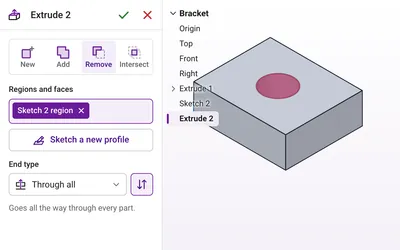
Extrude parts and cut holes
Pull a sketch up into a solid part, add more on top, or cut holes and slots right through it. A live preview shows the result first.
-
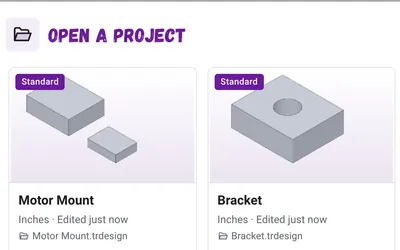
Save to your own folder, no logins
Pick a folder on your computer and every change saves there automatically. No accounts, no passwords, nothing to sign up for.
-
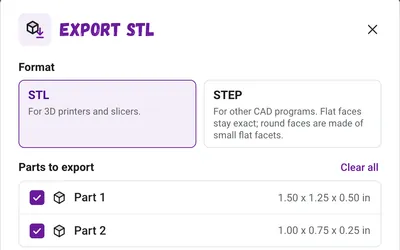
Export STL or STEP files
Download one part or all of them as STL files for any 3D printer, or as STEP files for other CAD programs, sized in millimeters so they come out exactly right.
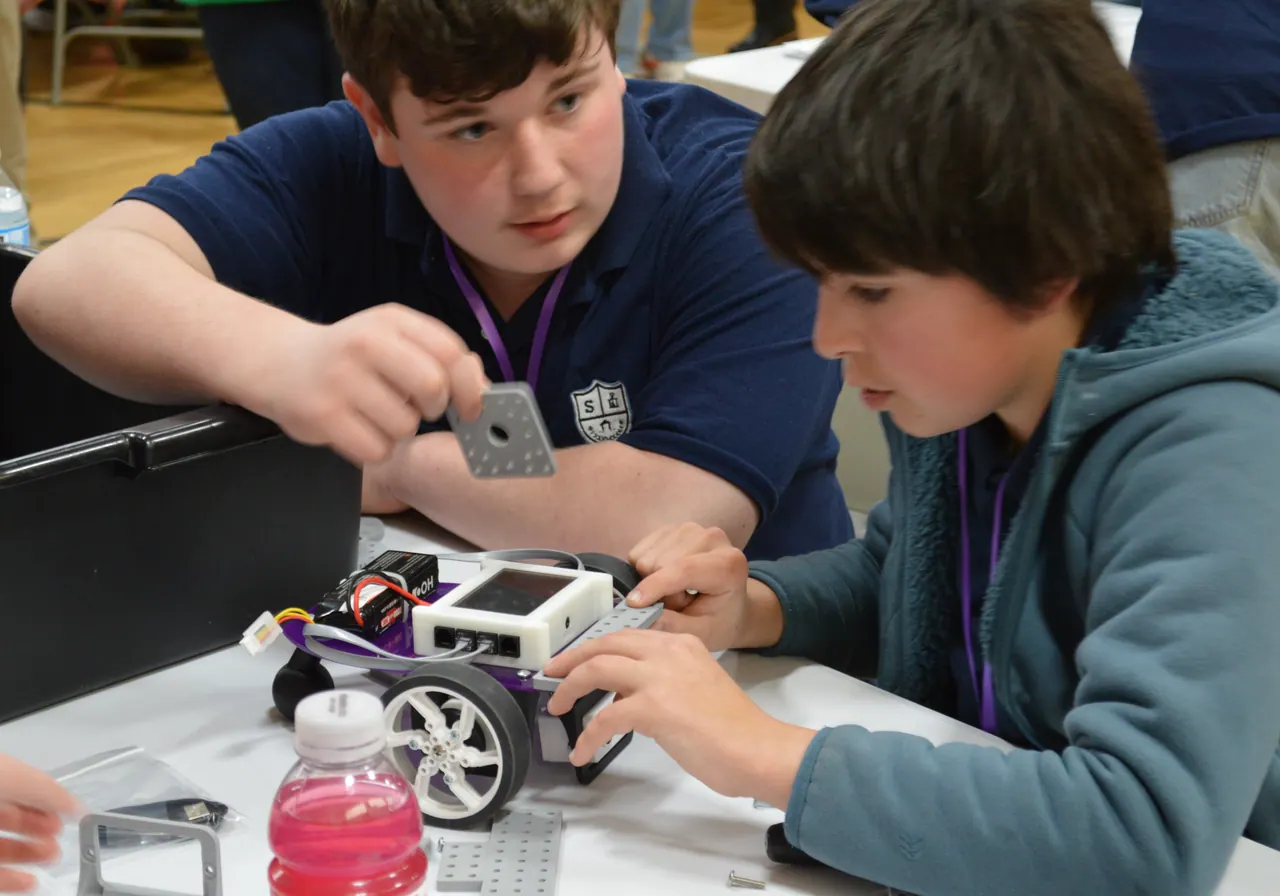
Made for classrooms
True Robotics brings hands-on robotics to classrooms, and this is where students design the plates, mounts and spacers for their robots, print them, and test them for real. Every guide is written for students, and teachers get tips for running it with a whole class.
Questions we hear a lot
Is the True Robotics Design Playground free?
Yes. The True Robotics Design Playground is free for every student, teacher and family. Open the page and start designing.
Can I use the True Robotics Design Playground for commercial projects?
Yes. It is free for school, personal and commercial projects, and the parts you design are yours to make, sell or share. Your STL and STEP files carry no watermark and no license. Round surfaces are saved as many small flat facets, which works great for 3D printing, laser cutting and most shop work. For tight-tolerance CNC machining, a full CAD program with true curved surfaces is the better fit.
Do students need an account?
No. There are no logins and no accounts. Projects save to a file on your own computer or in your browser, so students can start right away.
Does it work on Chromebooks?
Yes. It runs right in the browser on Chromebooks, Windows computers, Macs and iPads, with nothing to install. Chrome and Edge can also save each project straight to a folder you choose.
What's the difference between Basic and Standard?
You pick one when you make a new project. Basic works like building blocks: drag shapes onto a grid, type exact sizes, and group them so solids join and holes cut. It's where new projects start, and it's perfect for first designs. Standard works like the CAD tools engineers use: sketch a shape, add dimensions, and extrude it into a part.
What file do I send to a 3D printer?
An STL file. Click Export, pick STL and your parts, and download. STL files are saved in millimeters, which is what 3D printer slicers expect, so your part prints at the size you designed.
Can I open my design in other CAD programs?
Yes. Click Export and pick STEP. STEP files open in Onshape, Fusion, FreeCAD and most other CAD programs, sized in millimeters. Flat faces come through exact, and round faces are made of small flat facets.
Where are my projects saved?
On Chromebooks and in Chrome or Edge, you pick a folder when you create a project, and every change saves to that file. In other browsers, projects save in the browser, and you can download a copy anytime.
Can I design in inches?
Yes. New projects start in inches, and you can switch to centimeters anytime. Every box also understands math and units, like 1/4 in or 2.5 cm.