
Sketching
Select and Box Select
The Select tool in the True Robotics Design Playground picks the lines, circles, points, dimensions and constraint badges in a sketch. Click to select, and hold Shift, Ctrl or Cmd to add more. Drag across empty space to box select: dragging left to right picks what is fully inside the box, and dragging right to left picks anything the box touches.
- SelectShortcut: EscThe arrow at the start of the sketch toolbar. Every drawing tool goes back to it when you press Esc.
How do I select things in a sketch?#
- Click a line, circle, arc or point to select it. It turns purple. Whatever is under the pointer glows orange first, so you always know what a click will pick.
- Hold Shift, Ctrl or Cmd and click to add something to your selection, or to take it back out.
- Click empty space to clear the selection, or press Esc. With nothing selected, one more Esc saves the sketch and closes it.
- Press Ctrl+A (Cmd+A on a Mac) to select everything in the sketch.
As soon as something is selected, the constraint buttons that fit your selection light up in the toolbar, and the hint at the bottom says Press Delete to remove the selection, or pick a constraint from the toolbar.
Your selection carries into the tools that work on drawn geometry. Select some corners or a whole shape, then press O for Fillet or M for Chamfer, or select geometry and press X for Mirror, W for Linear pattern or U for Circular pattern. What you selected comes already picked.
How does box select work?#
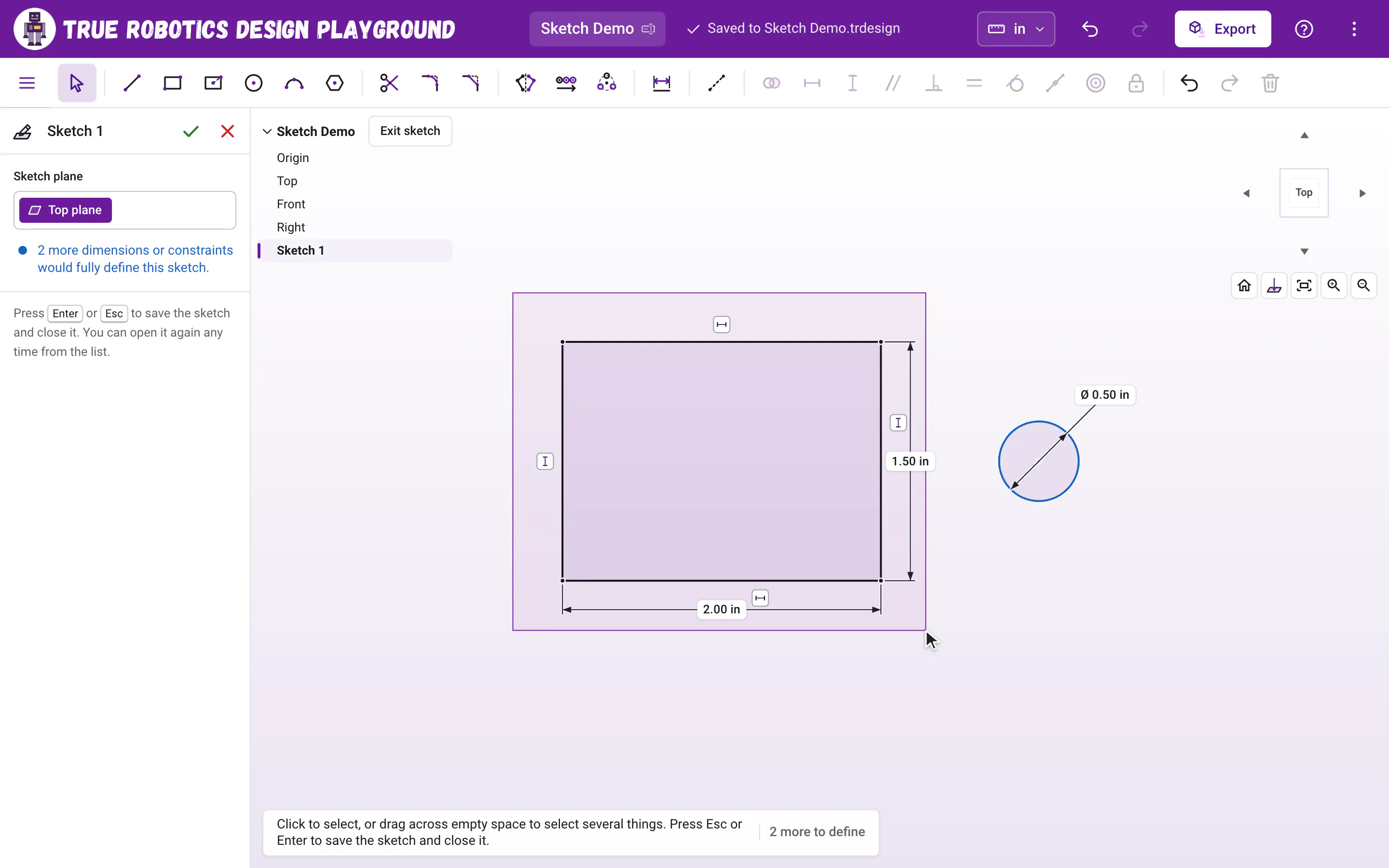
| Drag direction | What gets selected | Good for |
|---|---|---|
| Left to right | Only what is completely inside the box | Picking one shape out of a busy sketch |
| Right to left | Anything the box touches or crosses | Grabbing a lot quickly |
Hold Shift while you drag to add the box's picks to what you already have selected.
How do I move or reshape geometry?#
With the Select tool, drag a point, line or arc and the sketch follows, keeping every dimension and constraint true. Drag the edge of a circle to change its size. If that circle's size is already set by a dimension, dragging its edge moves the whole circle instead. Black, fully defined geometry stays put, because nothing about it is left to change. A dragged point snaps onto other points, like a circle's center dot onto another center, and stays there when you let go. Hold Shift to drag without snapping. Sketching basics shows how snapping works.
How do I change or move a dimension?#
- Double-click a dimension's label to type a new value, then press Enter.
- Drag a label to move it somewhere tidier.
- Click a label to select it, then press Delete to remove that dimension.
How do I remove a constraint?#
Constraints show as small badges next to the geometry they control. Hover over a badge to light up the geometry it belongs to, click it to select it, then press Delete (or Backspace on a Chromebook).
How do I delete things?#
Select them and press Delete or Backspace, or click the trash can at the end of the sketch toolbar. Deleting a line also removes the dimensions and constraints that were attached to it. Changed your mind? Ctrl+Z brings it back.
How does selecting work on a touch screen?#
Tap to select, and tap empty space to clear the selection. On a touch screen, dragging one finger across empty space turns the view, so the selection box is for a mouse, a trackpad or a pen. To add to a selection, hold Shift on the tablet's keyboard while you tap.
Now that you can pick things, try adding constraints and dimensions to what you select.