
Getting started
How the True Robotics Design Playground Works
The True Robotics Design Playground builds every part from a list of steps called features. A sketch is a flat drawing on a plane, sized with dimensions and constraints. Extrude, Sweep and Loft turn the closed shapes in sketches into 3D solids, or cut them away. Change any step later, and every step after it rebuilds automatically, just like professional CAD software.
Good to know: This page is about Standard mode
Every project is either Basic or Standard. Standard, explained here, builds parts from sketches and features. Basic builds them from shapes you drag in, size, and group with holes; Basic mode explains how that works.
What are the planes and the origin?#
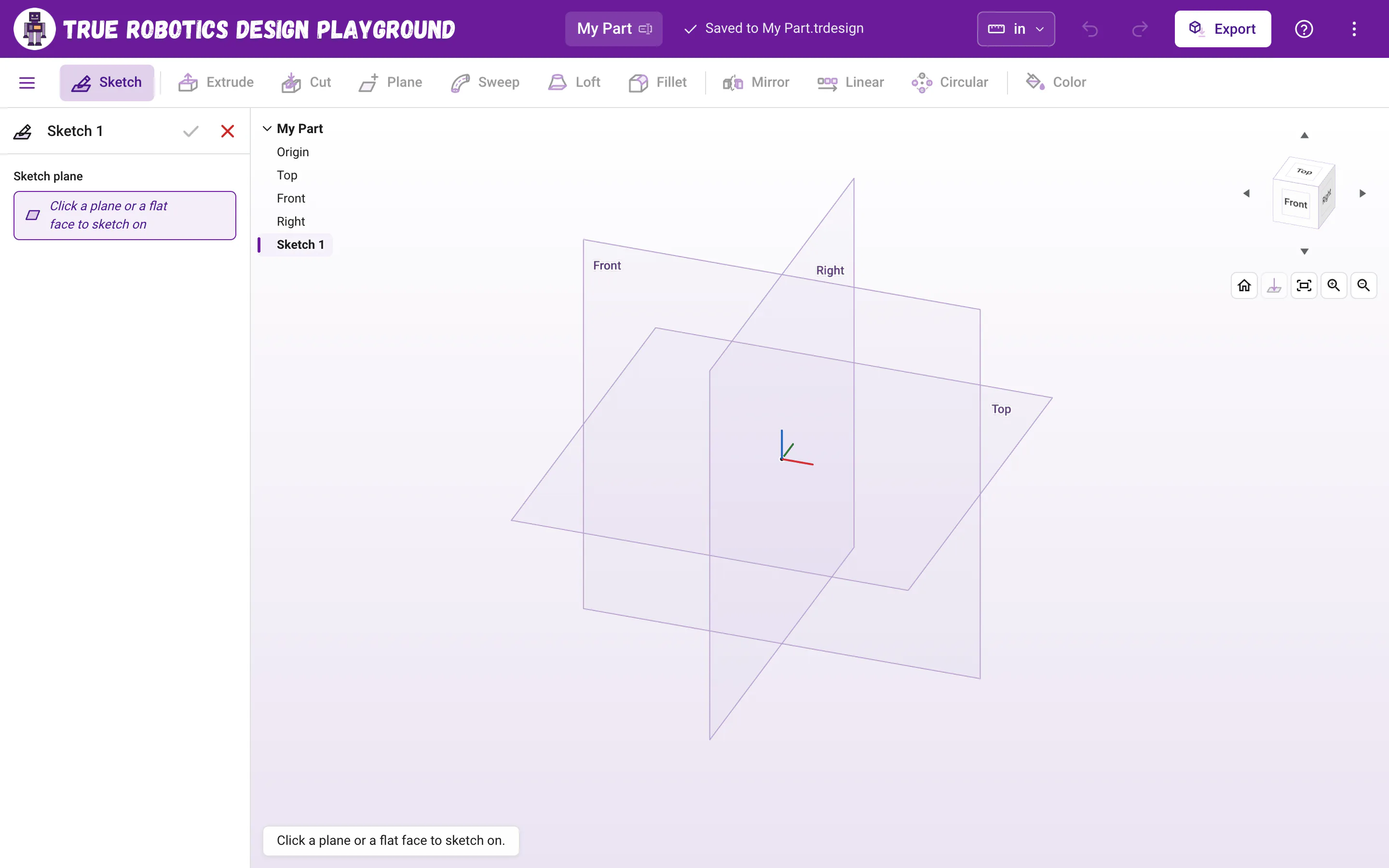
Every Standard project has three flat planes that meet in the middle of the view. They stay hidden so your parts have the view to themselves, and they appear in a faint, light purple whenever it is time to pick one, like when you press Sketch. Top lies flat like a tabletop, Front stands up facing you, and Right stands up facing the right side. The point where they all meet is the origin. Planes are where your first sketch goes, and the origin is the perfect spot to start a shape, because everything you build can be measured from it.
Need a plane somewhere else? Plane makes your own: a set distance from a plane or face, halfway between two, or tilted at an angle. Your planes are features too, so they show in the tree and can be changed later.
What is a sketch?#
A sketch is a flat drawing on a plane or on a flat face of a part. You draw it with lines, rectangles, circles, arcs, polygons and smooth splines. Then you give it exact sizes with dimensions and rules like "keep this level" or "make these equal" with constraints.
Dimensions drive the drawing. Type a new number into a dimension and the shape changes to match. That is the big difference between CAD and a drawing app: you tell the shape what size to be, and it listens.
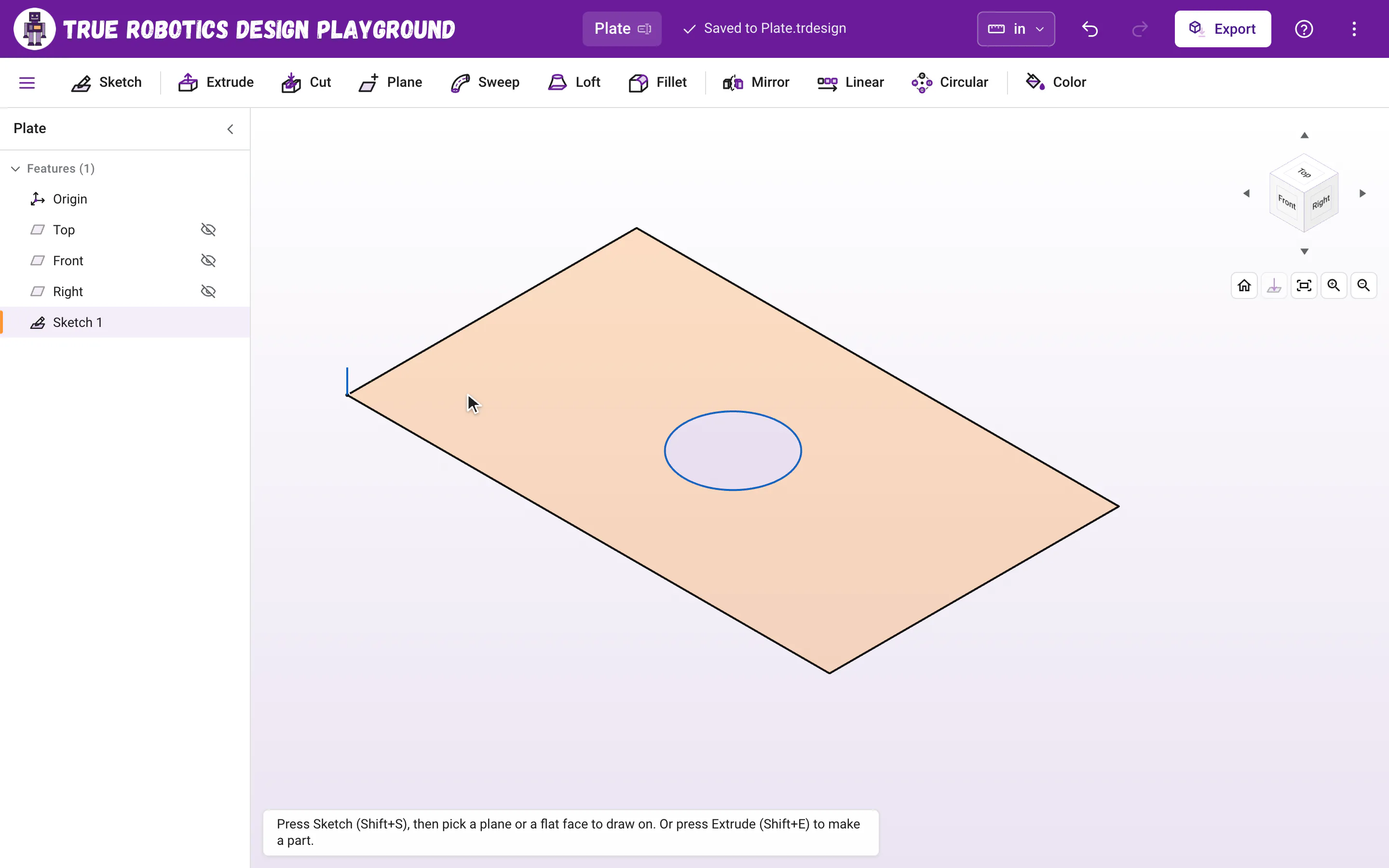
When lines and curves close up into a shape, the inside fills with a light purple tint. Each filled area is a region, and regions are what you extrude. A rectangle with a circle inside it makes two regions, and extruding the outer one gives you a plate with a hole.
What is an extrude?#
Extrude takes flat regions (or a flat face of a part) and pushes them straight out into 3D. New makes a new part, Add joins the parts it touches, Remove cuts material away, and Intersect keeps only the overlap. You choose how far it goes with a depth, or let it go Through all. Cut is the same tool, already set up to cut a hole all the way through.
What are Revolve, Sweep and Loft?#
They make shapes a straight extrude cannot. Revolve spins a profile around an axis, for wheels, knobs, pulleys and cups. Sweep carries a profile along a path of lines, arcs and splines, for handles, rings and rails. Loft blends from one profile to the next, like a big circle that narrows into a small one, for cones and funnels. All three use the same New, Add, Remove and Intersect as Extrude.
What is a part?#
A part is one solid piece. The app names them Part 1, Part 2 and so on, and the Export window lists them all with their sizes. When an Add extrude touches a part, the two join into one. When a Remove cut splits a part in two, you get two parts. Each part can be exported as its own STL file.
Why is it called parametric?#
Your project is not a frozen shape. It is a recipe: a list of features in the feature tree, built in order every time anything changes. Say you sketch a rectangle, extrude it 1/2 inch, then cut a hole through it. If you later change the first extrude to 1 inch, the block grows taller and the hole still goes all the way through, because the cut is rebuilt after the taller block.
Read what happens in this video
We double-click Extrude 1 in the feature tree, and the features after it dim while we edit. Typing 1 makes the block twice as tall. When we press Enter, the hole is cut again after the taller block, so it still goes all the way through.
The steps in the video:
- Double click Extrude 1 in the feature tree. Later features dim while you edit.
- Type 1 for the new depth. The preview grows taller.
- Press Enter. The hole is cut again, all the way through.
- Click Home under the view cube and press F to zoom to fit.
| Piece | What it is | Where you see it |
|---|---|---|
| Plane | A flat surface to sketch on: Top, Front or Right | Faint light purple squares in the view, and rows in the feature tree |
| Sketch | A flat drawing with dimensions and constraints | A sketch row in the tree, and lines in the view |
| Region | A closed area inside a sketch | A light purple fill |
| Your planes | A plane you place: offset, midway or at an angle | A plane row with an eye in the tree, and a named square in the view |
| Your axes | A straight line you place for features to turn around or run along | An axis row with an eye in the tree, and a long dashed line with its name in the view |
| Extrude and Cut | A step that turns regions or faces into 3D, or cuts them away | An extrude or cut row in the tree |
| Revolve | A step that spins regions around an axis into a round part, like a wheel or a knob | A revolve row in the tree |
| Sweep and Loft | Steps that carry a profile along a path, or blend between profiles | A sweep or loft row in the tree |
| Fillet and Chamfer | A step that rounds the edges of a part or cuts them off flat | A fillet or chamfer row in the tree |
| Mirror and patterns | Steps that copy features or whole parts to the other side of a plane, in a row or around an axis | A mirror or pattern row in the tree |
| Color | A step that paints whole parts or single faces; it changes how they look, not their shape | A color row with a paint bucket in the tree |
| Part | One solid piece you can export | Gray in the view (or the color you gave it), and listed in the Export window |
How does it keep sizes exact?#
New projects start in inches, and you can pick centimeters instead. Either way, sizes are stored exactly inside every project, so switching only changes how sizes are shown and typed, never the part itself. That is why you can switch units halfway through a design, and why every STL or STEP export comes out in millimeters at exactly the right size.
Where do my designs live?#
Everything runs in your browser on your own computer. Your projects save in a file you choose or inside the browser, never on a server, and there is no login. Projects and saving has the details.
Good to know: Used Onshape before?
You will feel right at home. The app follows the same ideas and many of the same shortcuts: Shift+S to sketch, Shift+E to extrude, N to look straight at a face, and Shift+1 through Shift+7 for the named views.
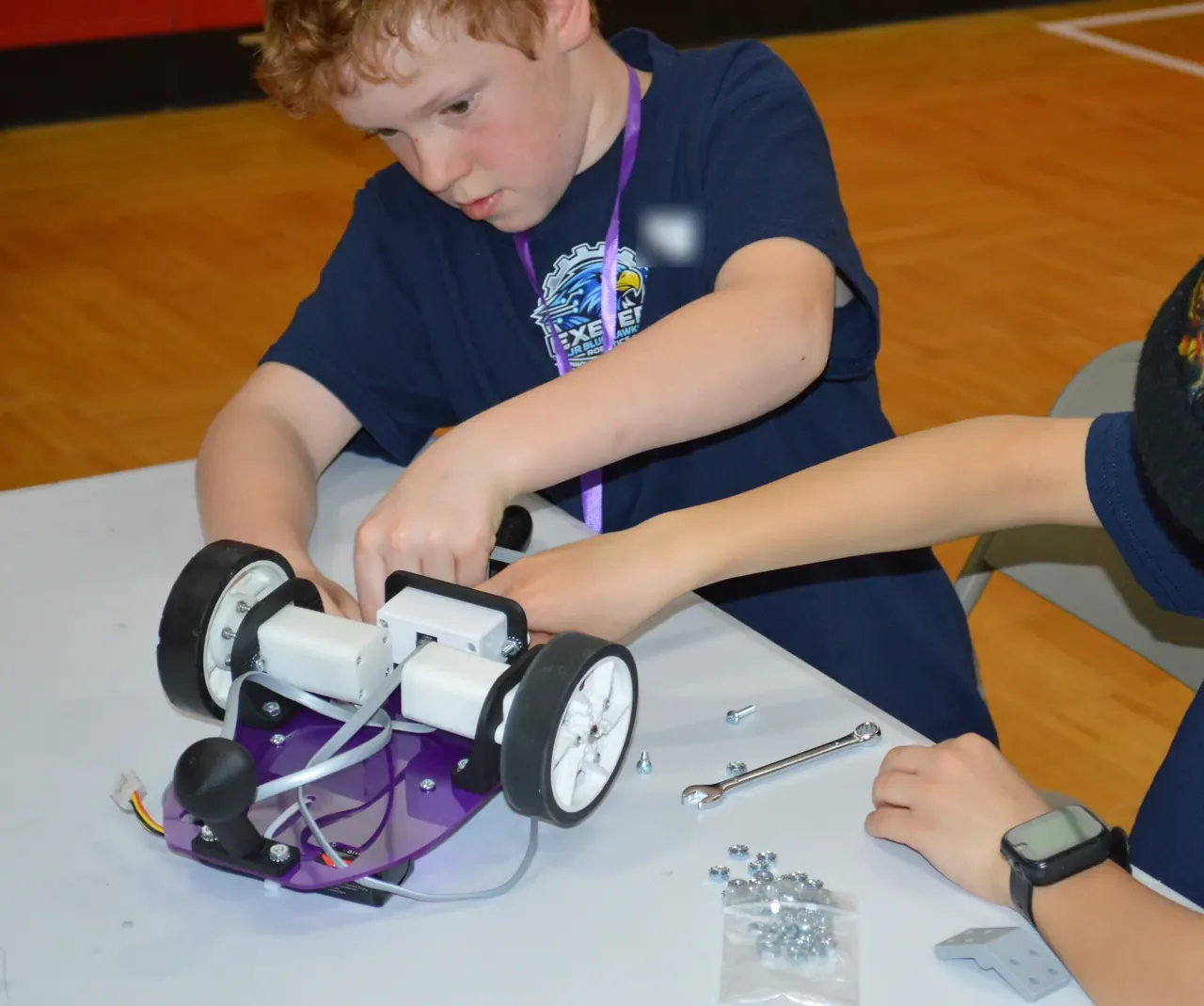
Ready to try it? Make your first part in five minutes, and you will see sketches, extrudes and parts working together.