
Sketching
Sketch Mirror Tool
The Mirror tool in the True Robotics Design Playground makes a mirror image of sketch geometry. Press X, click the lines, circles, arcs or points to copy, press Enter, then click the line to mirror across, such as a construction line or one of the dashed axes through the origin. The copy stays tied to the original, so it follows every change.
- MirrorShortcut: XFlips a copy of what you drew across a line or through a point, for parts that match on both sides.
Read what happens in this video
On a centered 3 by 2 inch rectangle, we draw a 1/4 inch hole near the top right corner. We press X for Mirror, click the hole, press Enter and click the up and down axis, and a copy appears on the left. Mirroring both holes across the side to side axis makes four. Changing the first hole to 3/8 inch resizes all four, because the copies stay tied to it.
The steps in the video:
- Press R for the Center rectangle and click the origin.
- Move out, type 3, press Tab, type 2 and press Enter. Press Esc, then F.
- Press C, click near the top right corner of the plate, type 1/4 and press Enter.
- Press Esc. Press X for Mirror, then click the circle.
- Press Enter. Dashed axes appear through the origin.
- Point at the up and down axis to see the copy, then click it.
- Click both circles and press Enter.
- Click the side to side axis. Now there are four holes.
- Click the green check in the tool panel to go back to Select.
- Double-click the first circle's size label, type 3/8 and press Enter.
- All four holes grew together. Press Esc to save and close the sketch.
How do I mirror part of a sketch?#
Draw one side In a sketch, draw the half you want to copy, like a 1/4 inch hole near the right edge of a plate.
Pick the Mirror tool Press X or click Mirror in the sketch toolbar. The tool panel on the left shows Mirror, with Line and Point in its About row. Leave Line on.
Pick what to mirror Click each line, circle, arc or point you want to copy. They turn purple. Clicking a circle's center picks the circle too.
Go to the next step Press Enter, or click Next: pick the line in the tool panel. Two dashed axes appear through the origin, one side to side and one up and down.
Click the mirror line Point at any line, a dashed construction line or one of the axes. A preview of the mirror image shows on the other side. Click, and the copy is made.
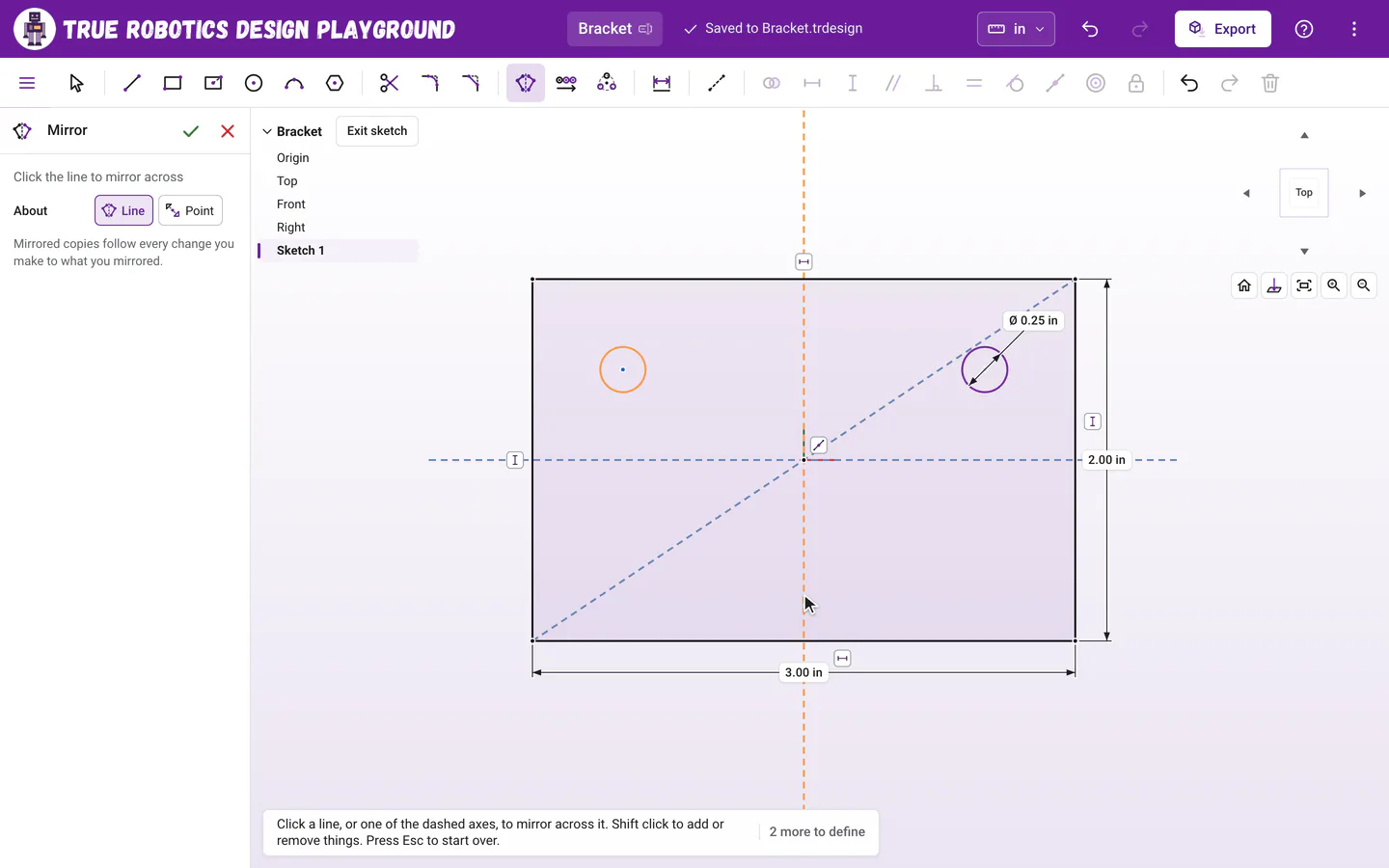
Point at a line or an axis to preview the mirror image, then click to make it.
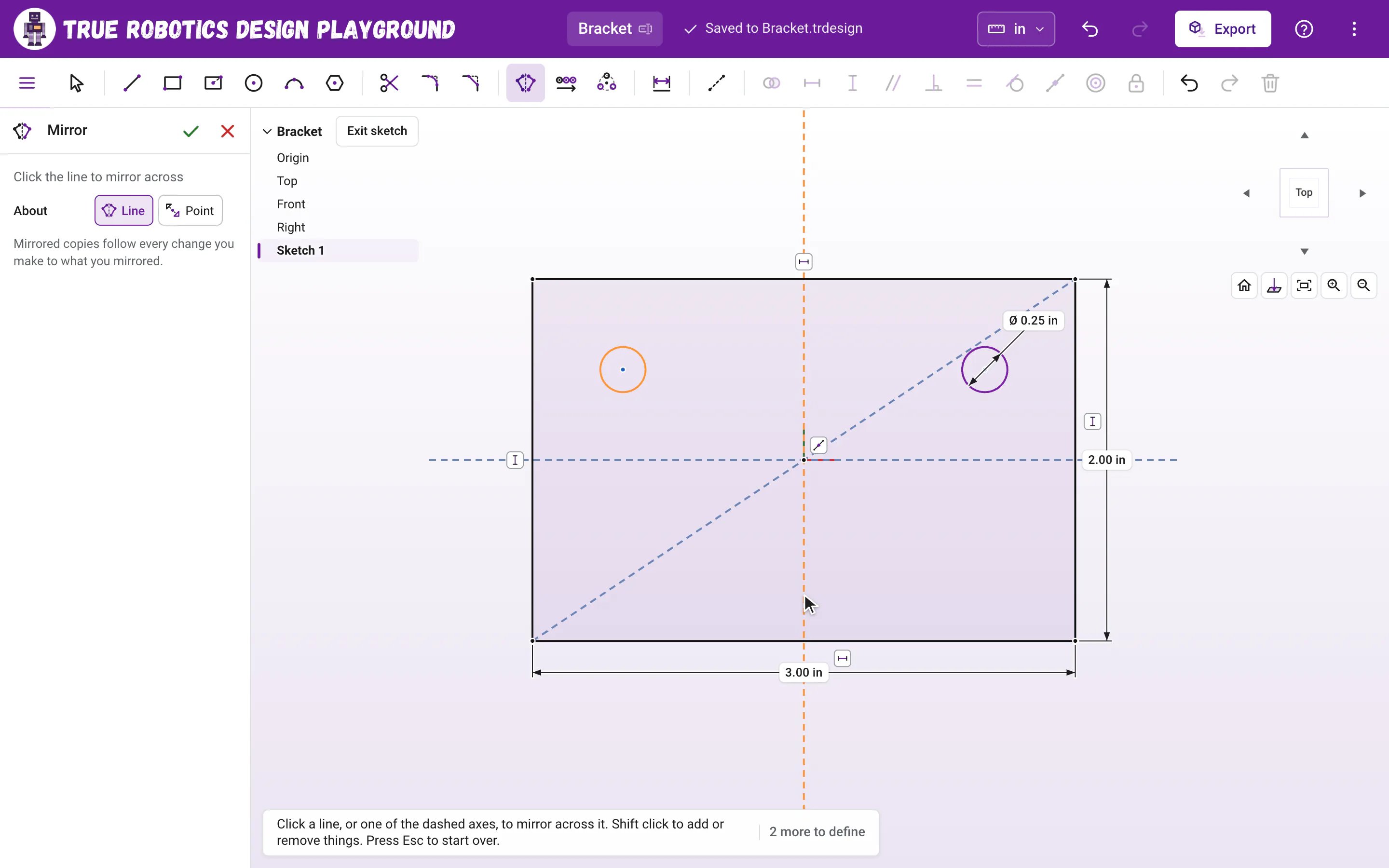
After a copy is made, the tool is ready for the next mirror. Pick more geometry, press Enter, and click another line. Click the green check in the tool panel, or press Esc, to go back to Select.
Tip: Select first, then mirror
If you select the geometry with the Select tool before you press X, it comes already picked and the tool goes straight to pick the line.
What can I mirror across?#
- Any line in the sketch, solid or dashed. A construction line down the middle of a part is the classic choice.
- The dashed axes through the origin, which show only while Mirror is waiting for its line. They are perfect when your part is centered on the origin.
- A point: choose Point in the tool panel's About row, then click a point, the origin, or a circle or arc for its center. The copy is turned halfway around through that point instead of flipped.
Do mirrored copies follow my changes?#
Yes. Every point of the copy is held exactly opposite its original by a symmetric rule, and mirrored circles stay Equal to theirs. Drag the original, or change its dimension, and the copy moves and resizes to match. Move the mirror line, and the copy moves with it.
How do I build a symmetric shape from half of it?#
Draw half of the outline with its ends right on a center line, then mirror the half across that line. Points that sit on the mirror line are shared, not copied, so the two halves join into one closed shape that fills light purple and extrudes as one piece. The mirror line itself never gets copied.
How do I start over or put the tool away?#
- Hold Shift and click to add or remove something from what is picked, in either step.
- Press Esc once to let go of everything picked. Press it again to put the tool away.
- On a touch screen, tap what to mirror, tap Next: pick the line, then tap the line. Tap the green check when you are done.
Want lots of copies instead of one? Try the Linear pattern and Circular pattern tools next.
Good to know: Sketch Mirror or the Mirror feature?
The sketch Mirror tool copies lines, circles, arcs and splines while you draw. To mirror features or whole parts that are already built, like a boss and its hole, use the Mirror feature (Shift+M) outside the sketch.
Questions and answers#
How do I mirror a sketch across the center of my part?
Press X, click what you want to copy and press Enter. Dashed axes appear through the origin. Click the up and down axis to mirror left and right, or the side to side axis to mirror top and bottom.
Does a mirrored copy update when I change the original?
Yes. The copy is tied to the original by symmetric constraints, so dragging or resizing the original moves and resizes the copy to match.
Can I mirror through a point instead of a line?
Yes. In the Mirror tool panel, choose Point in the About row, then click a point, the origin, or a circle or arc for its center. The copy is turned halfway around through that point.