
Assemblies
Insert Parts and STL Files
To insert parts into an assembly in the True Robotics Design Playground, click Insert in the toolbar or press Shift and I. Pick your saved parts, set how many copies you need, and click Insert. Choose files brings in .trdesign parts and STL files from your computer, and the app asks what units an STL file is in, with millimeters picked.
Read what happens in this video
In a new assembly we click Insert and pick Plate and Standoff from the parts we have saved, with two copies of the standoff. The plate comes in first, so it is fixed in place. Then we insert an STL file from the computer, keep millimeters as its units, and it lands beside the other parts.
The steps in the video:
- Click Insert in the toolbar to see the parts you have saved.
- Click Plate to pick it.
- Click Standoff, then click + once so you get two copies.
- Click Insert 3 parts. The plate came in first, so it is fixed in place.
- Click Insert again, then Choose files and pick an STL file.
- Most STL files are in millimeters, so keep mm picked.
- Click Insert 1 part. The battery box lands beside the others.
How do I insert parts I made?#
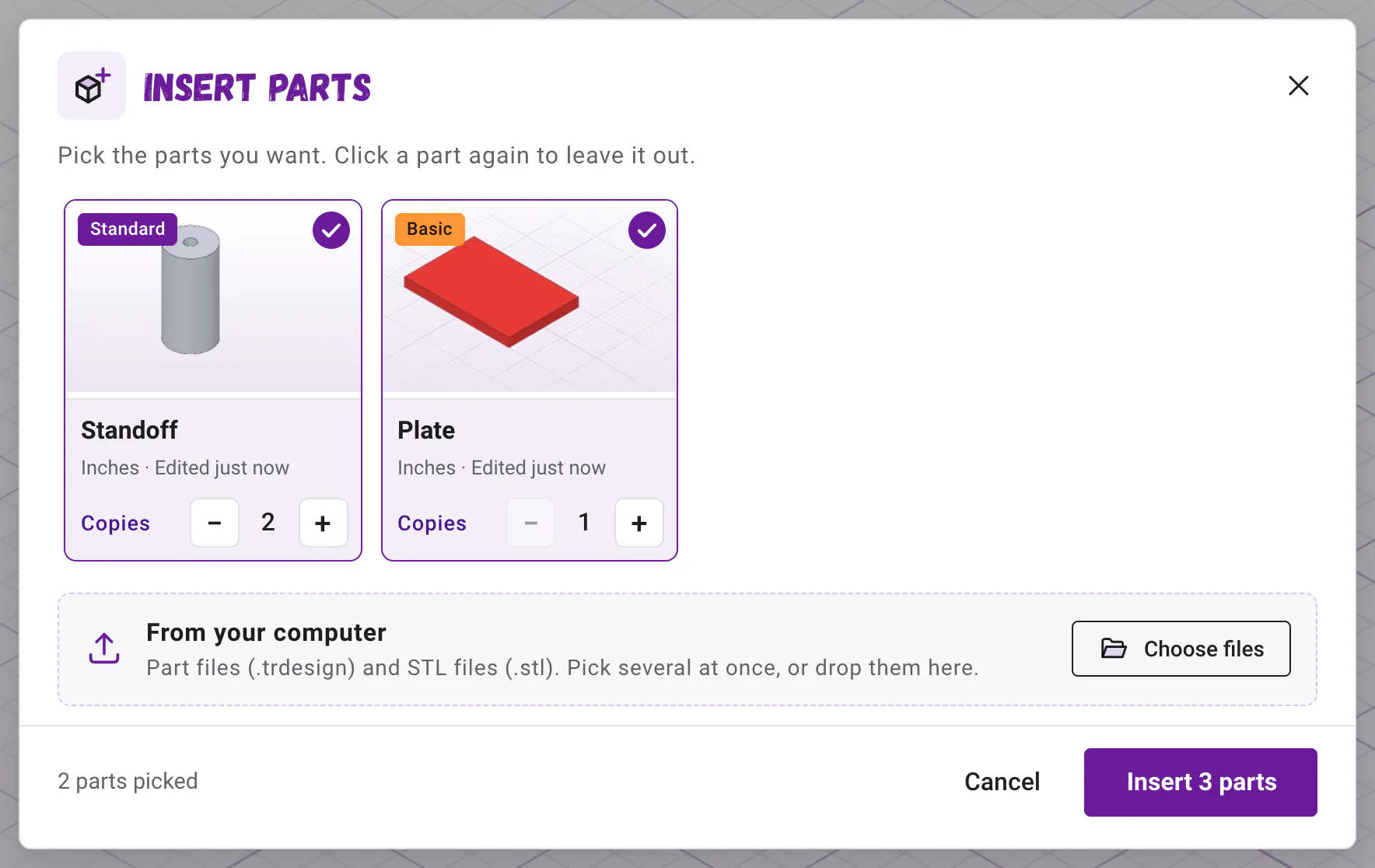
Open Insert In your assembly, click Insert at the left end of the toolbar (or press Shift+I). The Insert parts window shows the Basic and Standard parts saved in this browser, newest first, each with a picture.
Pick your parts Click each part you want. A check mark shows it is picked; click it again to leave it out. The part you pick first comes in first, and if the assembly is empty, it is the one that stays fixed in place.
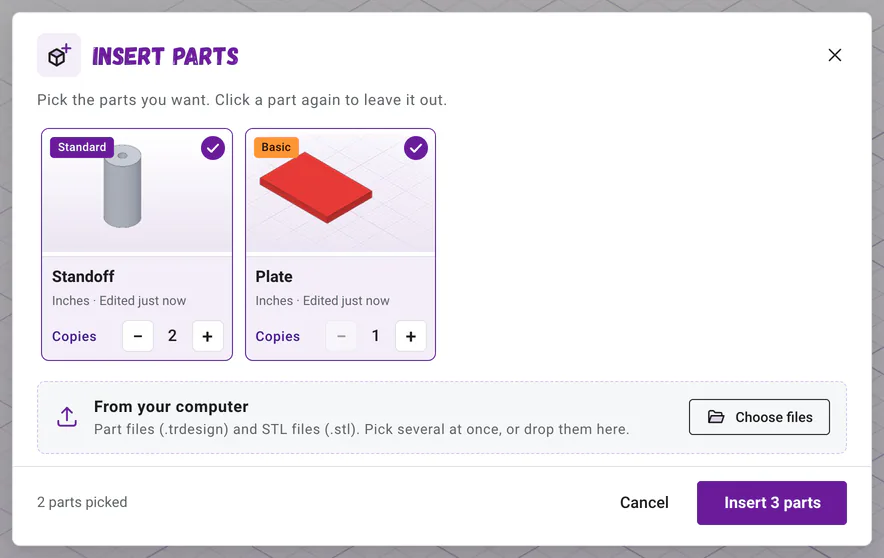
Pick parts you made, set how many copies you need, or bring in files from your computer. Set the copies Need more than one? Click + under a picked part for another copy, like two standoffs or four wheels. Click - for one less.
Insert them Click Insert 3 parts (the button counts every copy). The parts land side by side, the view zooms to show them all, and the list on the left names each copy, like
Standoff <1>andStandoff <2>.
Tip: Not in the list?
The list shows parts saved in this browser. A part you made with No to autosave, and never saved, isn't there yet: open it, click Save in the purple bar, and it shows up. A part saved on another computer comes in from its .trdesign file instead, with Choose files.
How do I insert a file from my computer?#
Under the list, From your computer takes part files (.trdesign) and STL files (.stl). Click Choose files and pick one or several at once, or drag them from your computer and drop them anywhere on the window. You can also drop files straight onto the assembly's view. Part files go right in.
What units is my STL file in?#
STL files have no units inside them, just numbers, so the app asks: What units is this STL in? Pick in, cm or mm, then click Insert 1 part. mm is picked to start, because most STL files are in millimeters, and the window may add a hint from the file's size. If the part comes in giant or tiny, undo with Ctrl+Z and insert it again with other units.
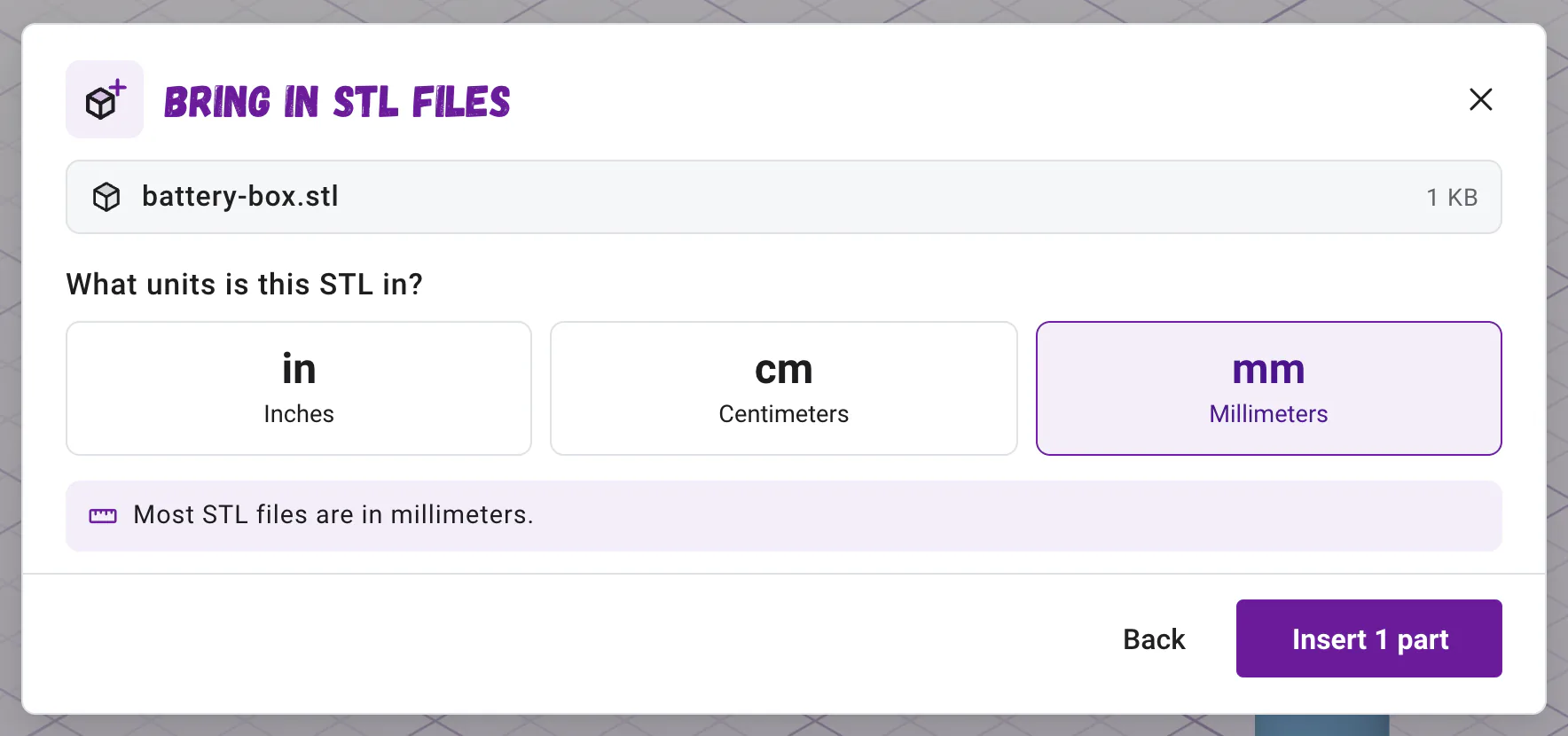
- STL files from 3D printing sites, slicers and most CAD programs are almost always millimeters.
- An STL exported from the True Robotics Design Playground is always millimeters too.
- A file with more than 400,000 triangles is too big to bring in. Save it again at a coarser resolution.
- An STL that isn't a closed solid still shows and exports just as it came.
Can I add more parts later?#
Anytime. Click Insert again and the new parts land beside the others. To add another copy of a part already in the assembly, insert it again. If a part changed since you inserted it, every copy of it switches to the newest version, and the app tells you so.
Which parts can I insert?#
| What | From where | Good to know |
|---|---|---|
| Basic parts | Your saved projects, or a .trdesign file | Everything in the project comes in together, as one part you can mate. Group your shapes first. |
| Standard parts | Your saved projects, or a .trdesign file | Everything in the project comes in together, as one part you can mate. |
| STL files | Your computer | You pick the units. Motors, sensors and battery holders from parts websites are often STL files. |
| Assemblies | Not yet | Insert the parts of that assembly instead. |
Next, connect your parts with mates, or follow the spinning wheel tutorial from start to finish.
Questions and answers#
Can I insert an STL file into the True Robotics Design Playground?
Yes, into an assembly. Click Insert, then Choose files, pick the STL file and tell the app its units. Most STL files are in millimeters, so mm is picked to start.
How many copies of a part can I insert?
As many as your build needs. Click + under a picked part for each extra copy, and each copy gets its own number, like Standoff <2>.
Why is my part missing from the Insert window?
The list shows parts saved in this browser. Save the part first, or bring it in from its .trdesign file with Choose files.
Why did my STL come in huge or tiny?
The units were wrong. Undo, insert it again and pick other units. A part 25 times too big was probably millimeters read as inches.