
Sketching
Center Rectangle Tool
The Center rectangle tool in the True Robotics Design Playground draws a rectangle that grows out from a center point. Press R, click where the center goes, often the origin, then click a corner or type the full width and height. A dashed construction diagonal keeps the center exactly in the middle, which makes symmetric parts easy to build.
- Center rectangleShortcut: RA rectangle centered on a point, for parts that should be balanced around the middle.
How do I draw a center rectangle?#
In a sketch, press R or click the Center rectangle button. The tool panel on the left says Click to place the center.
Click the center. Clicking the origin snaps the center there.
Move the pointer out to a corner. The rectangle grows evenly in every direction.
Click to place the corner, or type the full width, press Tab, type the full height and press Enter.
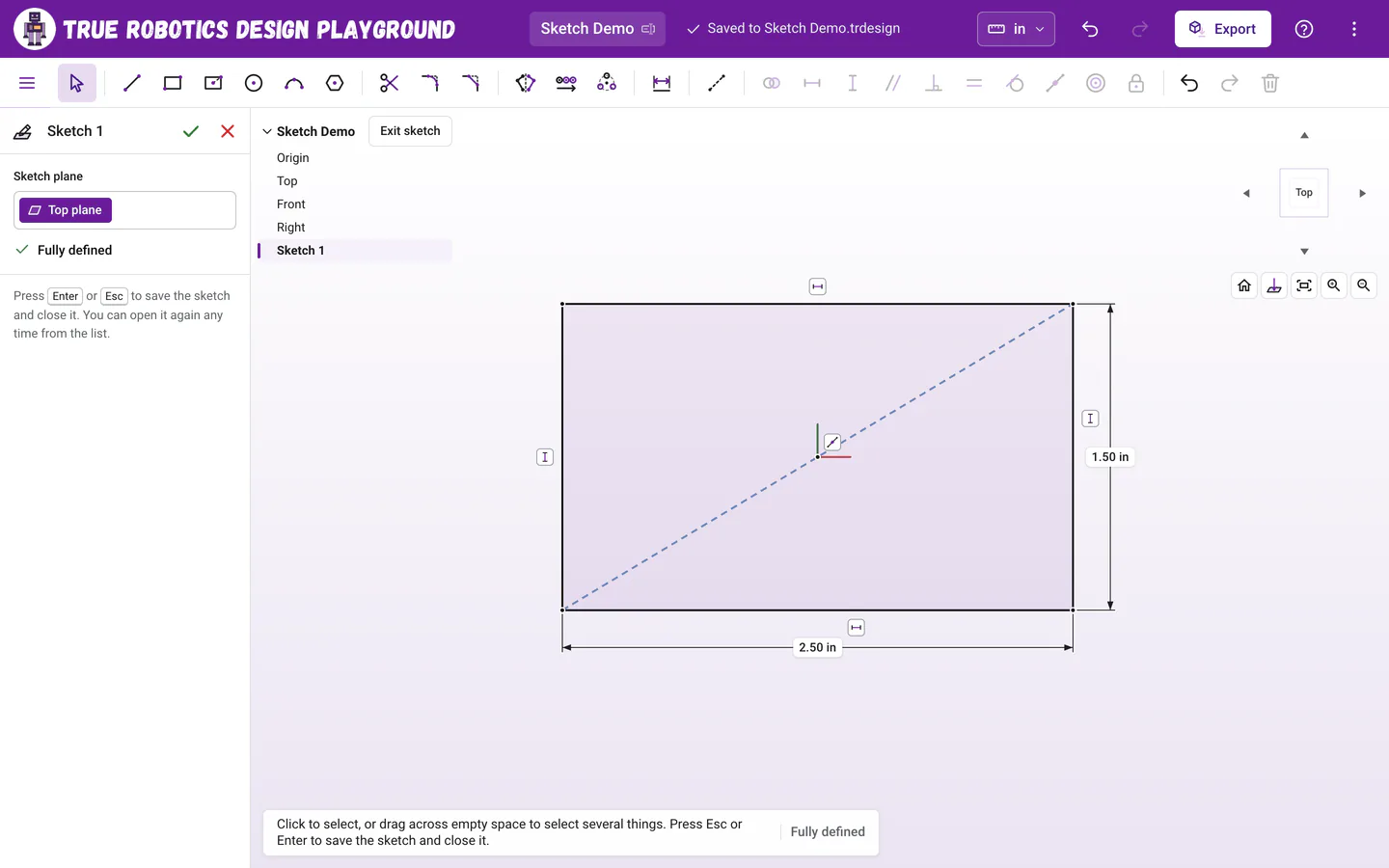
A center rectangle keeps its center exactly on the point you clicked.
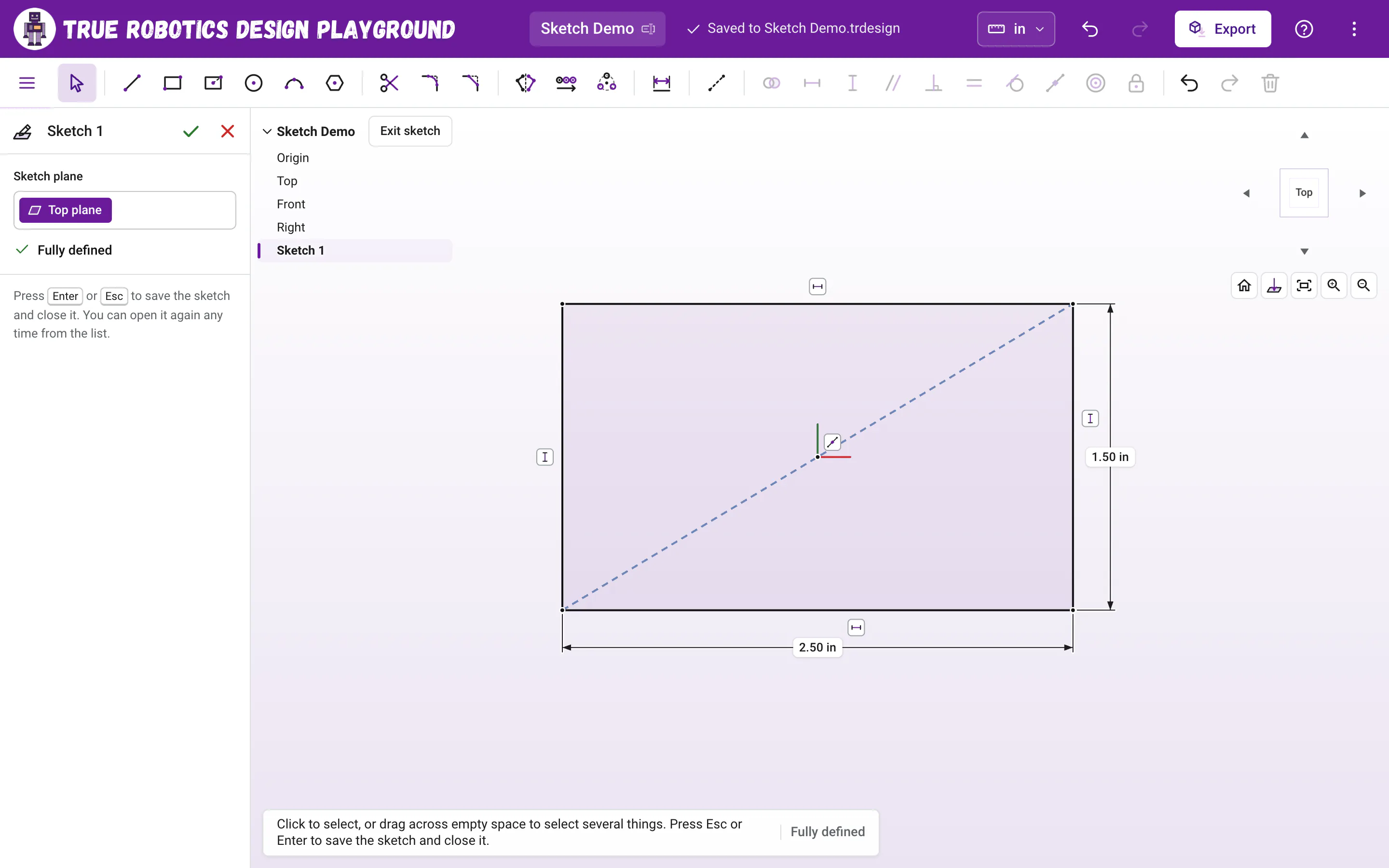
The Width and Height boxes in the tool panel work the same way: type in them while you draw, or after, to change the rectangle you just drew. Click the green check to place it and go back to Select.
What is the dashed line across it?#
It is a construction diagonal from corner to corner, and the center point is held at its Midpoint. That is what keeps the rectangle centered when you change its sizes. Construction lines are dashed and never become part of your solid, so it will not show up when you extrude.
Why use a center rectangle?#
Centered parts are easier to line up. A plate centered on the origin stays centered when you change its width, so holes you place the same distance left and right of the origin stay balanced. Robot parts that mount in the middle of something, like a sensor plate, are a great fit.
How do I make it a square?#
Type the same width and height, or select the top side and one of the sides (click one, hold Shift and click the other), press E for Equal, then add one dimension. The Draw a square four ways tutorial walks through it.
Try a centered plate next, and see how it stays perfectly balanced as you change its size.