
Basic mode
Holes and Groups
In Basic mode of the True Robotics Design Playground, a hole is any shape set to Hole: it shows see-through gray and cuts away the solids it is grouped with. Put a hole where you want it, select it with the solid, and press Group. The solids join into one part and the holes cut through. Ungroup takes a group apart again.
Read what happens in this video
The gray cylinder is a hole, so it shows see through. We drag it into the red box. Ctrl and A selects both shapes, and Ctrl and G groups them, so the hole cuts right through the box.
The steps in the video:
- Press Esc. The gray, see through cylinder is a hole.
- Drag the hole into the box.
- Press Ctrl + A to select both shapes.
- Press Ctrl + G to group them. The hole cuts right through the box.
- Press Esc to clear the selection and see the result.
How do I cut a hole?#
Put a hole where you want it Drag a Cylinder hole (or a Box hole) from the catalog and size it, or select any shape and press H. Holes show as see-through gray. Drag the hole into the solid, right where the hole should go, and let it stick out a little past the top and bottom.
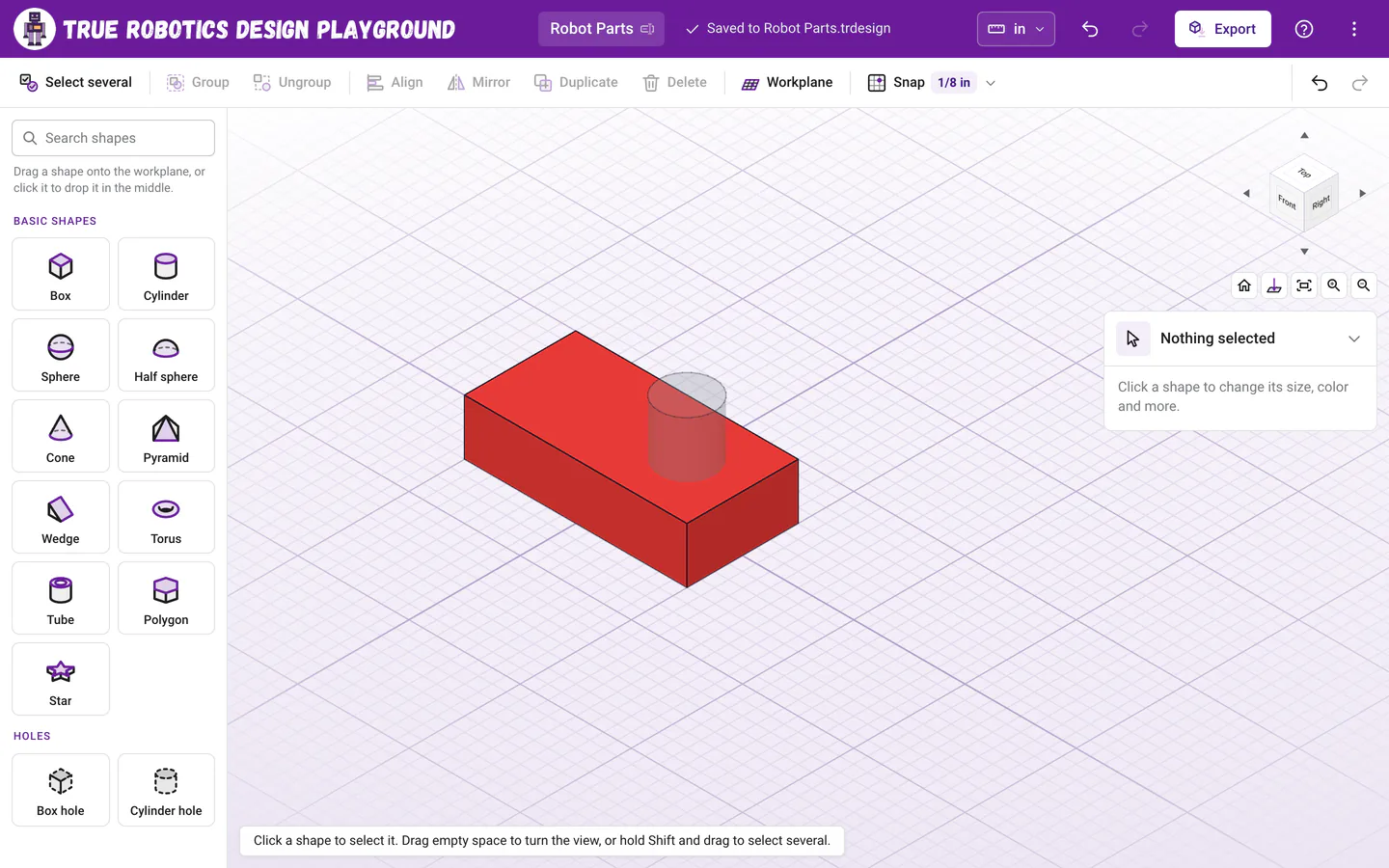
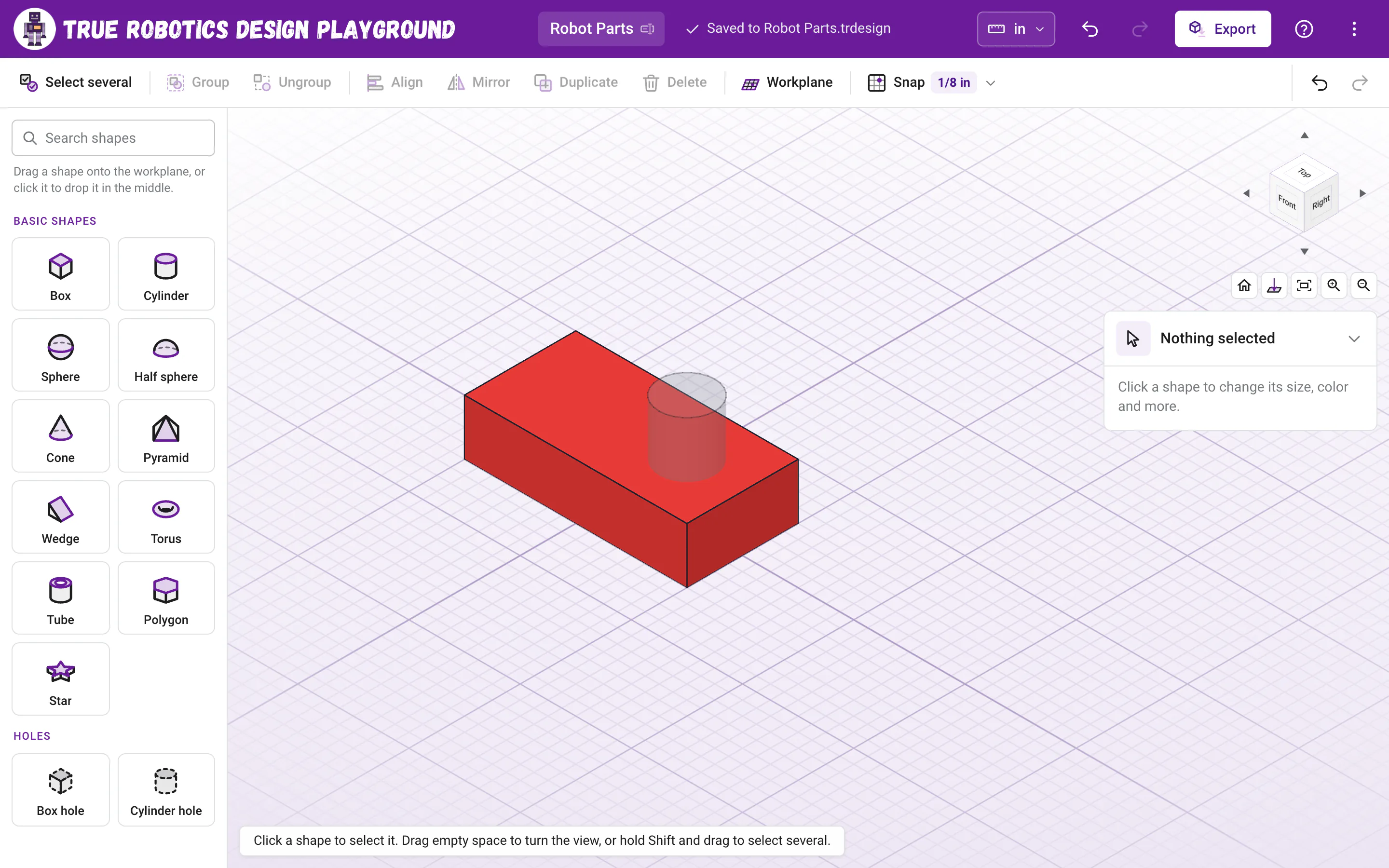
Place the hole where you want it. It cuts once you group it with the box. Select the solid and the hole Press Ctrl+A to select everything, or click the solid and Shift+click the hole. On a touch screen, tap Select several on the toolbar, then tap the solid and the hole.
Group them Click Group (or press Ctrl+G). The hole cuts right through the solid, and the two become Group 1, one part.
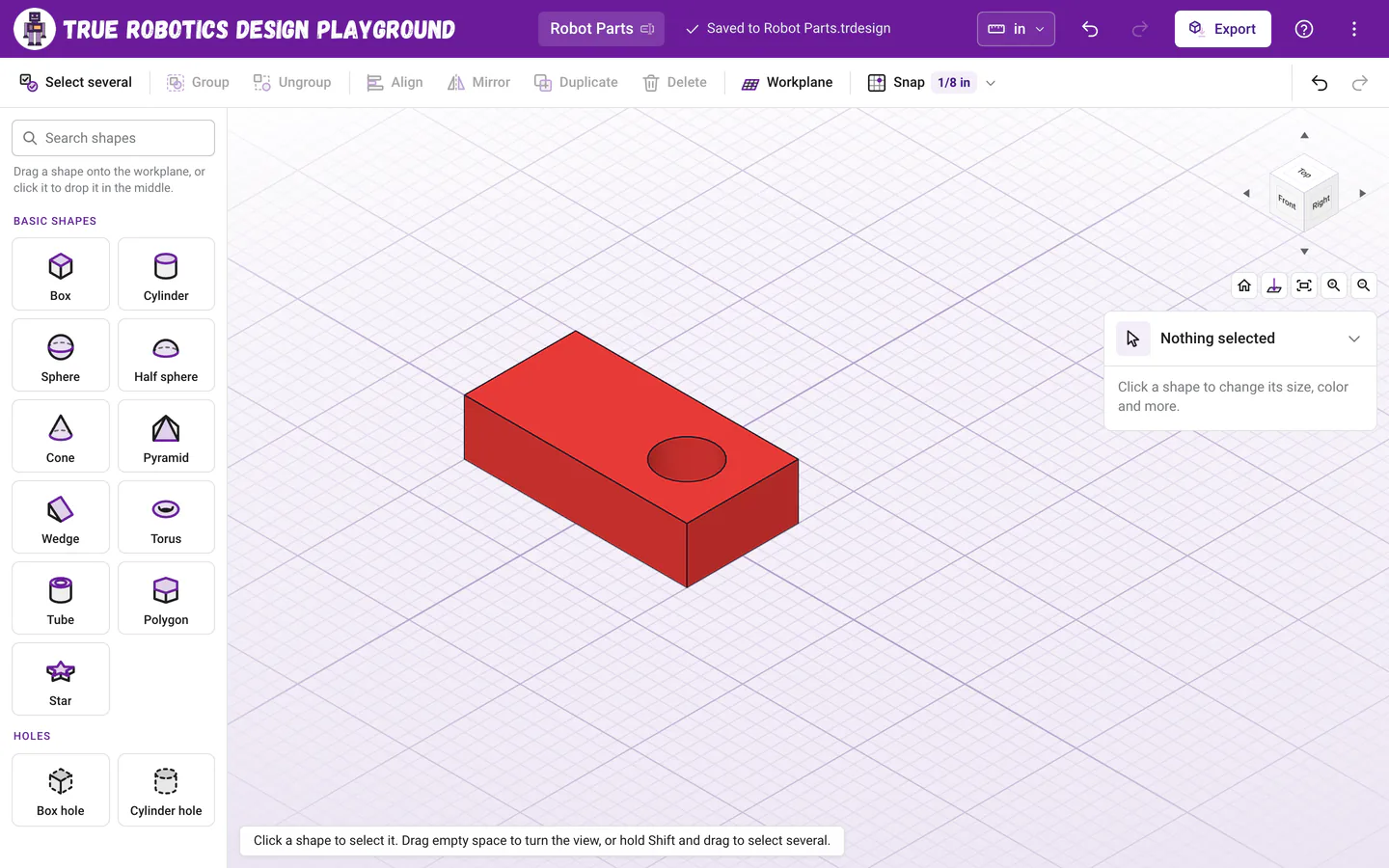
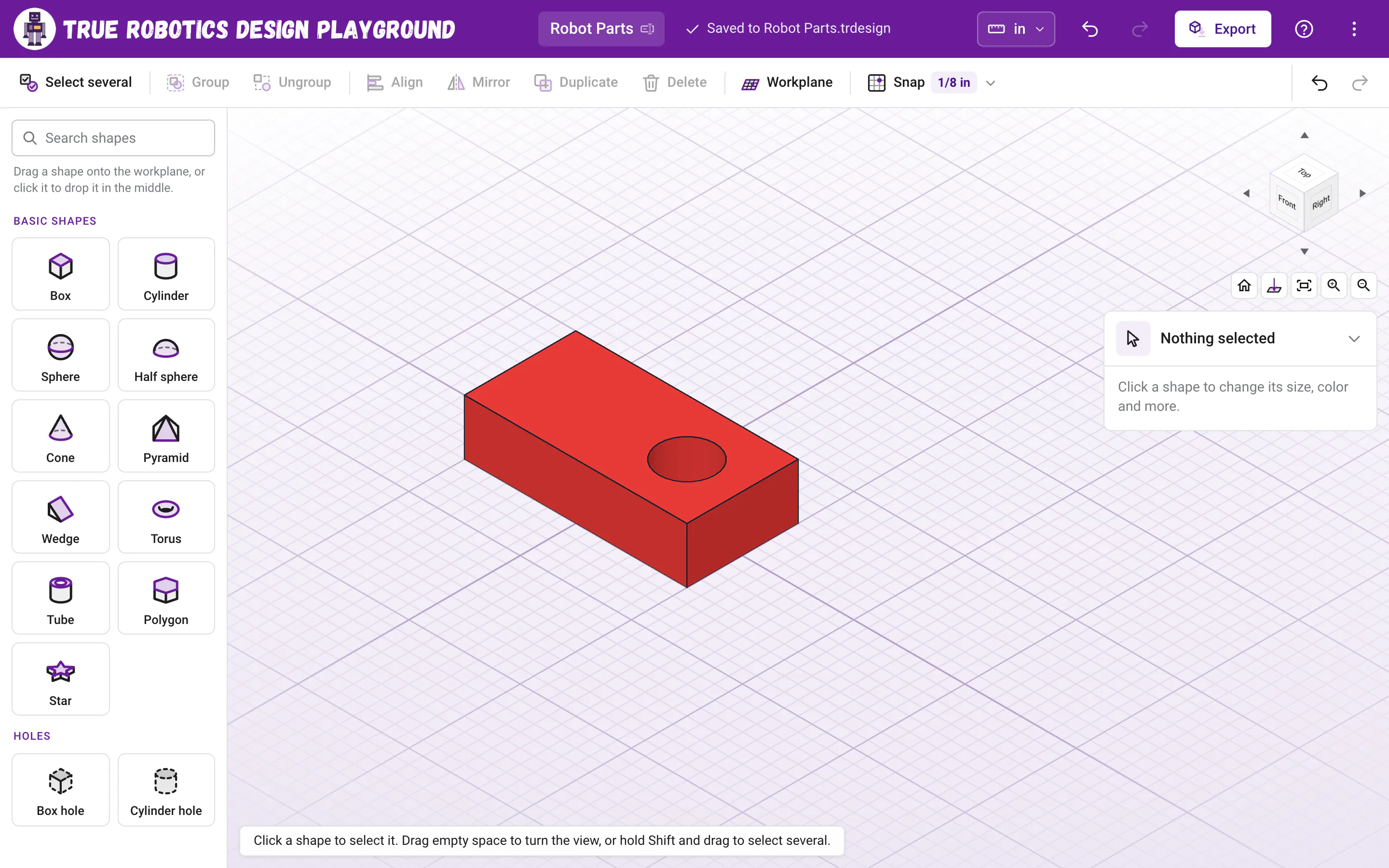
Group the box and the hole, and the hole cuts right through.
How do I turn a shape into a hole?#
Any shape can be a hole, not just the two in the catalog. Select it and pick Hole at the top of the settings panel, or press H. Pick Solid (or press H again) to make it solid. A polygon makes a hex hole for a nut, a cone makes a countersink, and a star makes a fun cookie cutter.

What does a group do?#
- Solids join. Every solid in the group becomes one piece, even where they overlap.
- Holes cut. Every hole in the group cuts away the solids in that group, and nothing outside it.
- It acts as one shape. Click any part of it to select the whole group, then move it, resize it, turn it, mirror it, color it or copy it in one go. Resizing a group stretches everything inside it, holes too.
- It becomes one part. Each solid shape or group at the top level is one part when you export, named after it, like Group 1.
When a group is selected, the holes inside it show faintly, so you can still see where they are.
Can a group have groups inside it?#
Yes. Group a few shapes, then group that group with more shapes, as many levels as you like. A whole group can even be a hole: select it and pick Hole, and everything in it cuts the solids it is grouped with next. That is a quick way to reuse a pattern of holes, like four screw holes, in another part.
How do I take a group apart?#
Select the group and click Ungroup (or press Ctrl+Shift+G). Its shapes come back as they were, all selected, and the holes show see-through again. Ungroup only takes apart one level, so a group inside a group stays together until you ungroup it too. Changed your mind? Ctrl+Z puts the group back.
What happens to a hole that is not in a group?#
A hole on its own cuts nothing yet. It stays see-through, and it is never exported, so a stray hole can never end up in your STL file. Group it with a solid when you are ready.
Tip: Holes that go all the way through
Make a through hole a little taller than the solid it cuts, so it pokes out of the top and the bottom. A Cylinder hole starts 1 inch tall, which already goes through most plates. For a screw or an axle, make the hole about 0.01 inch bigger than the screw so it slides in after printing.
Ready to put it all together? Make a robot wheel hub uses five holes and one group.
Questions and answers#
Why did my hole not cut anything?
A hole only cuts the solids in its own group. Select the hole and the solid together and press Group (Ctrl+G).
Why does my exported file leave out a shape?
Holes are never exported, only solid shapes and groups. If a shape is set to Hole by mistake, select it and pick Solid in the settings panel.
Can I change a shape after it is grouped?
Yes. Ungroup it, change the shape, then group again. Resizing, moving and coloring work on the whole group without ungrouping.