
Sketching
Fillet Tool: Round Sketch Corners
The Fillet tool in the True Robotics Design Playground rounds sharp corners in a sketch. Press O, set the Radius in the tool panel, and click a corner where two lines meet. The corner becomes a smooth arc with a radius dimension. Click a side to round every corner of that shape at once, then press Enter.
- FilletShortcut: ORounds a corner where two lines meet, for plates that are friendly to hands and look finished.
Read what happens in this video
In a sketch, we draw a 3 by 2 inch rectangle from the origin. We press O for Fillet, set the Radius box to 1/4 and click the top right corner, which turns into a smooth curve. Clicking the bottom side picks the other three corners, and Enter rounds them all at once. After finishing the sketch, a 1/4 inch extrude makes a plate with rounded corners.
The steps in the video:
- Press G for the Corner rectangle and click the origin.
- Move up and to the right, type 3, press Tab, type 2 and press Enter.
- Press Esc to put the rectangle tool away, then press F to zoom to fit.
- Press O for Fillet. The tool panel on the left shows a Radius box.
- Click the Radius box, type 1/4 and press Enter.
- Click the top right corner. It becomes a smooth curve.
- Click the bottom side to pick the other three corners.
- Press Enter to round all three at once.
- Click the green check in the tool panel to go back to Select.
- Press Enter to finish. Press Shift + E, type 1/4 and press Enter.
- Click the Home button under the view cube, then press F to zoom to fit.
How do I round a corner?#
Draw a shape with corners In a sketch, draw a rectangle, a polygon or a chain of lines. Fillet rounds any corner where two straight lines meet.
Pick the Fillet tool Press O or click Fillet in the sketch toolbar, right after Trim. The tool panel on the left shows Fillet with a Radius box. It starts at 1/8 inch, or 0.3 cm in a centimeter project.
Set the radius Click the Radius box, type the size you want, like
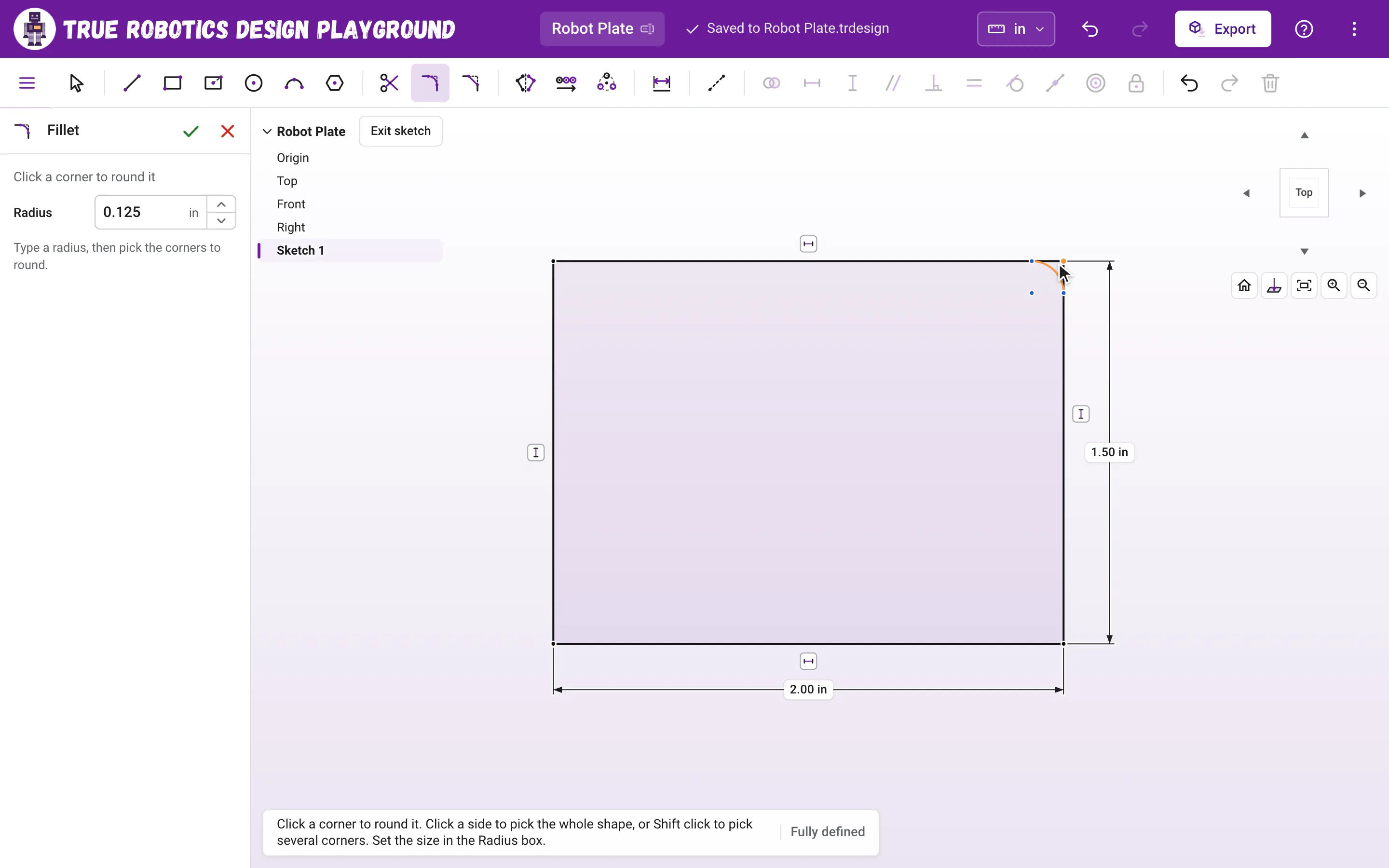
1/4, and press Enter. The little up and down arrows beside the number change it 0.1 inch at a time too, or 0.1 cm in a centimeter project.Click a corner Move the pointer over a corner. Its dot lights up and a preview of the rounded corner appears. Click, and the sharp corner becomes a smooth curve with an R dimension.
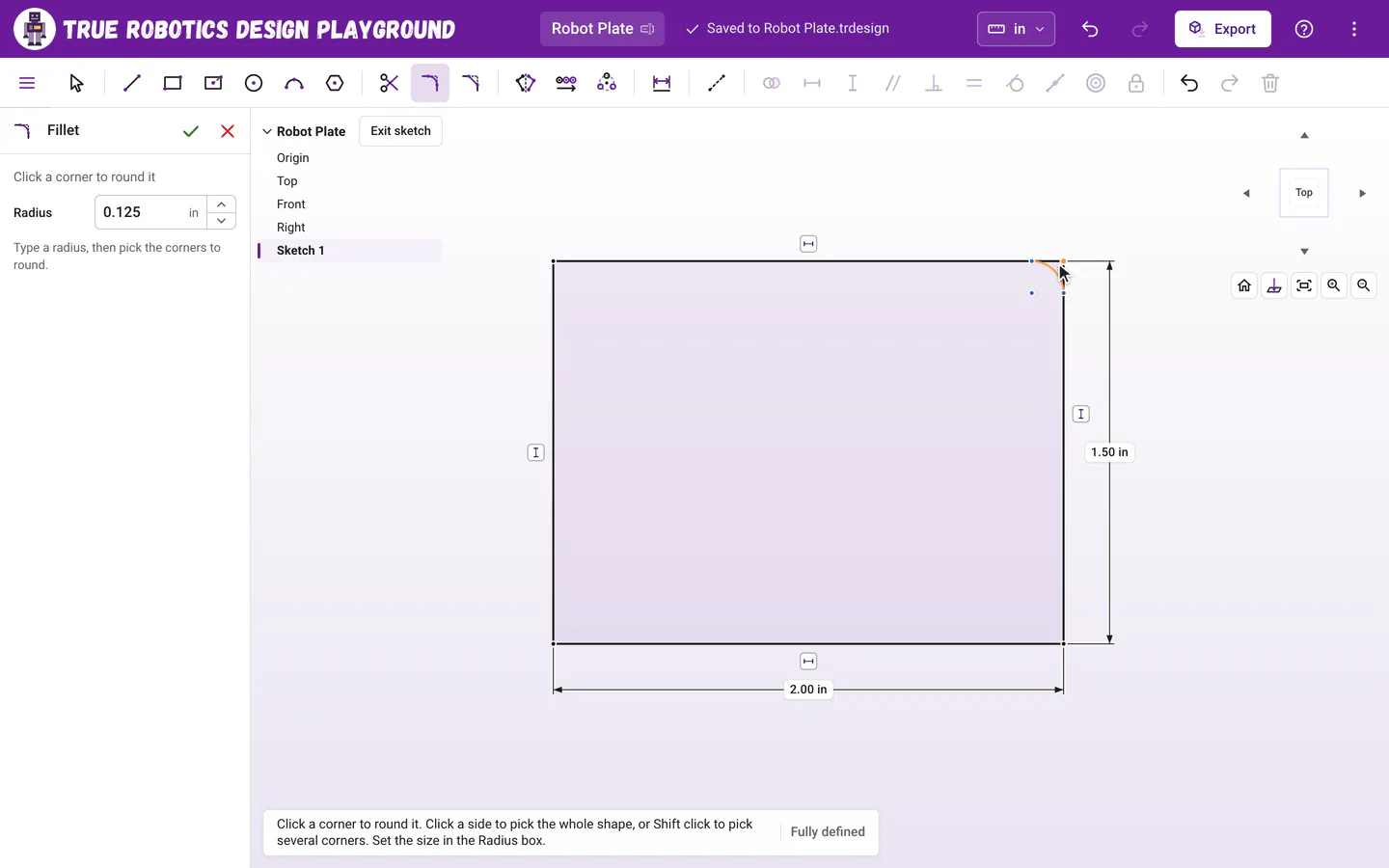
Point at a corner to preview the fillet, then click to round it. Round a whole shape at once Click a side of the shape instead of a corner, and every corner of that shape is picked, shown as purple previews. Press Enter, or click the button in the tool panel, like Round 4 corners.
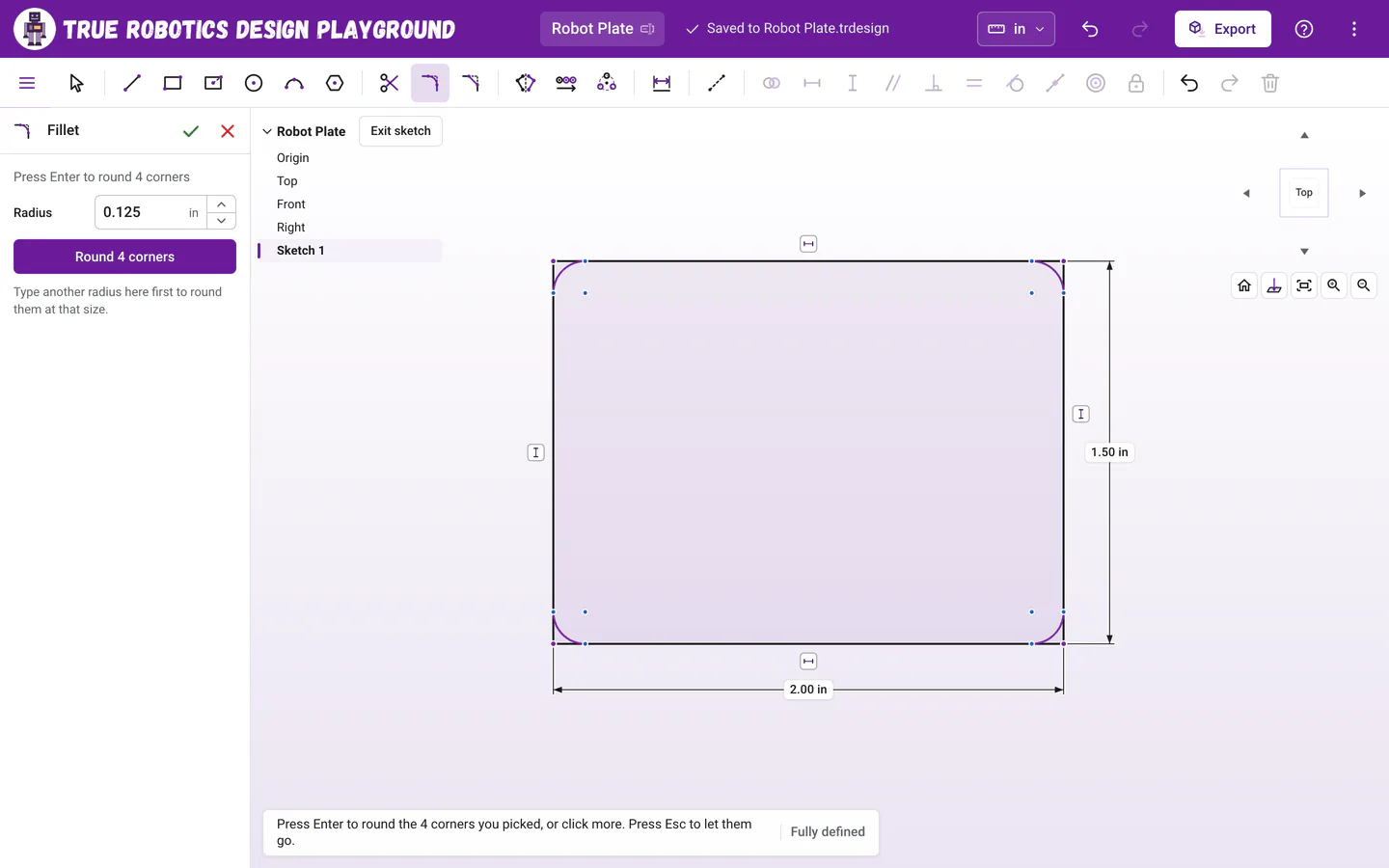
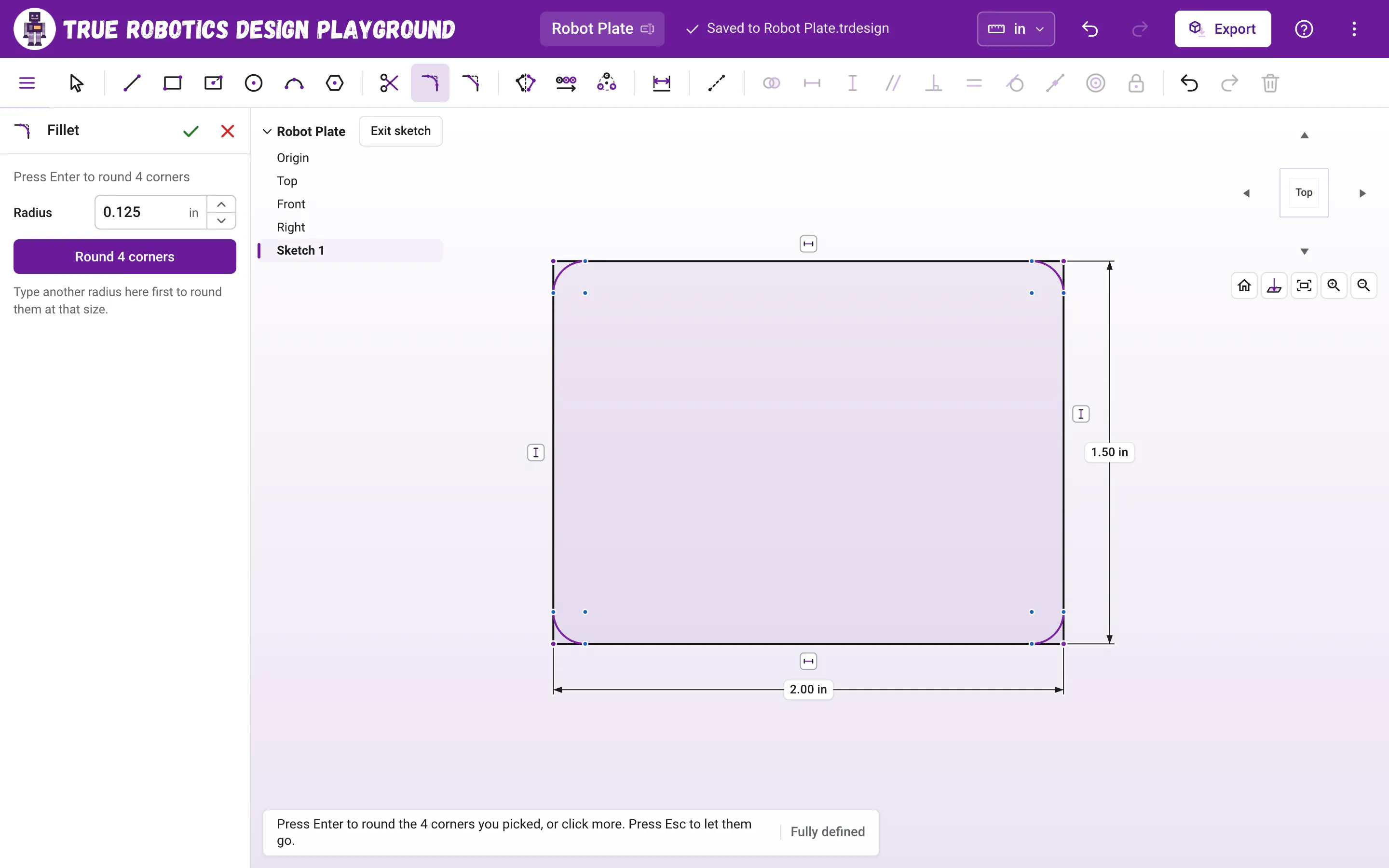
Click a side to pick every corner of the shape, then press Enter or click Round 4 corners. Put the tool away Click the green check at the top of the tool panel, or press Esc, to go back to the Select tool.
Tip: Round everything in three keys
Press Ctrl+A (Cmd+A on a Mac) to select the whole sketch, press O, then press Enter. Corners you selected before the tool starts come already picked, so every corner gets rounded at once.
How do I change the size of a fillet?#
While the Fillet tool is still on, type a new size in the Radius box and press Enter. It changes the fillets you just made. Later, use the Select tool and double-click the R label to type a new radius.
Fillets you make in one visit to the tool at the same size share one dimension: the first one carries the R label and the rest are Equal to it. Change that one number and every one of them follows, which keeps a plate's four corners matching.
What happens to my dimensions?#
They keep working. The sharp corner stays as a small point where the two lines would have met, held on both lines, so a corner on the origin stays on the origin and a dimension to that corner still measures to it. A rectangle's width dimension still measures corner to corner, not just the straight part of the side.
What if the radius is too big?#
A fillet has to fit on both lines. If it does not, nothing changes and a message tells you the biggest size that fits, like That radius is too big for this corner. Try one smaller than 0.25 in. A side rounded at both ends has to fit both fillets, so short sides need smaller sizes.
| Message | What to do |
|---|---|
| That radius is too big for this corner. Try one smaller than ... | Type a smaller radius, or make the sides longer. |
| Pick a corner where two lines meet, like the corner of a rectangle, to round it. | Fillet works where two straight lines meet. Corners next to an arc or a circle cannot be rounded. |
| Those two lines run in a straight line, so there is no corner to round there. | Pick a spot where the lines actually turn. |
| Use a size greater than zero. | Type a radius bigger than 0. |
Does Fillet work on a touch screen?#
Yes. Tap a corner to round it, or tap a side to pick the whole shape, then tap the Round 4 corners button in the tool panel. A finger reaches a little farther than a mouse, so corners are easy to hit.
Good to know: Rounded edges in 3D
Fillet works in sketches. Round the corners of your sketch before you extrude it, and the part comes out with smooth, rounded edges along its sides. For an angled cut instead of a curve, use Chamfer.
Rounded corners make robot plates safer to handle and nicer to look at. Try it on your next mounting plate!
Questions and answers#
How do I round all four corners of a rectangle at once?
Press O for the Fillet tool, set the Radius in the tool panel, then click one side of the rectangle. All four corners are picked. Press Enter, or tap Round 4 corners, and they are all rounded with one shared radius dimension.
Can I fillet a corner between a line and an arc?
No. The Fillet tool rounds corners where two straight lines meet, like the corners of rectangles, polygons and line chains. A corner next to an arc or a circle cannot be rounded.
Can I change the fillet radius later?
Yes. With the Select tool, double-click the R label and type a new radius. Fillets made together at the same size share that one dimension, so they all change together.