
Sketching
Line Tool
The Line tool in the True Robotics Design Playground draws straight segments that link into a chain. Press L, click to start, and click again for each corner. Type a number to set a segment's exact length. Click the first point to close the shape, press Enter to end the chain, or press Esc to go back to the Select tool.
- LineShortcut: LStraight segments, one after another, for any outline made of straight edges.
Read what happens in this video
We press L and click the origin to start a line. Pointing right and typing 2 places an exact 2 inch segment, and pointing up and typing 1 1/4 places the next one. A click level with the start adds the third side, and clicking the first point closes the shape, which fills light purple. Pressing Esc goes back to the Select tool.
The steps in the video:
- Press L for the Line tool and click the origin.
- Point to the right, type 2 and press Enter.
- Point straight up, type 1 1/4 and press Enter.
- Move left until the line is level with the start, then click.
- Click the first point to close the shape. It fills light purple.
- Press Esc to go back to Select, then press F to zoom to fit.
How do I draw lines?#
In a sketch, press L or click the Line button. The tool panel on the left says Click to start a line.
Click where the line starts. Starting on the origin or on an existing point snaps there and keeps the shape connected.
Move the pointer and click where the first segment ends. A new segment starts from that point right away.
Keep clicking corners. Each click places one segment, and each segment is its own undo step.
To close the shape, click the very first point again. The inside fills light purple, which means it is ready to extrude.
How do I type an exact length?#
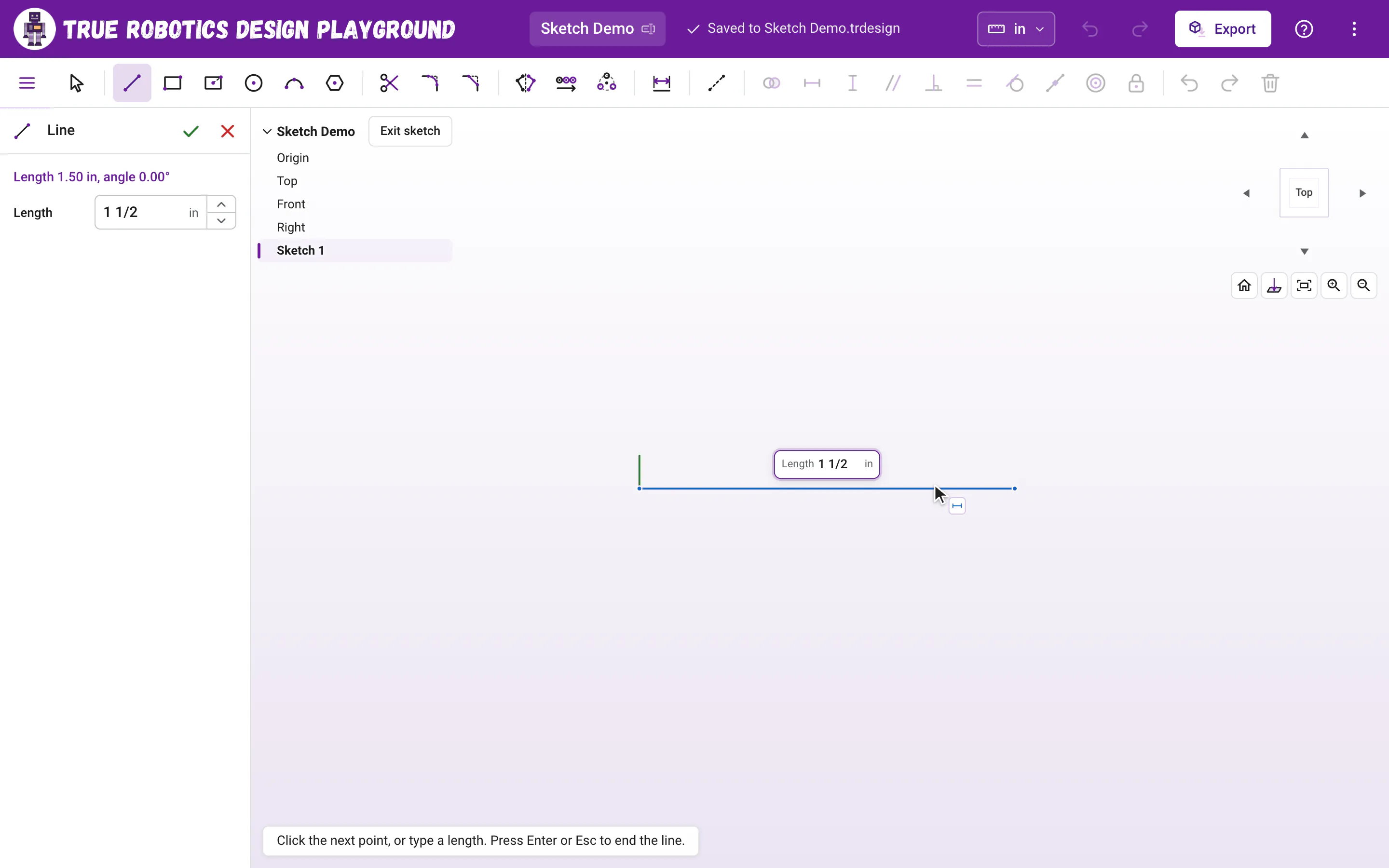
After the first click, point in the direction you want and type a number. It goes into the Length box beside the line. Press Enter and the segment is placed at exactly that length, pointing where your pointer points, and it gets a length dimension. The chain keeps going, so you can type the next length right away.
How do I end a line?#
| Do this | What happens |
|---|---|
| Click the first point of the chain | Closes the shape (it needs at least two segments first). |
| Press Enter or double-click | Ends the chain where it is. The Line tool stays on for a new chain. |
| Press, drag and let go | Draws one single segment, then waits for a new chain. |
| Click the green check in the tool panel | Places a length you typed, ends the chain and goes back to Select. |
| Press Esc | Drops the segment in progress and ends the chain. Press it again to go back to Select. Segments you already placed stay. |
| Click the red X in the tool panel | Drops the segment in progress and goes back to Select in one click. |
What do the little icons by the pointer mean?#
- A line within 4 degrees of level or upright snaps straight and gets a Horizontal or Vertical constraint.
- Ending on a point or the origin joins them with a Coincident constraint.
- Ending on the middle of a line snaps to its Midpoint.
- Ending on another line or curve keeps the point on it.
- A dashed guide means you are lined up with another point, so corners line up neatly.
Hold Shift while you move to turn snapping off, for a line at any angle in a busy spot.
What does the tool panel show?#
While a segment is in progress, the tool panel shows its live length and angle, like Length 1.50 in, angle 30.00°. The angle is measured counterclockwise from pointing straight right, so straight up is 90°. The panel's Length box sets the segment you are drawing. When nothing is in progress, type a length there and press Enter to change the line you drew last, or to draw one from the origin if there is none yet.
Tip: Make it exact later
Draw your outline roughly, then add exact sizes with the Dimension tool. Dimensions drive the lines, so the shape snaps to the sizes you type.
Lines are the most flexible tool you have. Practice by drawing a triangle, then try the L bracket tutorial.