
Sketching
Dimension Tool
The Dimension tool in the True Robotics Design Playground sets exact sizes that drive your sketch. Press D, click a line, circle or arc, or two things, then click to place the label. A box opens with the current size, so type the value you want and press Enter. Change the number later and the shape follows, which is the heart of parametric design.
- DimensionShortcut: DLengths, diameters, radii, distances and angles that drive the shape.
Read what happens in this video
We draw a rough rectangle and press D for the Dimension tool. Clicking the bottom side and placing the label opens a box, and typing 3/4 * 2 sets it to 1.5 inches. The right side gets 2.54 cm, which becomes exactly 1 inch. A circle gets a 1/4 inch diameter, and two distances from the sides place it exactly, so the whole sketch turns black.
The steps in the video:
- Press G, click the origin, then click again to draw a rough rectangle.
- Press Esc, then press F to zoom to fit.
- Press D for Dimension. Click the bottom side, then click below it for the label.
- Type 3/4 * 2 and press Enter. The side becomes exactly 1.5 in.
- Click the right side, click to its right, type 2.54 cm and press Enter.
- Press C for Circle. Click inside the rectangle, then click again to size it.
- Press D. Click the circle, place the label outside it, type 1/4 and press Enter.
- Click the circle, then the left side. Place the label, type 1/2 and press Enter.
- Click the circle, then the bottom side. Place the label, type 3/8 and press Enter.
- Press Esc. The whole sketch turns black, so it is fully defined.
How do I add a dimension?#
In a sketch, press D or click the Dimension button. The tool panel on the left says Click a line, circle, arc or point.
Click what you want to measure. For a distance or an angle, click a second item too. Click near the middle of a line, away from its ends, so you pick the line and not a corner point.
Move the pointer to see the dimension, then click where the label should sit.
A box opens over the label with the current size. Type the size you want and press Enter. The shape changes to match.
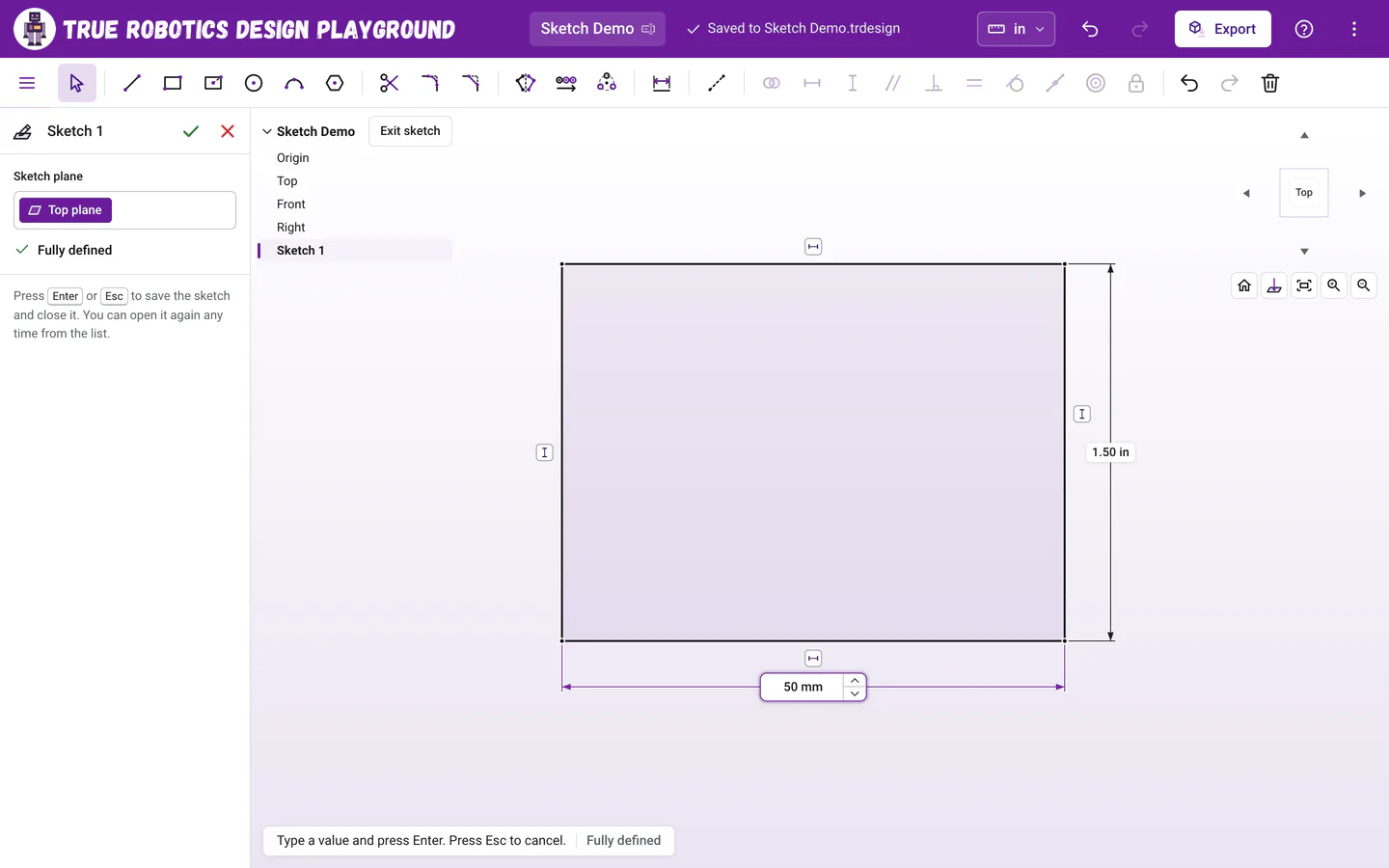
Type any size, with math and any unit, then press Enter.
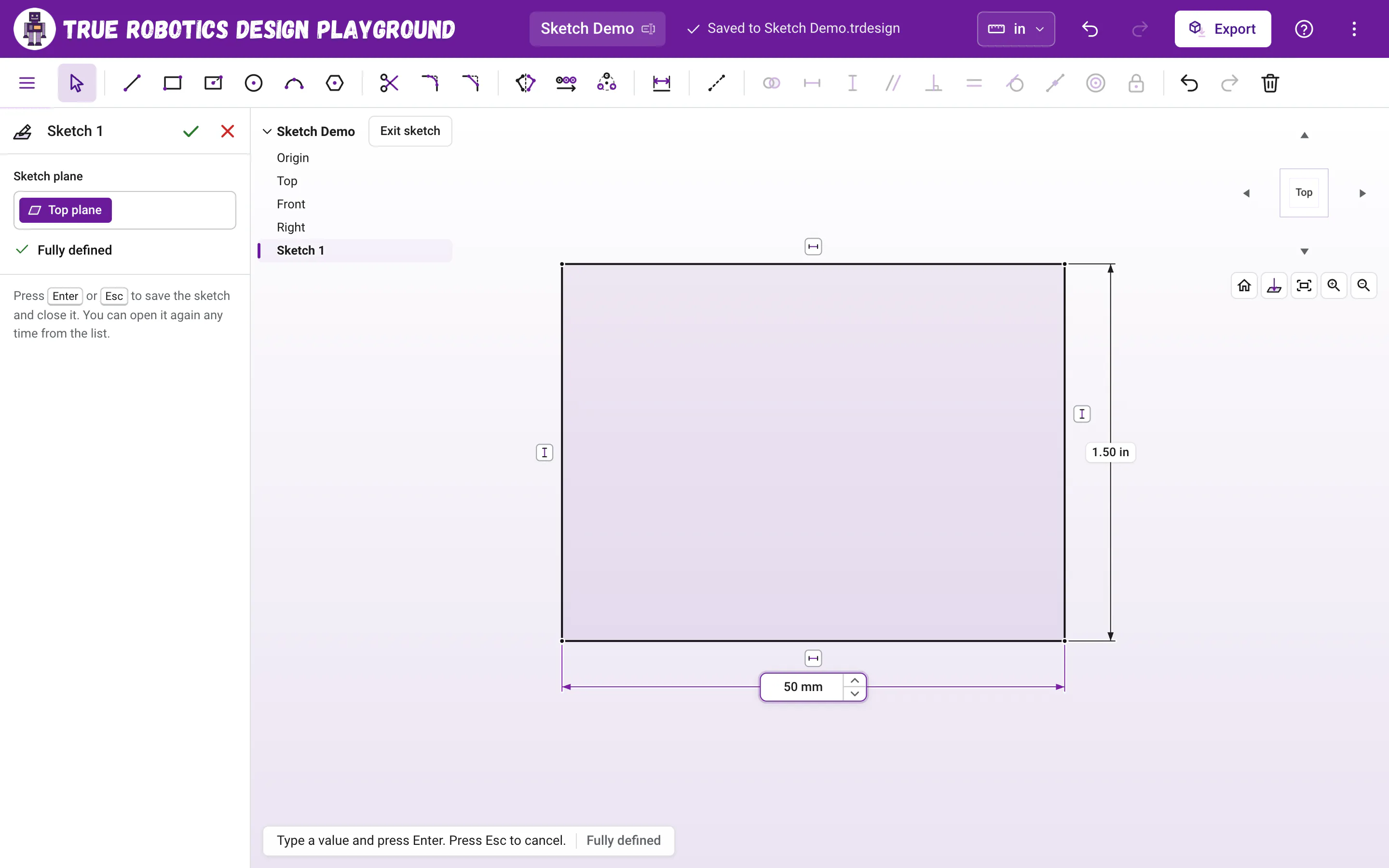
The Dimension tool stays on for the next one. Press Esc while typing a brand new dimension to take it back out, and press it again to go back to Select. The green check at the top of the tool panel applies the value you typed and goes back to Select in one click, and the red X takes the new dimension back out.
What can I dimension?#
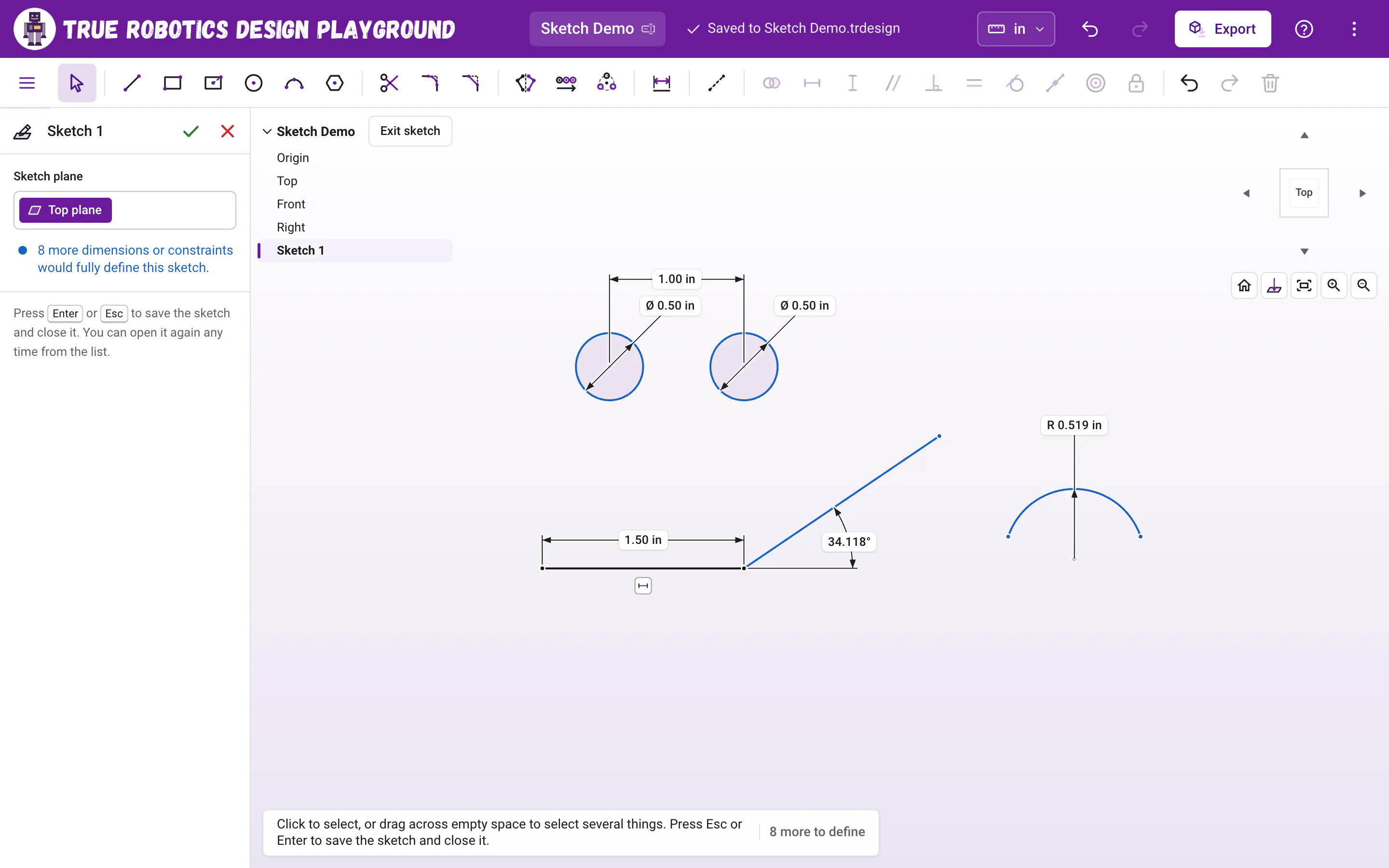
| You click | You get | The label looks like |
|---|---|---|
| One line | Its length | 1.50 in |
| One circle | Its diameter | Ø 1.00 in |
| One arc | Its radius | R 0.50 in |
| Two points, or a point and the origin | The distance between them: across, up and down, or straight, depending on where you put the label | 1.00 in |
| A point and a line | The shortest distance from the point to the line | 0.25 in |
| Two parallel lines | The distance between them, like across the flats of a hexagon | 0.375 in |
| Two lines that are not parallel | The angle between them | 30.00° |
| A circle or arc with anything else | Measured from the circle's or arc's center | 0.625 in |
A spline has no length or radius of its own to measure. Dimension its points instead, like the distance between its two ends, or from one of its points to a line.
Labels show 2 decimal places, like 1.00 in and 2.50 in, or 3 when the third one matters, like 0.375 in.
How do I choose across, up and down, or straight?#
For a distance between two points (or circle centers), where you put the label decides what it measures. Put it above or below both points to measure straight across, which is a horizontal distance. Put it to the left or right of both points to measure up and down, which is a vertical distance. Put it anywhere else to measure the straight line between them.
How do I dimension an angle?#
Click two lines that are not parallel, then place the label. Two crossing lines make four corners, and the label measures the corner it sits in, so move it around to pick the angle you mean. Angles must be more than 0 and less than 180 degrees, and you can type 45, 45°, 45 deg, 0.5 rad or even 360/6.
How do I change a dimension later?#
- Double-click its label (with the Select tool or the Dimension tool), type the new value and press Enter. Press Esc to keep the old one.
- Clicking away while you type also keeps your new value, as long as it makes sense.
- Drag a label to move it somewhere tidier.
- Click a label and press Delete to remove the dimension.
Can I type math and units?#
Yes, in every dimension box. Bare numbers use your project's units, and you can mix in others: 3/8, 1 1/2, 2 + 1/16, 3x4, 25 mm and 2.5 cm all work in an inch project. The label shows the result in your project's units, and when you double-click it later, the box still shows what you typed, like 3/8. Units and typing math lists everything you can type.
Why did the view zoom out?#
When a dimension makes your sketch bigger than the view, like typing 12 where 1 was, the view zooms out so you can see the whole sketch again. If everything still fits, the view stays exactly where it is, and it never zooms out on a sketch you had zoomed into on purpose. The Home button under the view cube fits the sketch any time.
What do the messages mean?#
| Message | What to do |
|---|---|
| That's already set by your other dimensions and constraints. | That size is already decided by other rules, so you do not need this one. |
| That would fight with your other dimensions. Try changing one of them instead. | Two rules would disagree. Change the value of the dimension that is already there. |
| That value does not fit with your other dimensions. Try a different number. | The number you typed is impossible with the rest of the sketch. Try a different one. |
| Use a size greater than zero. | Sizes must be positive. |
| Use an angle between 0 and 180 degrees. | Pick a value in that range, or move the label to the other corner. |
| Those two cannot be dimensioned together. Try a line, a circle, or two points. | Pick a different pair of items. |
| There is nothing to measure there yet. Try two things that are apart. | The two items touch, so there is no distance between them. |
Tip: Watch your sketch turn black
Each dimension locks one size in place. As you add them, blue lines turn black, and the Sketch panel counts down how many are left until it says Fully defined.
Dimensions are what make your parts fit. Practice with the hex standoff, which uses an across the flats dimension.
Questions and answers#
How do I measure a hexagon across the flats?
Press D, click two opposite sides of the hexagon, click to place the label, type the size and press Enter. Two parallel lines always measure the distance between them.
Why did my dimension measure the wrong direction?
For two points, where you place the label decides the direction. Above or below both points measures horizontally, to the left or right measures vertically, and anywhere else measures the straight line. Delete the dimension and place it again.