
Building parts
Mirror Features and Parts
Mirror in the True Robotics Design Playground copies features or whole parts to the other side of a plane or a flat face. Press Mirror or Shift+M, click what to copy in the feature list or on the model, click the Mirror plane box and pick a plane, then click the green check. A mirrored hole cuts, a mirrored boss adds, and the copy follows every change.
How do I mirror a feature?#
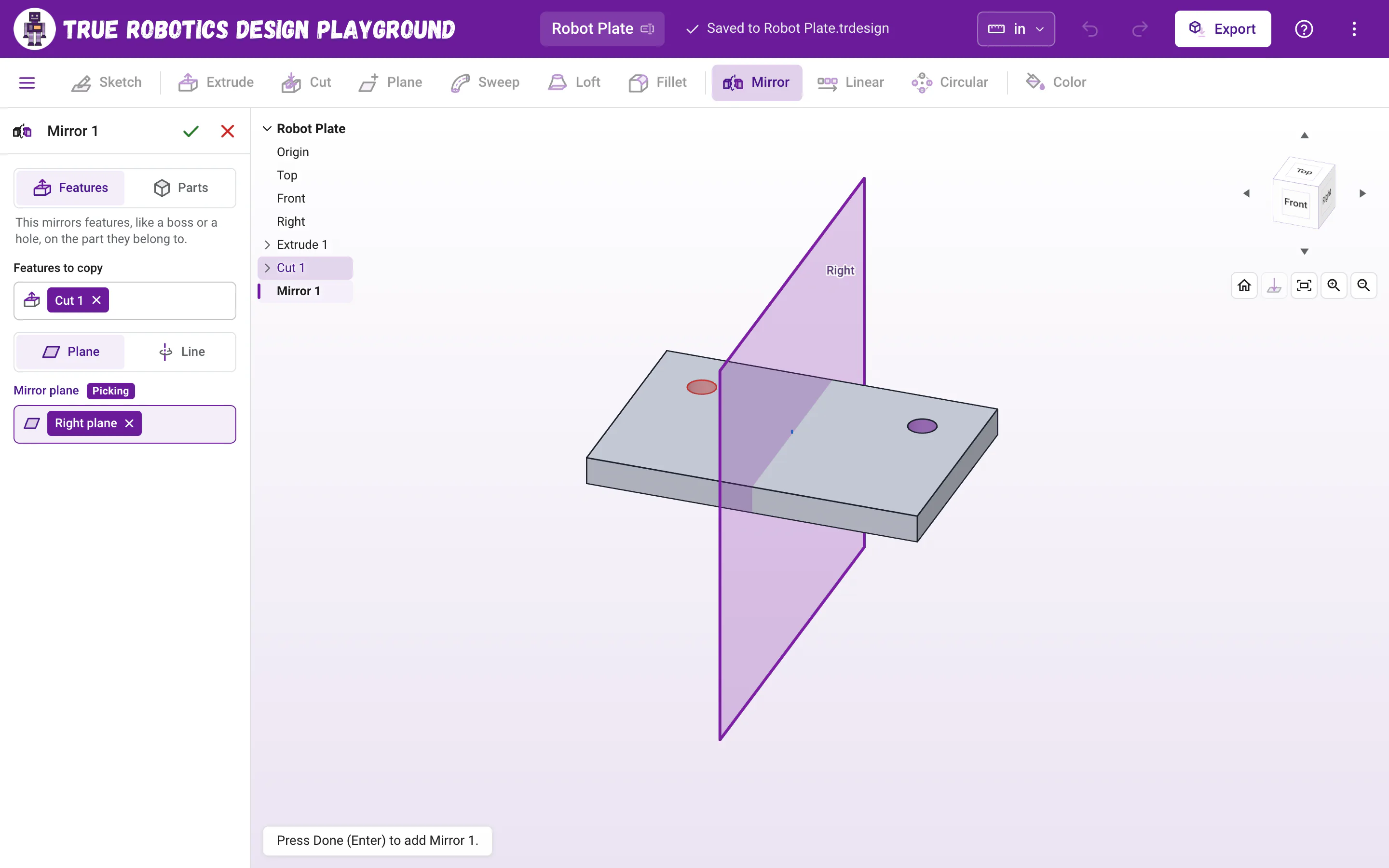
Start Mirror Click Mirror in the toolbar, or press Shift+M. The Mirror panel opens on the left, and the feature list moves into the top left corner of the 3D view so you can still click it.
Pick what to copy Click the feature to copy in that list, like Cut 1, or click a face it made on the model. It shows as a chip in Features to copy. Click more features to copy several at once.
Pick the mirror plane Click the Mirror plane box. Top, Front and Right appear in the view, so click one, click its row in the list, or click a flat face of your part. The purple preview shows the copy right away.
Finish Click the green check at the top of the panel. Mirror 1 joins the feature list.
Already picked something before you pressed Mirror? Those features start out in Features to copy, and a plane or flat face you picked last starts out as the mirror plane, so sometimes all that is left is the green check. Enter finishes too, as long as the keyboard is in the panel and not in the feature list.
Read what happens in this video
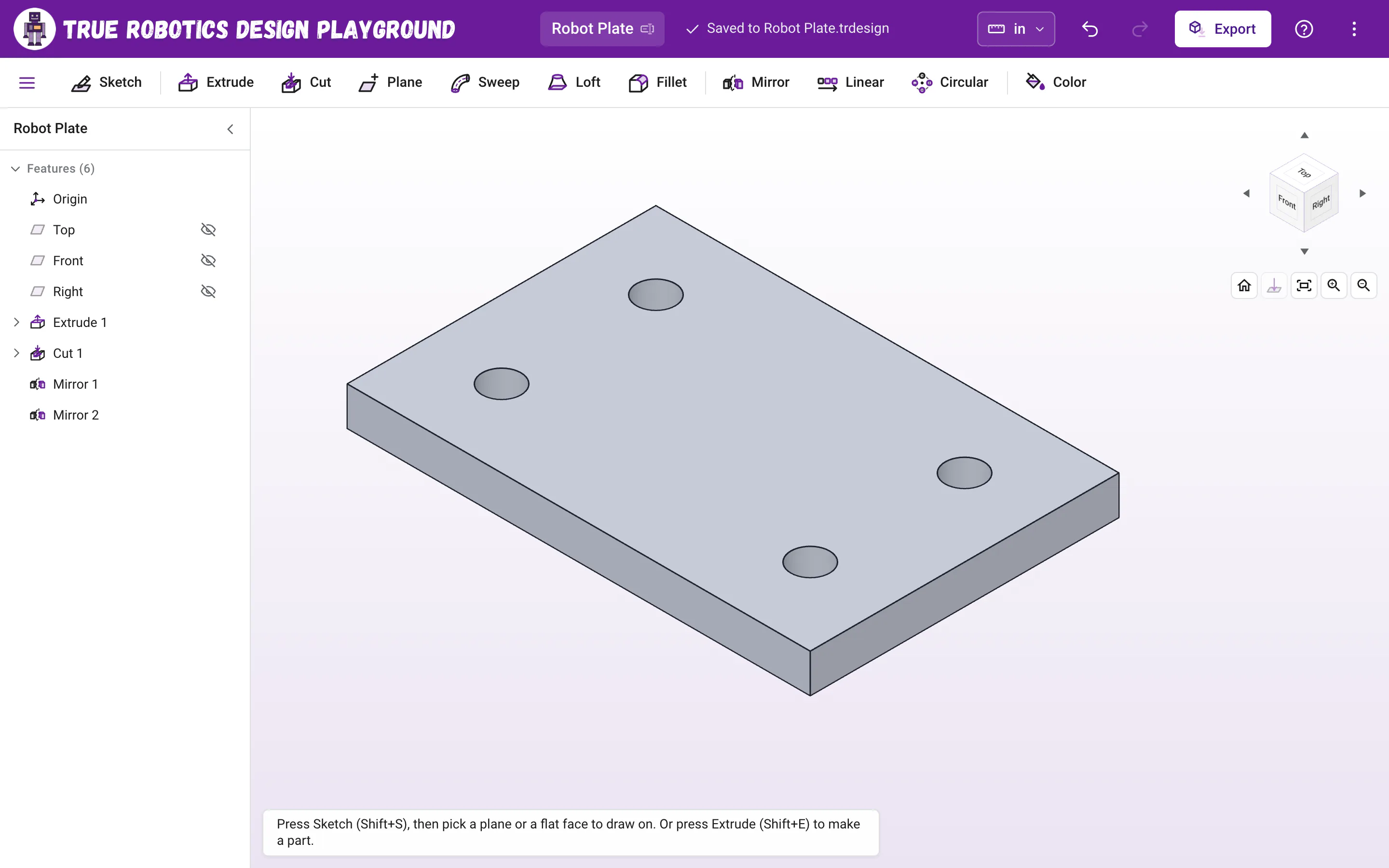
We press Shift and M to start Mirror, click Cut 1 in the feature list as the hole to copy, then click the Mirror plane box and the Right plane. The copy shows on the other side, and the green check finishes Mirror 1. A second Mirror copies Cut 1 and Mirror 1 across the Front plane, so the plate gets a hole near every corner.
The steps in the video:
- Press Shift + M to start Mirror.
- Click Cut 1 in the feature list. That is the hole to copy.
- Click the Mirror plane box. The planes appear.
- Click Right in the feature list. The copy shows on the other side.
- Click the green check to finish Mirror 1.
- Press Shift + M again, then click Cut 1 and Mirror 1.
- Click the Mirror plane box, then click Front.
- Click the green check. Now there is a hole near every corner.
Features or Parts: which should I pick?#
The toggle at the top of the panel says what gets copied. The line under it explains your choice, so you never have to guess.
| Choice | What it copies | Great for |
|---|---|---|
| Features | The features you pick, each with its own operation. A mirrored cut makes another hole, a mirrored boss adds material, and a mirrored fillet or chamfer rounds the copy's edge, on the part they belong to. A copy of the feature that started a part, like its first extrude, joins that part wherever it touches it. | Holes, slots, bosses, pockets and their rounded edges that should match on both sides. |
| Parts | Whole parts. A copy that touches a part joins it, and a copy that touches nothing becomes a new part. | Building one half of a symmetric part, or a matching left and right piece. |
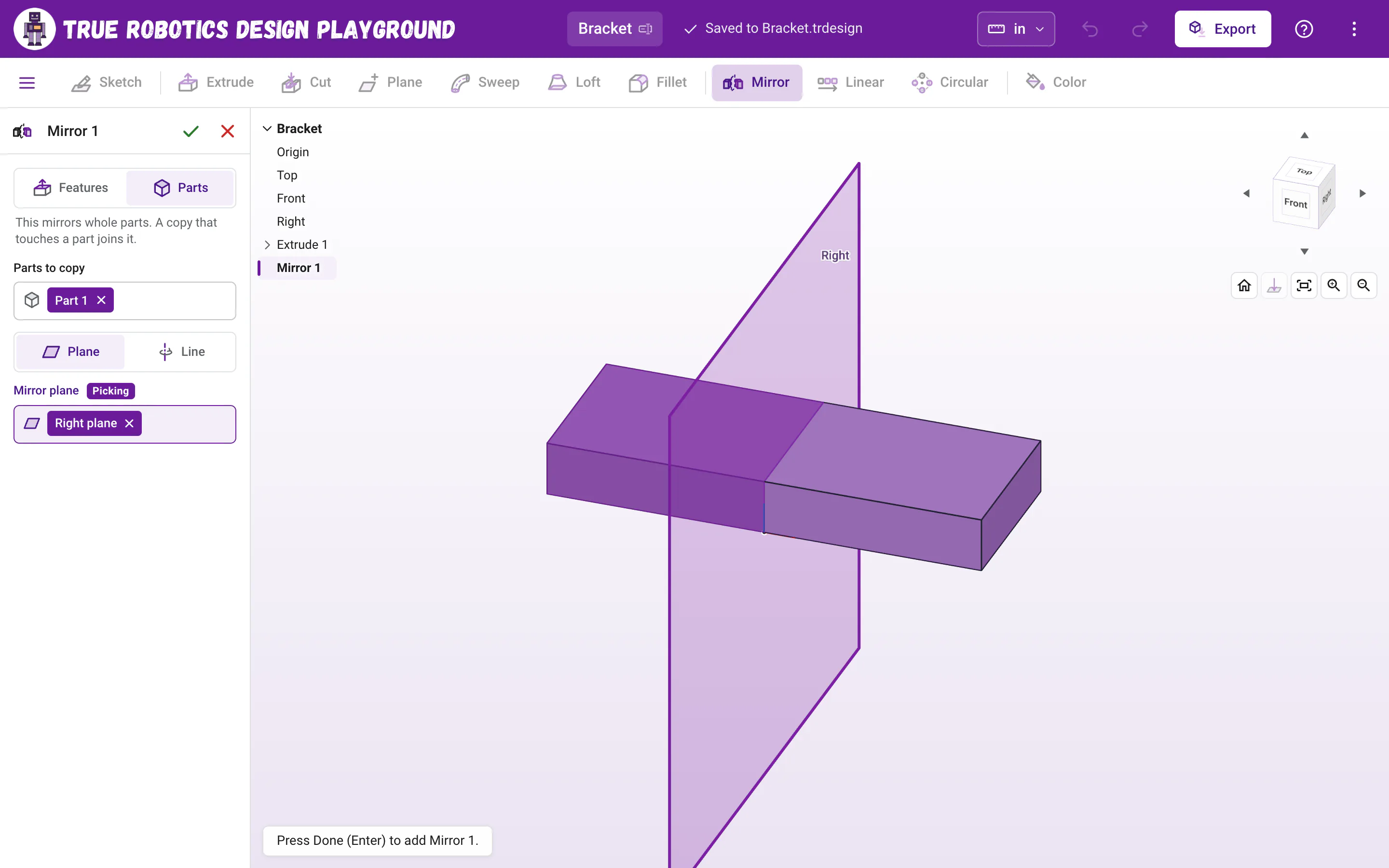
Tip: Build half, mirror the rest
Lots of robot parts are the same on both sides. Draw your part from the origin so one side sits right on the Right plane, then mirror the whole part about Right in Parts mode, or mirror its first extrude in Features mode. The copy touches the original, so the two join into one part twice as wide, and every change to the first half shows up on the second.
Can I mirror a fillet or chamfer?#
Yes. Pick the boss or hole and the fillet that rounds it, like Extrude 2 and Fillet 1, and the mirrored copy comes out rounded too. The copies go in the order the features were made, so the copied boss is there before its rim is rounded, whichever one you click first. A copy of a fillet only rounds an edge that really is there: if the copy lands where the part has no matching edge, that copy is left out and the panel says 1 copy of Fillet 1 had no matching edge, so it was left out.
What can I mirror about?#
- Plane (the usual choice) flips the copy through a plane, like a reflection in a mirror. Pick Top, Front or Right, a plane you made with Plane, or a flat face of a part.
- Line turns the copy half a turn around a line instead. Pick a straight edge of a part, a straight line in a sketch, an Axis you made, or one of the origin axes, which show up as red, green and blue lines while the Mirror line box waits.
- Need a mirror plane in the middle of a part that is not on the origin? Make a Midway plane between two of its faces first, then mirror about that.
How do I mirror again, or mirror a mirror?#
A mirror can copy an earlier mirror or pattern. Mirror a hole about Right to get two holes, then start a second Mirror, pick Cut 1 and Mirror 1, and mirror them about Front. Now there is a hole near every corner, and moving the first hole moves all four.
How do I change a mirror later?#
- Double-click Mirror 1 in the feature list. The model rolls back to just before it, and the panel opens with your picks, so you can add or remove features or pick another plane.
- Change the feature you mirrored, like the size of the first hole, and the copy follows when that feature rebuilds.
- Right-click the row (or use its three dots) to rename, suppress or delete it, like any feature. While the panel is open, the features it copies show selected in the list.
Can I mirror inside a sketch instead?#
Yes. While you sketch, the sketch Mirror tool (X) flips lines, circles and arcs across a sketch line, and the copies stay tied to the originals. Mirror in a sketch when you are still drawing a shape, and use the Mirror feature when the features are already built.
What do the mirror messages mean?#
| Message | What to do |
|---|---|
| Pick the features to copy, in the list or in the view. | Click a feature row in the list, or a face it made on the model. |
| Pick a plane or a flat face to mirror about. | Click the Mirror plane box, then a plane or a flat face. |
| Pick a line to turn the copy around: a straight edge, a sketch line or an axis. | Line is chosen, so click a straight edge, a sketch line, an Axis or an origin axis. |
| Sketch 1 is a sketch. Pick the extrude, cut, sweep or loft made from it. | Mirror copies 3D features. Click the feature the sketch made, or mirror inside the sketch instead. |
| The copies do not touch the part. | A mirrored boss or hole landed off the part. Pick a plane closer to the middle of your part. |
| 1 copy of Fillet 1 had no matching edge, so it was left out. | The mirrored fillet landed where the part has no edge like the one it rounds. Mirror the boss or hole it rounds along with it, or pick another plane. |
| The copies don't overlap any part, so nothing was kept. | An Intersect feature was copied to a spot with no part. Pick another plane. |
| Some copies do not touch the part, so they became new parts. | In Parts mode, a copy that touches nothing becomes its own part. That is fine if you wanted a separate piece. |
| The plane or face to mirror about is gone. Edit the mirror and pick another one. | Something the mirror used was deleted. Double-click the mirror and pick again. |
Mirror saves you from drawing the same thing twice, and it keeps both sides perfectly matched. Next, repeat a feature in a row with Linear pattern or around a circle with Circular pattern.
Questions and answers#
What is the difference between mirroring features and mirroring parts?
Features mode copies the features you pick, like a hole or a boss, onto the part they belong to, each with its own operation, so a mirrored hole cuts another hole. Parts mode copies whole parts, and a copy that touches a part joins it.
Can I mirror a fillet or a chamfer?
Yes. In Features mode, pick the fillet or chamfer along with the boss or hole it rounds, and the mirrored copy is rounded the same way. A copy that lands where the part has no matching edge is left out, and the panel says so.
Can I mirror about a face of my part?
Yes. Any flat face works as a mirror plane, along with Top, Front, Right and planes you make with Plane.
Can I mirror around an axis?
Yes. Choose Line instead of Plane, then click an Axis you made, a straight edge, a sketch line or an origin axis. The copy turns half a turn around that line.
Does the mirrored copy update when I change the original?
Yes. The copy is rebuilt from the original every time, so changing the size or spot of the original changes the copy too.