
Sketching
Construction Geometry
Construction geometry in the True Robotics Design Playground is dashed helper geometry. It snaps, takes dimensions and holds constraints like any other line or circle, but it never makes a region, so it never turns into part of your solid. Press Q to draw in construction mode, or select lines you already drew and press Q to switch them.
- ConstructionShortcut: QTurns new or selected geometry into dashed guides that help you place things.
How do I draw construction geometry?#
With nothing selected, press Q or click the Construction button. It stays highlighted to show construction mode is on.
Draw with any tool. Everything you draw comes out dashed.
Press Q again to turn construction mode off and go back to regular lines.
How do I change a line into construction?#
Select the lines, circles, arcs or splines with the Select tool, then press Q or click Construction. They turn dashed. Do it again to turn them back into regular geometry.
What is construction geometry good for?#
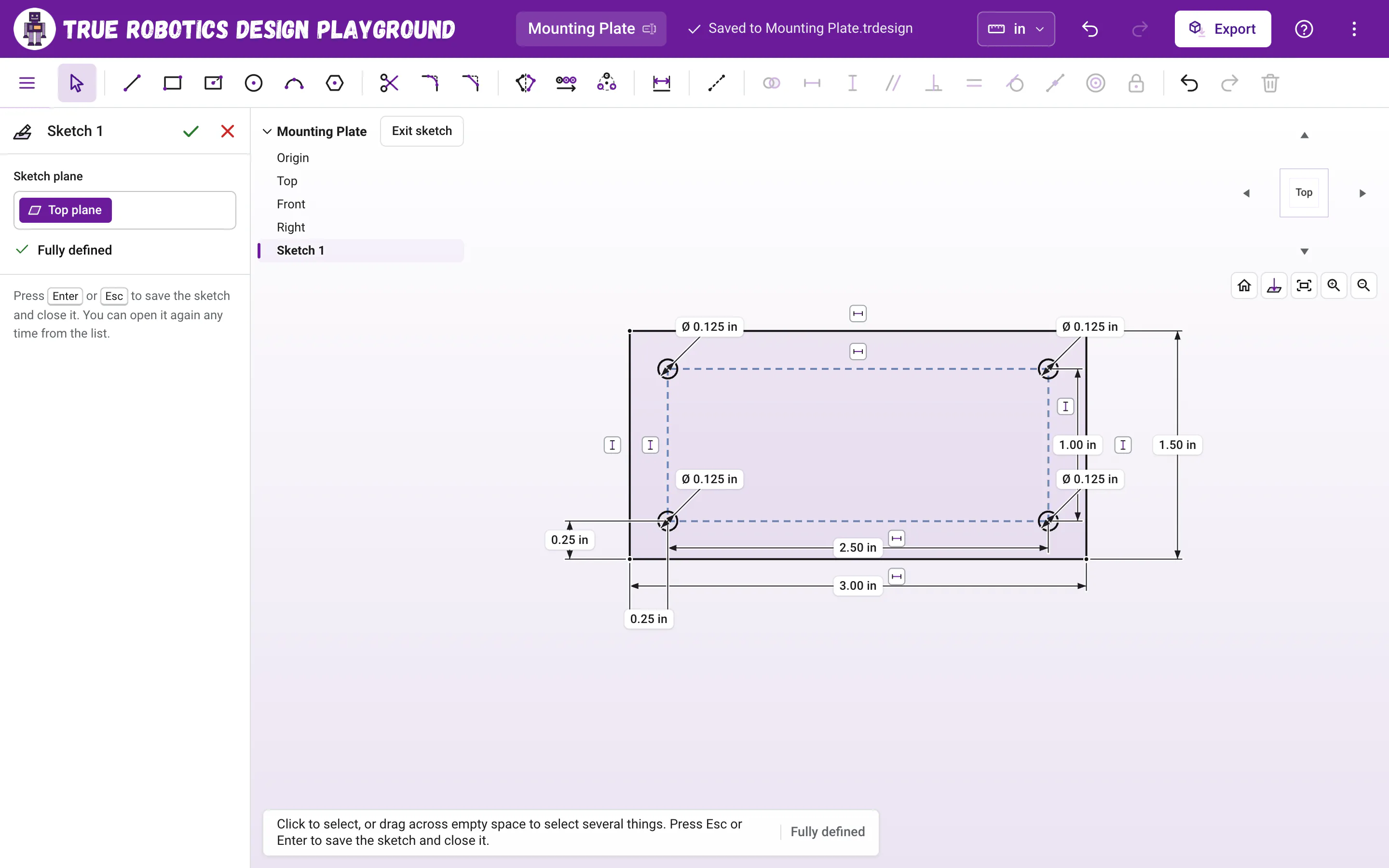
- Hole patterns. Draw a construction rectangle, then put a circle on each corner. Change the rectangle and every hole moves with it. The mounting plate tutorial uses exactly this trick.
- Centers and symmetry. A construction line through the middle of a part gives you a place to snap and measure from.
- Guides for angles. A construction line at an angle can hold the direction of other lines.
- Mirror lines and pattern directions. A dashed line down the middle of a part is the perfect line to mirror across, and a dashed line at an angle can set the direction of a linear pattern.
- Trim guides. Dashed lines count as crossings for the Trim tool, so they can mark exactly where a piece should stop.
- Built-in helpers. The dashed circle around a polygon, the dashed diagonal in a center rectangle, the short dashed setback lines of a chamfer and the dashed spacing line of a linear pattern are construction geometry too.
Good to know: Dashed never extrudes
Construction geometry is skipped when the app looks for closed shapes, so it never fills purple and never becomes solid. If a shape you expected to extrude has no fill, check that none of its sides are dashed.
Construction lines are how experienced designers keep sketches neat. Try one on your next hole pattern!