
Help and reference
Troubleshooting and FAQ
Most problems in the True Robotics Design Playground have a quick fix. In Basic mode, a hole only cuts once it is grouped with a solid. In Standard mode, a sketch that will not extrude usually has a gap, and blue lines just mean a shape can still move. If your browser cannot save to a file, it saves in its own storage, so use Download a copy.
Why didn't my hole cut anything?#
In a Basic project, a hole cuts only the solids it is grouped with. Select the hole and the solid together (or press Ctrl+A) and press Ctrl+G. Still not cutting all the way through? Click the hole and check that it reaches past the solid at the top and the bottom: its Z should be at or below the solid's bottom, and its H taller than the solid. Holes and groups shows the whole idea.
Where are Sketch and Extrude?#
They are in Standard projects. New projects start in Basic, which has the shape catalog and a toolbar of shape tools instead. To sketch and extrude, go back to your projects, click New Project and click the Standard card. A project keeps its mode, and Open Project marks each one Basic or Standard. Basic mode compares the two.
Why did my shape land on top of another one?#
In Basic, a shape you drop over another shape lands on the face under the pointer, which is handy for stacking. To put it back on the workplane, select it and type 0 in Z in the settings panel. If every new shape lands up high, the workplane may be on a face: point at empty space and press W to put it back on the ground.
Why won't my sketch extrude?#
Extrude only works on closed shapes, which fill with a light purple tint. If your shape has no fill, something is open:
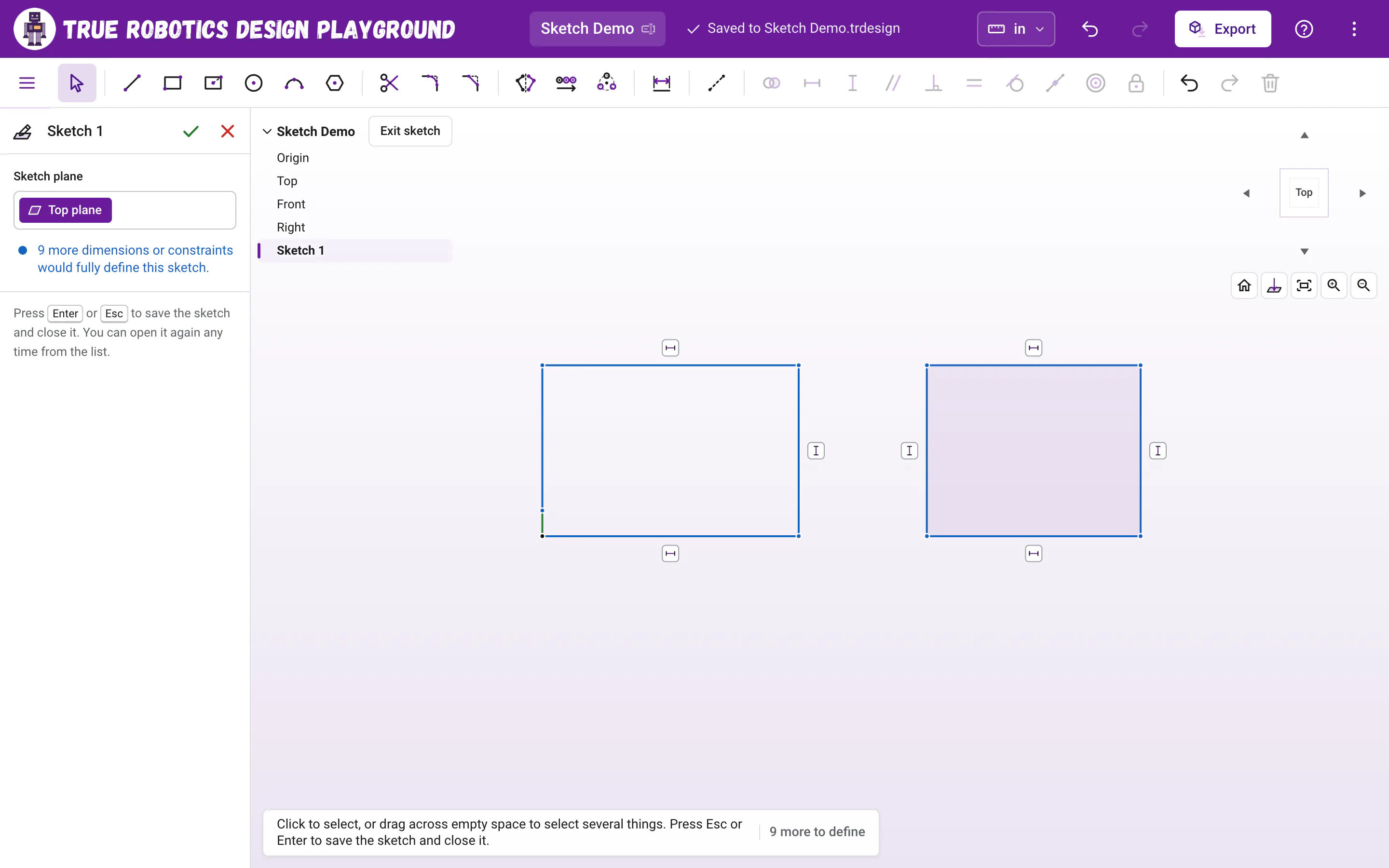
- Two line ends that look connected might be a hair apart. With the Select tool, drag one end onto the other until it snaps, or select both points and press I for Coincident.
- A side might be dashed construction geometry, which never makes a region. Select it and press Q to make it a regular line.
- A line might stop short of another line. Drag its end onto the line so it snaps.
If the Extrude panel's green check stays gray, nothing is picked yet. Click the purple filled region in the view, or click the sketch in the feature tree.
Why won't my sweep work?#
A sweep needs a closed profile at one end of a connected path, square to it. The red note in the Sweep panel, and the icon on the sweep in the feature tree, say exactly what is wrong:
| Message | How to fix it |
|---|---|
| The path needs to be one connected chain of lines and arcs. | Two curves of the path do not meet. Edit the path sketch and drag one end onto the other until it snaps. |
| The path runs along the plane of the profile, so there is nothing to sweep. Try a path that leads away from the profile, sketched on a plane that crosses it. | Sketch the profile on a plane the path goes straight out of, like Top for a path that rises from the Front plane. |
| This profile sits at a slant to the path, so it reaches past a bend near one end. Try sketching the profile square to the start of the path. | Move the profile to the start of the path, on a plane square to the first line. Plane can make one. |
| This path bends too sharply for this profile. Try a gentler curve or a smaller profile. | Make the arcs in the path bigger, or the profile smaller. |
| This sweep would run into itself. Try a path that stays farther away from itself, or a smaller profile. | Spread the path out so no two parts of it come close, or use a smaller profile. |
| Pick the profile from one sketch, or pick one flat face. | A sweep profile comes from one sketch or one face. Edit the sweep and pick again. |
| The lines and arcs of this sweep's path are gone. Edit the sweep and pick a path. | The path sketch changed. Double-click the sweep and click the path again. |
| This sweep could not be built. Try a simpler profile or path. | Simplify the profile or the path, then try again. |
Why won't my loft work?#
A loft needs two or more closed profiles without holes, each on its own plane, stacked one after another and listed in order. These are the messages you might see:
| Message | How to fix it |
|---|---|
| A loft needs at least two profiles. Pick one more profile to loft to. | Click another profile in the view, or its sketch in the feature tree. |
| Loft works with shapes that have no holes for now. | Pick a region without a hole. Make the hole afterwards with a second loft set to Remove, or with Cut. |
| These profiles are out of order, so the loft would cross itself. Try putting the profiles in order from bottom to top. | Fix the order in Profiles, in order with the up and down arrows, so each profile is next to the one beside it in space. |
| Two of these profiles cross each other, so the loft cannot join them. Space them farther apart. | First check the order in Profiles, in order and fix it with the up and down arrows. Then space the planes farther apart if you need to. |
| Each profile needs to face the next one for the loft to join them. Try profiles on planes stacked one after another. | Two profiles sit side by side or on one plane. Sketch each one on its own stacked plane. |
| One of these profiles crosses itself. Pick a simple closed region instead. | Redraw that shape so none of its sides cross. |
| The smooth loft folds back on itself here. Try Straight, or space the profiles more evenly. | Choose Straight, or edit the planes so the profiles are evenly spaced. |
| One of this loft's sketches is missing. Edit the loft and pick its profiles again. | A sketch the loft used was deleted, or it has a problem of its own. Fix the sketch, or double-click the loft and pick again. |
| This loft could not be built. Try simpler profiles. | Simplify the profiles, then try again. |
Why won't my plane or the sketch on it work?#
If a plane you made is suppressed or has a problem, the sketches on it cannot build, and they tell you which plane to fix, like This sketch sits on Plane 1, which is suppressed. Turn Plane 1 back on to bring this sketch back. or This sketch sits on Plane 1, which has a problem. Edit Plane 1 to fix it, and this sketch comes back. Unsuppress the plane, or double-click it and fix its picks, and the sketches come right back. Trying to edit such a sketch tells you which plane to fix, like Sketch 2 is drawn on Plane 1, which is suppressed right now. Unsuppress Plane 1 to edit Sketch 2. The Planes page lists every plane message.
Why are my lines blue?#
Blue means that geometry can still move or change size. It is not an error, and blue sketches extrude just fine. To lock everything in place, add dimensions and constraints until the lines turn black and the Sketch panel on the left says Fully defined. The count in the panel, like 2 more dimensions or constraints would fully define this sketch, tells you how many are left.
What does "That would fight with your other dimensions" mean?#
The dimension or constraint you just added disagrees with one that is already there. For example, a line already set to 2 inches cannot also be made equal to a 1 1/2 inch line. Your sketch stays as it was. Change the value of the dimension that is already there, or select its label and press Delete, then try again. A similar message, That's already set by your other dimensions and constraints., means the rule is already true, so you do not need it.
If lines turn red and the Sketch panel says Some of this sketch's dimensions or constraints can't all be met. Try removing the newest one., press Ctrl+Z to undo your last change.
Why won't my fillet or chamfer work?#
Most of the time the size is too big for the faces beside the edge. The Fillet panel says the largest size that fits, like That radius is too big for this edge. Try one smaller than 0.25 in., so type a smaller one. On a curvy outline, a round that dips into a tight inside curve has to fit inside that curve, so it can only be so big. Edges that wind in and out in 3D, like the curved edges of a sweep or a loft, say This edge is too curved to round yet. Round straight edges, the outlines of extruded sketches and the rims of holes and bosses instead. Fillet and chamfer lists every message.
Why didn't my print come out in my color?#
STL files carry no color, so your 3D printer prints with whatever filament is loaded. Color changes how a part looks in the app, in assemblies and in STEP files. Pick a color that matches your filament to see how the print will look.
Why can't I save to a file in Safari?#
Saving straight to a file you pick needs a browser feature that Chrome, Edge and Chromebooks have, but Safari, iPads and Firefox do not. In those browsers your project saves automatically inside the browser, and the purple bar says Saved in this browser. To keep a file, open the three dots menu and choose Download a copy. To keep working on that file later, use Open Project, then Open a file from your computer. Projects and saving covers it all.
Why does the purple bar say Not saved?#
You clicked No when the app asked Would you like to autosave this project?, or you closed the save window, so nothing is saved yet. Click the Save button next to it, or press Ctrl+S, pick a folder and a name, and autosave turns on from then on. Until you do, your browser asks before you close the tab. Projects and saving explains every save message.
Where did my STL file go?#
Into your Downloads folder, the same place every download goes. The message at the bottom of the screen says so, like Saved My Part.stl to your Downloads. Open your browser's downloads list to find it fast. If you chose A file for each part, Chrome may ask once whether the site can download several files; click Allow.
Why are round faces flat in my STEP file?#
Flat faces go into a STEP file as exact faces, but round faces, like the inside of a hole, go in as many small flat facets. Your part is still the right size, and it prints and measures correctly, but another CAD program sees a hole as a many-sided shape. If a STEP file is very big, export it at Standard instead of Fine, or choose A file for each part. See Export STL and STEP.
Why does my part look faceted?#
Round shapes are drawn with many small flat pieces, so up close the view and STL files show tiny flats. For smoother holes and curves in your print, choose Fine in the Export window. Most slicers and printers handle Standard just fine, so save Fine for small holes, wheels and snug fits.
How big will my part print?#
Exactly the size you designed. The Export window lists every part with its width, depth and height in your units, so you can check before you export. STL files are always in millimeters, so your slicer shows the same size in millimeters. If the slicer asks for units, choose millimeters.
Why is my part missing from the Insert window?#
An assembly's Insert window lists the Basic and Standard parts saved in this browser. A part you started with No to autosave and never saved isn't there: open it and click Save first. A part saved on another computer or in another browser comes in from its .trdesign file with Choose files. Assemblies can't go inside other assemblies yet, so insert their parts instead. Insert parts shows every way in.
Why did my STL come in giant or tiny?#
STL files have no units inside, so the app asks which units the file is in, with mm picked. If the part came in 25 times too big, it was probably millimeters read as inches. Press Ctrl+Z, insert it again and pick the other units. A file with more than 400,000 triangles is too big to bring in, so save it again at a coarser resolution.
Why did my mate turn red?#
A red mate can't hold together with the others, often because two mates pull one part to different places, or both parts are already fixed. Double-click it and try Flip or pick different spots, or suppress or delete the newest mate. If a part landed upside down, Flip turns it over. Mates has every fix.
Why does my whole assembly move when I drag a part?#
Nothing is fixed in place, so everything floats together. Select your base part and click Fix in the toolbar (or press Shift+X). The first part you insert is fixed for you, so this happens when it was unfixed or deleted.
Why don't I see Install app?#
The button shows once your browser says the app can be installed, which can take a moment on the first visit. It is hidden in the installed app itself, and Firefox has none because it doesn't install web apps. On a school Chromebook, your school may manage which apps can be installed. Install and use it offline has the steps for every device.
Why does a help video say Videos need the internet?#
You are offline, and that video hasn't been played yet on this device. Every step is written out just below the video, so you can keep going. Play it once while you are online, and it plays offline after that.
Questions and answers#
What does "part of this project is broken" mean when it saves?
Once in a while a change can leave something the file could not open again, so the True Robotics Design Playground refuses to write it. Your file keeps its last good copy, and your work stays open in the tab. Press Ctrl+Z to undo the last change, and the next change that fixes it saves as usual.
Why did my sweep only go part of the way along the path?
A sweep runs from the end of the path nearest the profile. If the profile sits partway along the path, it only sweeps to one end. Sketch the profile at one end of the path instead.
Why does my mouse wheel rotate the view instead of zooming?
Some mice look like a trackpad to the True Robotics Design Playground. Open the three dots menu, choose Settings, and set Moving the view to Mouse.
Why are the toolbar buttons gray?
Another feature is still open, like a sketch or a sweep. Finish it with Enter or the green check, or cancel it with Esc or the red X. Undo and Redo wait too until the dialog closes. When a project first opens, the buttons also wait a moment while the message Getting your design tools ready shows.
What if the design tools do not load?
If you see The design tools didn't load, check your internet connection and click Try again. The True Robotics Design Playground needs to finish loading once before you can design.
Why didn't my cut go through the part?
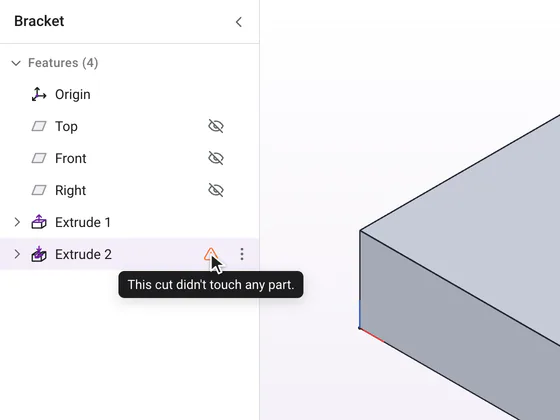
The cut probably went the wrong way or stopped short. Double-click the cut and click Flip direction, or choose Through all. The Cut button starts on Through all, and a cut sketched on a part's face already points into the part. The message This cut didn't touch any part means the cut missed.
What do the orange and red icons in the feature tree mean?
A feature could not build the way it was set up. Point at the icon to read why, then double-click the feature to fix it. Later features still build, so the rest of your project is safe.
I deleted something by accident. Can I get it back?
Yes. Press Ctrl+Z, or Cmd+Z on a Mac, or click the Undo arrow in the purple bar.
Why is my project missing from Open Project?
The list shows projects saved in this browser on this computer. A different browser, a different computer, a private window or cleared browsing data will not have them. If you saved a .trdesign file, click Open a file from your computer and choose it.
What does This browser isn't saving projects right now mean?
The browser is not letting the True Robotics Design Playground store projects, which can happen in a private window or when site storage is turned off. Use Download a copy from the three dots menu to keep your work as a file.
What happens to my work when a new version is ready?
Nothing is lost. The message A new version is ready. waits until you choose: Reload saves everything first and then switches, and Not now lets you keep working until the next time you open the app.
Why does the purple bar say Click to keep saving?
The browser needs your permission again before it writes to your file, which often happens after it restarts. Click the message and allow it.
Why did my file open with (copy) in its name?
This browser already had a newer version of the same project, so the older file opened as a separate copy. That keeps an old download from overwriting newer work.
Why does a file I picked say it is not a project?
The file is not a True Robotics Design Playground project. Open .trdesign and .trassembly files you saved or downloaded from the app. An STL file can't be opened as a project, but it can go into an assembly with Insert.
What does This project was made with a newer version mean?
The project was saved by a newer version of the True Robotics Design Playground than the one on your screen. Reload the page to get the latest version, then open it again. In the installed app, connect to the internet first, then click Reload when A new version is ready. shows.
Where are Export and the units on a phone?
On a phone, the purple bar has room for only a few buttons, so Export and the units, Inches or Centimeters, move into the three dots menu. Undo and Redo move down to the toolbar row next to the part tools.
Why is the Export window empty in my Basic project?
Only solid shapes and groups are exported. If the workplane is empty, drag a shape in first. If everything is a hole, select a shape and pick Solid in the settings panel.
Why do the arrow keys turn the view instead of moving my shape?
In Basic mode the arrow keys move the selected shapes. With nothing selected they turn the view. If you just typed in the settings panel, click the view first so the keys go to your shape.
Why does my project show mm?
It was saved in millimeters with an older version of the True Robotics Design Playground. It opens exactly as it was. Pick Inches or Centimeters from the units button whenever you like, and your part keeps its exact size.
How do I see more of my part while a feature is open?
Feature options open in the panel on the left, so they never cover the 3D view. The feature list hops into the top left corner of the view while a feature is open; click your project name at the top of that list, or press Ctrl+B (Cmd+B on a Mac), to fold it away. Turn, pan and zoom the view as usual.
Why can't I sketch on this face?
Sketches need a flat face or a plane. The curved side of a round part cannot hold a sketch, so pick a flat face or the Top, Front or Right plane instead.
How do I select more than one thing on a tablet?
Hold Shift on the tablet's keyboard while you tap. Without a keyboard, each tap selects one thing, so draw with snaps and typed sizes, which add constraints and dimensions for you.