
Sketching
Sketch Circular Pattern Tool
The Circular pattern tool in the True Robotics Design Playground repeats sketch geometry around a center point. Press U, click what to repeat, and press Enter. Copies appear around the origin, or around a point, circle or arc you click. Set the Count and the Angle in the tool panel, then press Enter. An angle of 360 spaces them evenly all the way around.
- Circular patternShortcut: UCopies around a center, like bolt holes on a wheel or teeth on a gear.
Read what happens in this video
We draw a 2 inch circle on the origin and a 1/4 inch hole to the right of the center. We press U for Circular pattern, click the hole and press Enter, and copies appear around the origin. Typing 6 in the Count box spaces six holes evenly all the way around, and Make 5 copies adds them. A 1/4 inch extrude turns the sketch into a wheel.
The steps in the video:
- Press C for Circle, click the origin, type 2 and press Enter.
- Click to the right of the center, type 1/4 and press Enter.
- Press Esc, then press F to zoom to fit.
- Press U for Circular pattern and click the small circle.
- Press Enter. Copies appear around the origin right away.
- Click the Count box in the tool panel, type 6 and press Enter.
- Click Make 5 copies in the tool panel.
- Click the green check in the tool panel to go back to Select.
- Press Enter to finish. Press Shift + E, type 1/4 and press Enter.
- Click the Home button under the view cube, then press F to zoom to fit.
How do I make holes in a circle?#
Draw the first one In a sketch, draw a 2 inch circle on the origin for a wheel, then a 1/4 inch hole to the right of the center. Press Esc to put the Circle tool away.
Pick the Circular pattern tool Press U or click Circular pattern in the sketch toolbar, right after Linear pattern.
Pick what to repeat Click the small hole, then press Enter or click Next: place the copies. Copies appear right away, spaced evenly around the origin.
Set the count In the tool panel, click Count, type
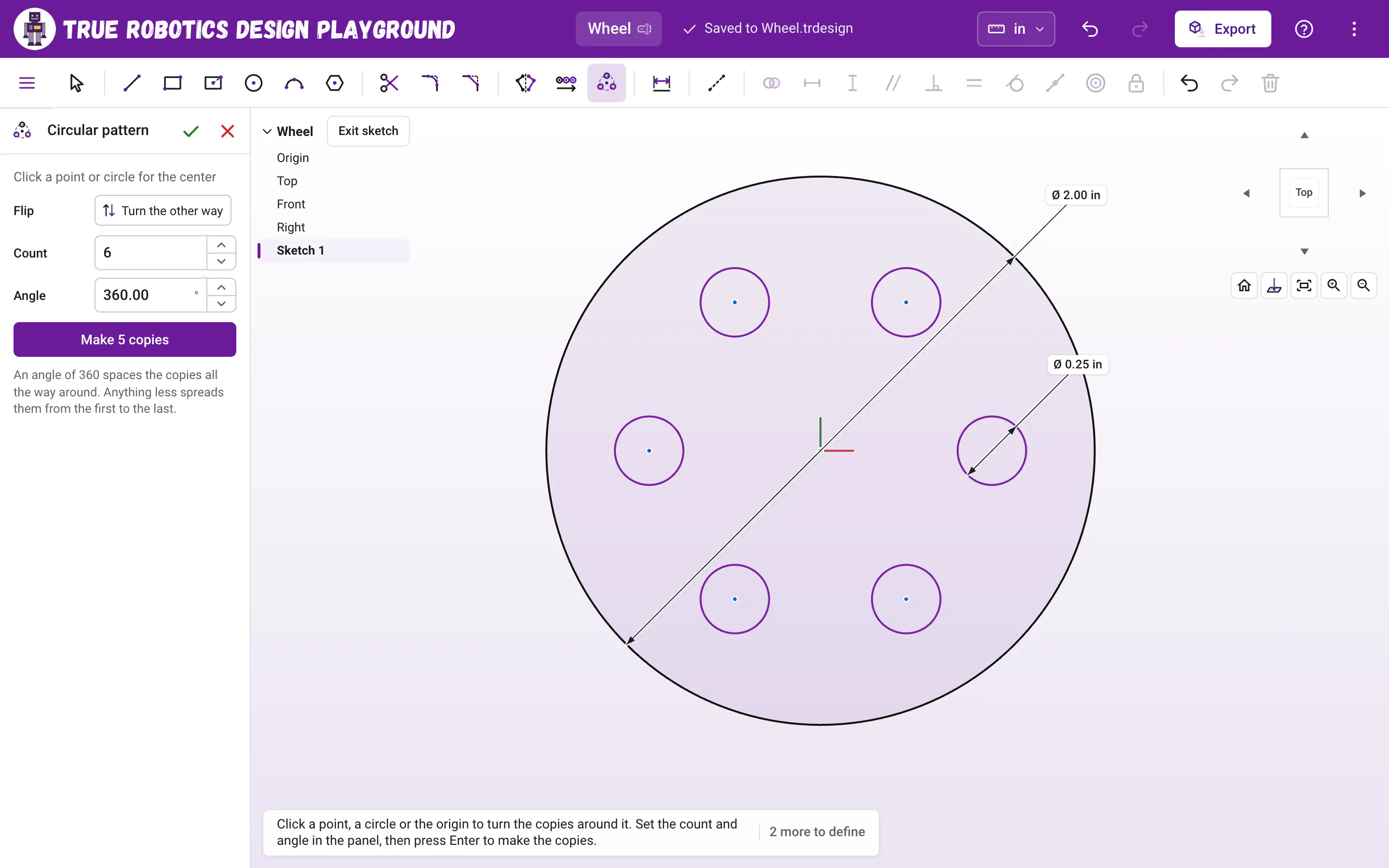
6and press Enter. Now there are six holes in all, 60 degrees apart.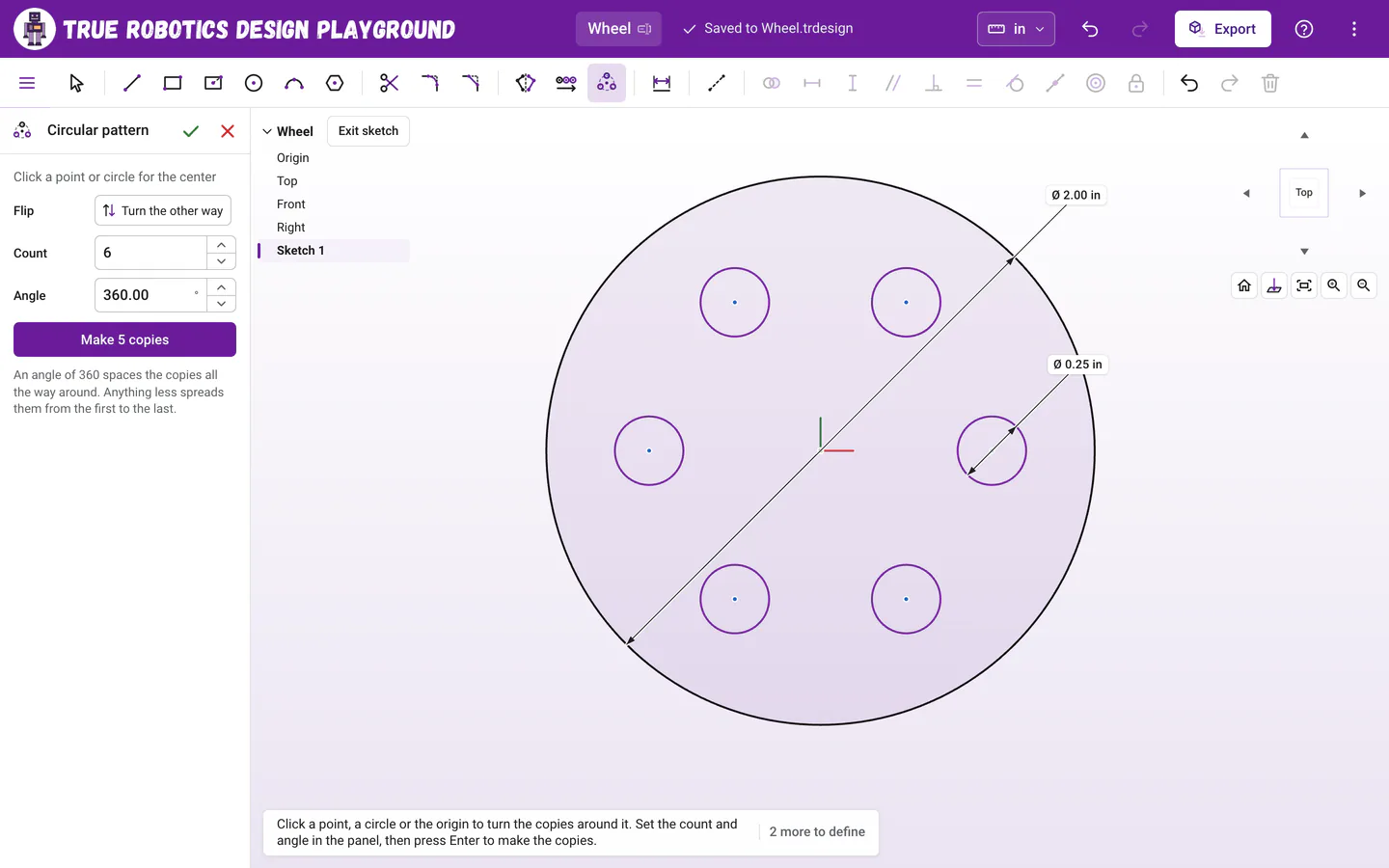
Set the Count, keep the Angle at 360, and the copies space themselves evenly. Pick a different center if you need one The copies turn around the origin to start. To turn them around another spot, click a point, or a circle or arc to use its center.
Make the copies Press Enter or click Make 5 copies in the tool panel.
What do Count and Angle do?#
| Box | What it sets |
|---|---|
| Count | How many in all, the original included, from 2 to 100. It starts at 4. |
| Angle | How far around the copies go, in degrees. It starts at 360. |
| Flip | Turn the other way sends the copies around in the opposite direction. |
An angle of 360 spaces the copies evenly all the way around, so 6 holes land 60 degrees apart. Anything less spreads them from the original to the last copy: a count of 3 with an angle of 90 puts holes at 0, 45 and 90 degrees. The Angle box takes math, so 360/7 works.
How do I change the pattern later?#
- While the tool is still on, type a new Count or Angle and press Enter. The pattern you just made changes, as one undo step.
- Copies stay tied to the original and turn around the same center, so moving or resizing the original moves and resizes them all.
- Press Esc once to let go of the picks, and again to put the tool away. The green check in the tool panel goes back to Select too.
Good to know: In a sketch or on the part?
This tool repeats sketch geometry while you draw. To repeat features that are already built around an axis, like a hole cut through a wheel, use the Circular pattern feature (Shift+O) outside the sketch.
Tip: Put the center on the origin
Center your wheel or hub on the origin and the pattern turns around it with no extra clicks. That also keeps the part centered when you extrude it and put it in an assembly.
Try a circular pattern on a wheel or a gear, and see how quickly a few clicks make a whole ring of holes. For copies in a straight row, use Linear pattern.
Questions and answers#
How do I space holes evenly around a circle?
Press U, click the first hole, press Enter, type how many holes you want in Count and leave the Angle at 360. The copies are spaced evenly all the way around. Press Enter to make them.
Can the pattern turn around something other than the origin?
Yes. After you pick what to repeat and press Enter, click any point, or a circle or arc to use its center. The copies turn around that spot instead.
Why are my copies bunched up on one side?
The Angle is less than 360, so the copies spread from the original to the last one across that angle. Type 360 in the Angle box to space them all the way around.