
Sketching
Corner Rectangle Tool
The Corner rectangle tool in the True Robotics Design Playground draws a rectangle from one corner to the opposite corner. Press G, click the first corner, then click the second, or type the width, press Tab, type the height and press Enter. The four sides always come out level and upright, and the sizes you type become dimensions.
- Corner rectangleShortcut: GThe quickest way to draw plates, blocks and squares. The tool panel calls it Rectangle.
Read what happens in this video
In a sketch on the Top plane, we press G for the Corner rectangle and click the origin. We type 1, press Tab, type 1 and press Enter, and an exact 1 inch square appears in black. Enter finishes the sketch, Shift+E opens Extrude, and a depth of 1 turns the square into a cube.
The steps in the video:
- Press G for the Corner rectangle and click the origin.
- Move up and to the right, type 1, press Tab, type 1 and press Enter.
- Press Enter to finish the sketch.
- Press Shift + E to extrude, type 1 and press Enter.
- Click the Home button under the view cube, then press F to zoom to fit.
How do I draw a rectangle?#
In a sketch, press G or click the Corner rectangle button. The tool panel on the left says Click to place the first corner.
Click the first corner. The origin is a great place for it, because the corner snaps there and stays put.
Move the pointer toward the opposite corner. The tool panel shows the live size, like 3.00 in x 2.00 in.
Click to place the opposite corner, or type the sizes as shown below.
How do I type an exact width and height?#
After the first click, point the way you want the rectangle to grow and type a number. It fills the Width box. Press Tab to jump to Height, type again, and press Enter. The rectangle is placed at exactly those sizes, with a dimension on the bottom and one on the side.
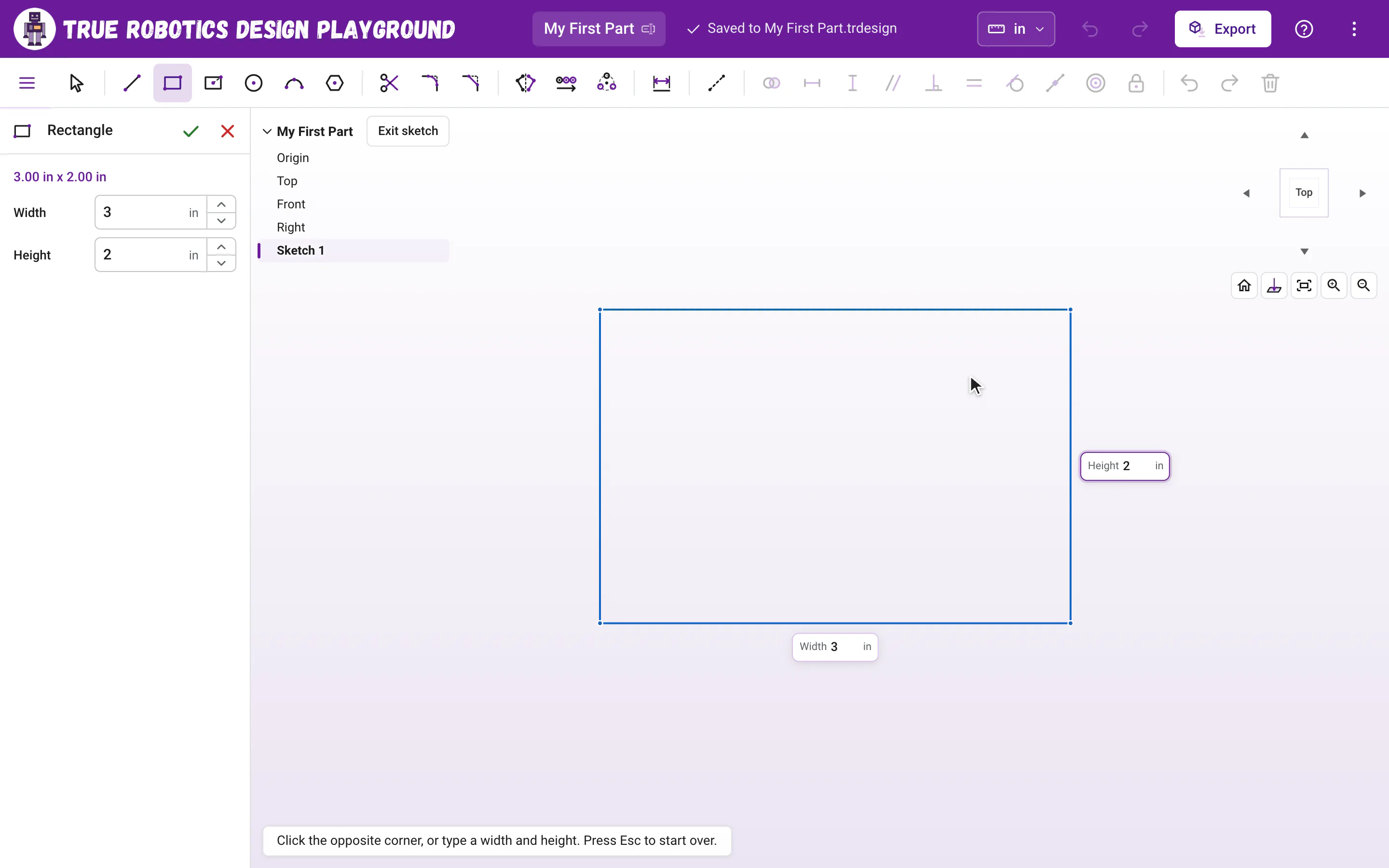
The tool panel on the left has the same Width and Height boxes, with up and down arrows to step the size. After the rectangle is placed, type a new width or height there and press Enter to change the rectangle you just drew. The green check at the top places a rectangle with the sizes you typed and goes back to Select, and the red X drops it.
How do I draw an exact square?#
Type the same number for the width and the height. There is a shortcut too: if you type a width before you move the pointer away from the first corner, the app makes the height match, so you get a square. That is handy on a touch screen, where a tap leaves the pointer on the first corner. For even more ways, see Draw a square four ways.
What constraints does a rectangle come with?#
Every rectangle is four lines that share their corners. The top and bottom get Horizontal constraints and the sides get Vertical ones, so the rectangle stays square at the corners no matter what you drag. A first corner on the origin adds a Coincident constraint, and every size you type adds a dimension. Start on the origin and type both sizes, and your rectangle is fully defined and black right away.
Should I use a corner or a center rectangle?#
| Corner rectangle G | Center rectangle R | |
|---|---|---|
| First click | One corner | The center |
| Second click | The opposite corner | Any corner |
| Typed sizes | Full width and height | Full width and height |
| Best for | Parts that start at a corner, like a plate from the origin | Parts centered on a point, like a symmetric plate |
Ready to make it solid? Finish the sketch with Enter and use Extrude. Your rectangle will be a block in seconds.